
 Doc Summary
Everything you need to know to work with dynamic mail templates
Make communication faster, more consistent, and personalized with Dynamic Email Templates. Whether you’re sending campaign invitations, reminders, or thank-you messages, our templates save you time and reduce errors, all while keeping your message on-brand and on point.
What are dynamic email templates? #
Dynamic Email Templates allow admins to preconfigure reusable email messages for different scenarios, such as invites, reminders, and thank-you emails. These templates include smart placeholders, for example {{campaign-title}}, that automatically fill in details based on the selected campaign, group selection, or other tool.

Video tour #
Where can you use them? #
You can use Dynamic Email Templates in the following areas:
- Campaigns, for example invitation, reminder, and thank-you emails
- Group selections, for example invite to score ideas, reminder, and thank-you emails
- Idea funnels, for example thank-you messages, enrichment requests, and status updates
- Project lanes, for example status updates, congratulations, and notifications
Note: Only users with Admin or Super Admin roles can manage templates.
Useful scenarios by tool #
Campaigns #
- Invite users to join the campaign
- Send a reminder to submit ideas before the deadline
- Thank users who submitted ideas
- Thank users who were active during the campaign
- Share end results of the campaign with all participants
Group selections #
- Invite users to score a set of ideas
- Remind users to complete their scoring
- Thank users for participating
- Share the scoring results or top ideas with all users
Idea funnel #
- Thank users for submitting an idea
- Let users know their idea needs enrichment
- Send a status update, for example that an idea is in review, approved, or denied
Project Lane #
- Congratulate users for starting a new project
- Notify stakeholders of project status updates
- Share when a project is stopped, approved, finished, or put on hold
And many more customizable use cases are possible.
How to create and configure a template #
- Go to Settings → Mail Templates.
- Click Add Template and give it a clear name, for example Campaign Invite – Dutch.
- Choose the template type, for example Campaign Invite or Group Selection Reminder.
- Add your subject line. You can use dynamic fields here too.
- Write your email body using placeholders such as
{{campaign-title}},{{user-first-name}},{{campaign-deadline}}, and{{button-link}}for action buttons. - Optionally add a dynamic button label to create a call-to-action button.
- Choose the language for multi-language support.
- Click Save.
Tip: Use preview mode to check how the email will look before using it.
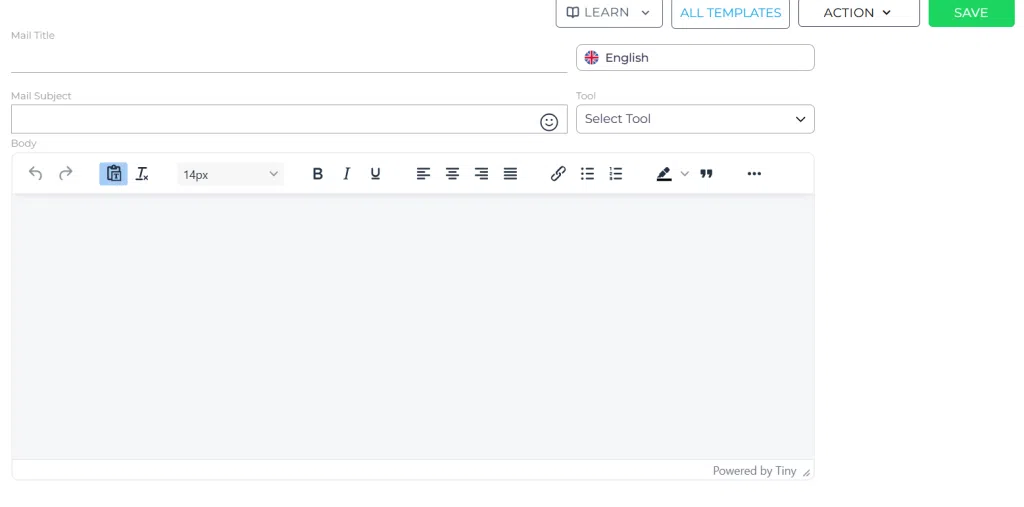
Screenshot: Creating a dynamic mail template.
Description: Show the Add Template form with fields for template name, type, subject line, body, language, and save action.
How to send or schedule campaign emails #
For campaigns, go to Innovation Studio → Idea collecting → Campaigns → Open campaign → Communication. Check the campaign’s Access tab first to confirm the intended audience. The campaign must be live (online) for participants to access it; a Draft campaign cannot be accessed by participants, even when they receive a message or link.
- Start a new communication from the campaign’s Communication tab.
- In New communication, select the intended Users and/or Groups. Users come from the campaign audience.
- Select the relevant campaign mail Template. Prepare personal, relevant wording in the template before using it.
- Choose Send now or Schedule. When scheduling, set the intended sending time.
- Review the audience, selected template, and timing, then select Send communication.
- Check the campaign’s communication history for the status and sent or scheduled time.
Sending campaign communication does not replace access settings. Use Access to manage who can participate, and use Share at the top of the campaign to share it with people. You may also send your own personal message with the campaign link through your usual communication channels. Keep the message personal and explain why participation matters. A shared link does not bypass private access or make a draft campaign live.
See Run a successful idea campaign for the full access, communication, and sharing workflow. Other tools, such as group selections, idea funnels, and projects, may provide different controls for using templates; follow the controls available in the relevant tool.
Dynamic fields available #
Dynamic fields are used to personalize messages. They are always written in lowercase and wrapped with {{ and }}.
User fields #
{{user-first-name}}– First name of the user{{user-last-name}}– Last name of the user{{user-undercover-name}}– Undercover name in campaign{{user-department}}– User’s department{{user-xp}}– Total XP{{user-Mission-xp}}– XP in a Mission{{user-level}}– User’s level
Campaign fields #
{{campaign-title}}– Campaign title{{campaign-description}}– Description{{campaign-items}}– Number of submitted items{{campaign-users}}– Active users{{campaign-input-type}}– Input type{{campaign-deadline}}– Deadline{{campaign-owner}}– Campaign owner{{campaign-nr-1}}to{{campaign-nr-10}}– Top 10 users
Group selection fields #
{{selection-title}}– Title{{selection-description}}– Description{{selection-items}}– Number of ideas{{selection-criteria}}– Criteria count{{selection-owner}}– Owner{{selection-deadline}}– Deadline{{selection-nr-1}}to{{selection-nr-5}}– Top 5 ideas
Funnel fields #
{{funnel-title}}– Funnel title{{funnel-owner}}– Owner{{funnel-lanes}}– Number of lanes{{funnel-items}}– Total items{{funnel-approved}}– Approved items{{funnel-denied}}– Denied items{{funnel-active}}– Active items{{funnel-submitted}}– Submitted items
Funnel Lane fields #
{{funnel-Lane-title}}– Lane title{{funnel-Lane-items}}– Items in Lane{{funnel-Lane-deadline}}– Lane deadline{{funnel-Lane-owner}}– Owner of Lane{{funnel-Lane-status}}– Lane status
Idea fields #
{{idea-title}}– Title{{idea-description}}– Description{{idea-funnel}}– Funnel name{{idea-funnel-Lane}}– Funnel Lane{{idea-owner}}– Owner{{idea-creator}}– Creator{{idea-deadline}}– Deadline{{idea-status}}– Status{{idea-created}}– Date created{{idea-team-members}}– Team members list
FAQs #
Can I edit a template after it’s been used? #
Yes, but changes only affect future emails using that template.
What happens if a dynamic field is empty or unavailable? #
You’ll receive a warning before sending, allowing you to fix it.
Can I send emails without using templates? #
Yes, but templates save time, reduce mistakes, and promote consistency.



 English
 Dutch
Dutch Portuguese
 Spanish
 French
 German
 Arabic