
 Doc Summary
The Accept Mission app for Microsoft Teams lets users interact with ideas and projects without leaving Teams. It brings key Accept Mission functionality into a familiar collaboration environment so users can stay connected to innovation activity during their daily work.
Why this feature is needed #
Many organizations use Microsoft Teams as their main workspace for communication and collaboration. Without an integration, users need to switch between platforms to check ideas, submit input, or review projects.
The Microsoft Teams app reduces that friction by giving users direct access to Accept Mission content inside Teams. It also supports Single Sign-On so users can access the app with less login effort and better security.
What this feature is #
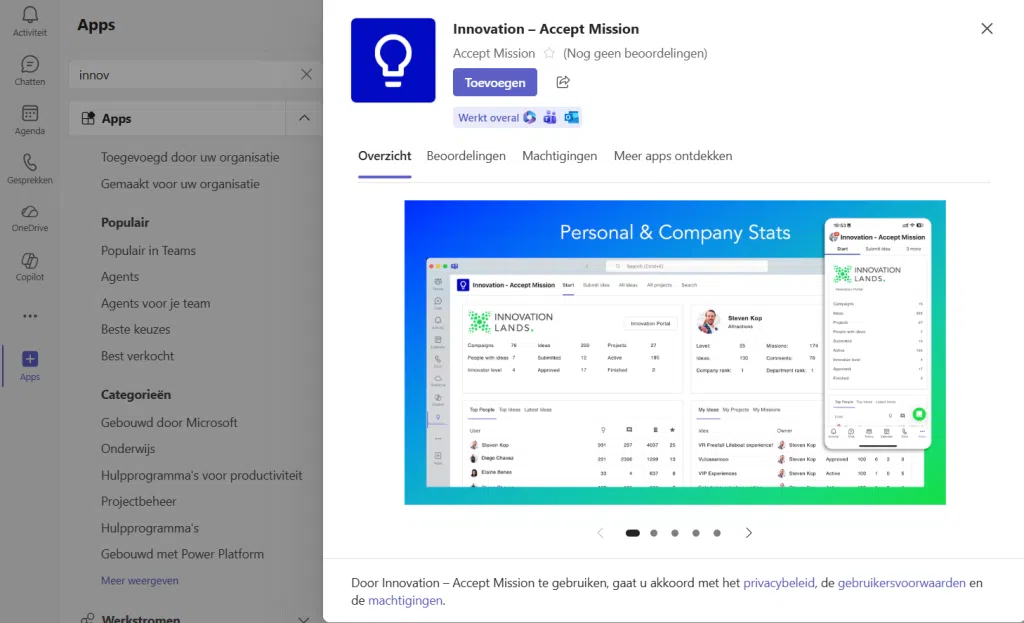
This feature connects Accept Mission to Microsoft Teams through the Accept Mission Teams app. Once installed, users can access company overviews, submit ideas, review all ideas, review all projects, and search across Accept Mission objects from inside Teams.
The app supports individual installation through the Teams marketplace and organization-wide deployment through the Microsoft Teams Admin Center. It also supports Microsoft Single Sign-On for login.
Access level #
Prerequisites:
- The organization must use Microsoft Teams.
- The Accept Mission Teams app must be available in the Microsoft Teams environment.
- Users must have an Accept Mission account or be able to complete access setup after SSO.
- Admins need access to the Microsoft Teams Admin Center for organization-wide deployment.
Navigation path #
Navigation path: Microsoft Teams → Apps → Innovation by Accept Mission
How to use this feature #
The Accept Mission Teams app can be installed by individual users through the Microsoft Teams marketplace or deployed centrally by an organization Admin. After installation, users open the app in Teams and sign in through Microsoft Single Sign-On.
If the platform does not recognize the signed-in user, a landing page appears with the next steps required to continue access setup.
Step by step instructions #
- Open Microsoft Teams.
- Go to the Apps section.
- Search for Innovation by Accept Mission.
- Open the app listing and click Install.
- Open the installed app in Teams.
- Let the app attempt login through Microsoft Single Sign-On.
- If your user account is recognized, continue into the app.
- If your user account is not found, follow the instructions shown on the landing page.
How organization admins can deploy the app #
Admins can make the app available across the organization and optionally pin it for users through Teams setup policies.
- Open the Microsoft Teams Admin Center.
- Go to Teams apps → Manage apps.
- Search for Innovation by Accept Mission.
- Select the app and click Allow to make it available for the organization.
- Go to Teams apps → Setup policies.
- Create a new policy or edit an existing policy.
- Pin the Innovation app in the policy if you want users to see it by default.
- Assign the policy to the relevant users or groups.
Understanding the tabs #
Company overview #
This tab provides a high-level overview of company activity. It can show statistics and highlights such as top ideas, projects, and users.
It also includes a personal overview section where users can see their own contributions and personal statistics.
Submit idea #
This tab allows users to submit a new idea to the company idea box directly from Microsoft Teams. Users complete the idea form and submit it without opening the main Accept Mission environment.
All ideas #
This tab shows a broader overview of ideas in the organization. Users can review submitted ideas and use filters or sorting options to find relevant items.
All projects #
This tab gives visibility into ongoing and completed projects. Users can review project progress, deadlines, and team involvement.
Search #
This tab allows users to search across Accept Mission objects such as ideas, projects, and user profiles.
Configuration and adjustments #
The Teams app depends on both Accept Mission access and Microsoft Teams configuration. For broader rollout, admins should decide whether the app should be made available only on request or pinned for all users through setup policies.
If Single Sign-On does not immediately recognize a user, check whether that user already exists in Accept Mission and whether the Microsoft account matches the expected identity. Organizational rollout should also align with internal access and security policies.
Because this feature is part of the Microsoft Teams integration, configuration may involve both Accept Mission administrators and Microsoft 365 administrators.
Practical example – Innovationlands #
Innovationlands uses Microsoft Teams as the daily collaboration hub for teams across its theme park organization. To make innovation participation easier, the Admin team deploys the Accept Mission Teams app across the company and pins it for employees through a Teams setup policy.
Employees in park operations can open the app in Teams to view company innovation activity, submit new ideas to the idea box, and review projects already in progress. For example, a frontline employee at Innovationlands World submits an idea for improving guest flow near a popular attraction directly through the Submit idea tab in Teams.
Later, innovation managers review that idea in Accept Mission, move it through the idea funnel, and eventually connect it to a project. Because employees can also see ideas and projects through the Teams app, Innovationlands keeps participation close to daily work while preserving structured Decision-making in Accept Mission.



 English
 Dutch
Dutch Portuguese
 Spanish
 French
 German
 Arabic