
 Doc Summary
Departments: Functional Overview and Hierarchy Management #
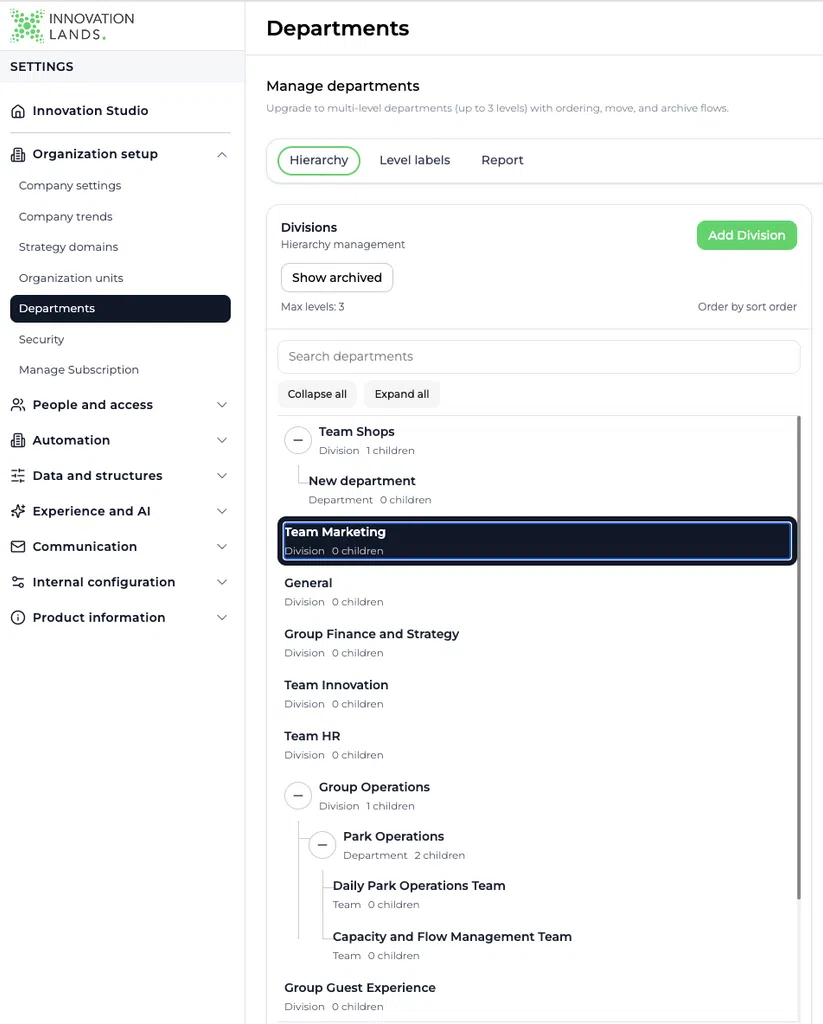
Departments help organizations connect ideas, projects, users, and innovation activity to the teams responsible for leading or contributing to the work. They create a consistent organizational structure for ownership, collaboration, filtering, and reporting across Accept Mission.
A department structure can contain up to three levels. Organizations can customize the label for each level and connect departments to an Organization Unit when needed.
Why this feature is needed #
Innovation rarely belongs to only one team. One department may lead an idea or project while several other departments provide knowledge, resources, implementation support, or Decision-making authority.
Without structured department data, organizations may struggle to answer questions such as:
- Which department is responsible for moving an idea forward?
- Which departments are participating in a project?
- Where does most innovation activity originate?
- Which teams collaborate most often?
- Which departments have many ideas but few active projects?
- How should dashboards and reports be filtered by organizational responsibility?
Departments provide a consistent way to record both ownership and participation.
What Departments enable #
Departments can be used to:
- Build a department hierarchy with up to three levels
- Customize the name of each hierarchy level
- Connect departments to an Organization Unit
- Assign an optional Lead department to an idea or project
- Assign multiple Participating departments
- Prevent the Lead department from being selected twice
- Connect users to departments
- Filter ideas, projects, dashboards, and reports
- Review direct and rolled-up activity across the hierarchy
- Move, merge, archive, and restore departments
- Clarify responsibility without hiding cross-department collaboration
How the department hierarchy works #
Departments support a maximum of three hierarchical levels.
A common structure is:
- Group department
- Department
- Team
Other examples include:
- Division > Department > Team
- Directorate > Business Unit > Department
- Faculty > School > Team
- Service Area > Department > Unit
- Region > Department > Local Team
Organizations should use labels that are already understood internally. The hierarchy should represent operational responsibility, not strategic alignment.
Ideas and projects can be connected to a department within the hierarchy. When reports use rolled-up totals, activity connected to a lower level also contributes to the totals of its parent departments.
Configure department level labels #
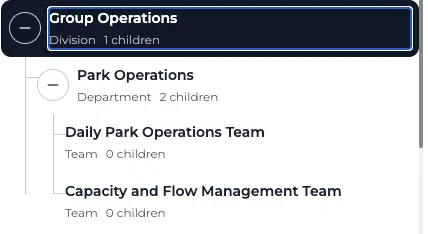
Admins can define the terminology shown for each hierarchy level.
Go to:
Innovation Studio > Settings > Organization Setup > Departments > Level labels
Enter the preferred label for Level 1, Level 2, and Level 3. Keep the terminology consistent with the organizational language used in internal communication and reporting.
Create and manage departments #
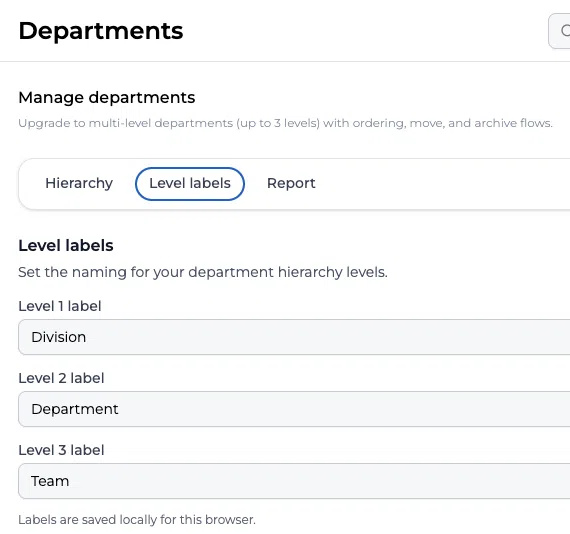
Go to:
Innovation Studio > Settings > Organization Setup > Departments > Hierarchy
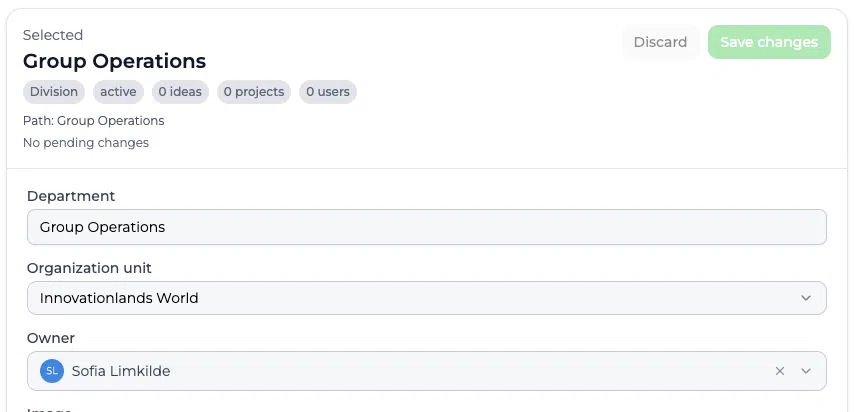
From the hierarchy screen, admins can create and maintain the department structure.
Create a top-level department #
- Select Add for the top hierarchy level.
- Enter the department name.
- Assign an owner when relevant.
- Connect the department to an Organization Unit when needed.
- Add any available descriptive information.
- Save the changes.
Add child and sibling departments #
Use Child to create a department underneath an existing department.
Use Sibling to create a department at the same level as the selected department.
The complete hierarchy cannot exceed three levels.
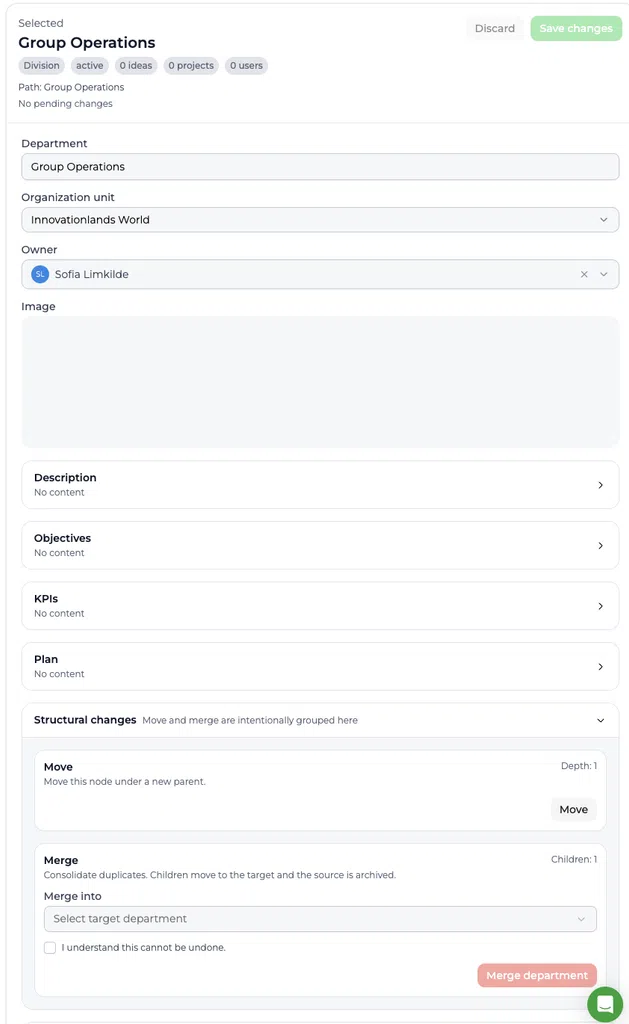
Move departments #
A department can be moved to another valid position in the hierarchy. Check the new parent carefully before confirming the change because moving a department changes how its activity is rolled up in reports.
Merge duplicate departments #
Merge departments when duplicate records represent the same organizational team. Related children and connections are transferred according to the merge behavior shown in the application.
Merging cannot be undone. Confirm the target department before completing the merge.
Archive departments #
Archive a department when it should no longer be available for new selections. Archived departments can be reviewed by using Show archived and can be restored when necessary.
Archiving is generally safer than deleting organizational history.
Lead department and Participating departments #
Every idea and project contains two separate department fields:
| Field | Selection | Purpose |
|---|---|---|
| Lead department | Optional single select | Identifies the one department primarily responsible for leading the idea or project |
| Participating departments | Optional multi select | Identifies the additional departments contributing to the idea or project |
These fields separate accountability from collaboration.
Lead department #
The Lead department is optional. When selected, it should represent the department with primary responsibility for coordinating, progressing, or delivering the item.
Only one Lead department can be selected.
A useful Decision question is:
Which department is accountable for making sure this idea or project moves forward?
Participating departments #
Participating departments is a multi-select field. It records other departments that actively contribute expertise, capacity, implementation support, funding, validation, or Decision-making.
An idea or project can contain multiple Participating departments.
Preventing duplicate department roles #
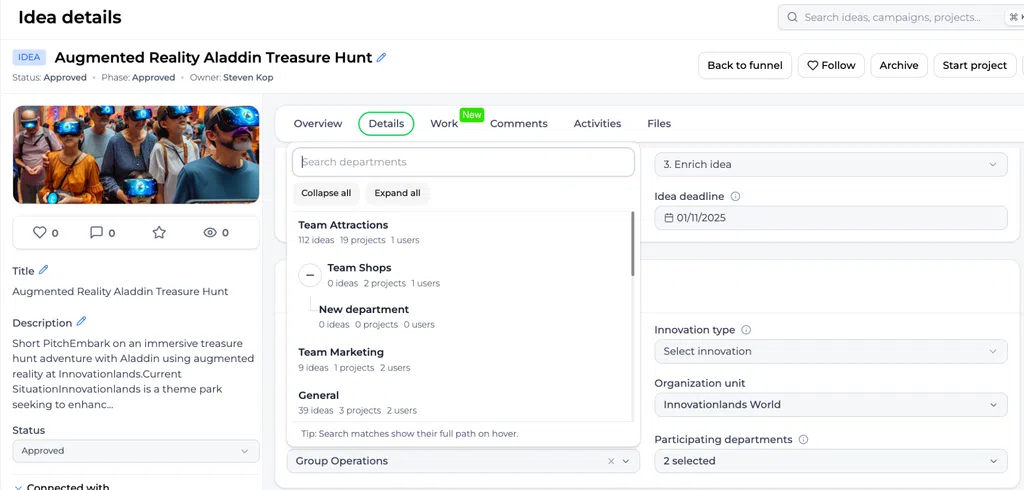
The selected Lead department cannot also be selected as a Participating department. It is shown as disabled in the Participating departments selector and is marked as the Lead department.
This prevents duplicate classification and keeps reporting understandable.
If the Lead department changes, review the Participating departments to ensure the new division of responsibility is still correct.
Assign departments to an idea #
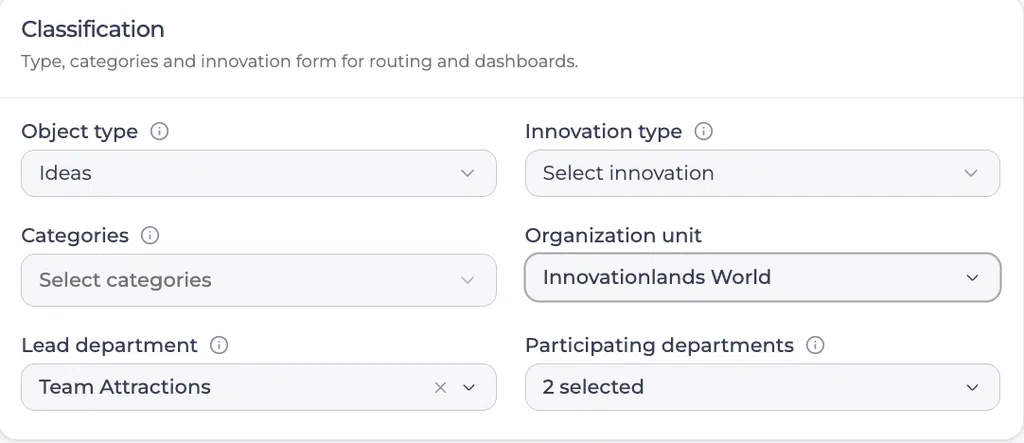
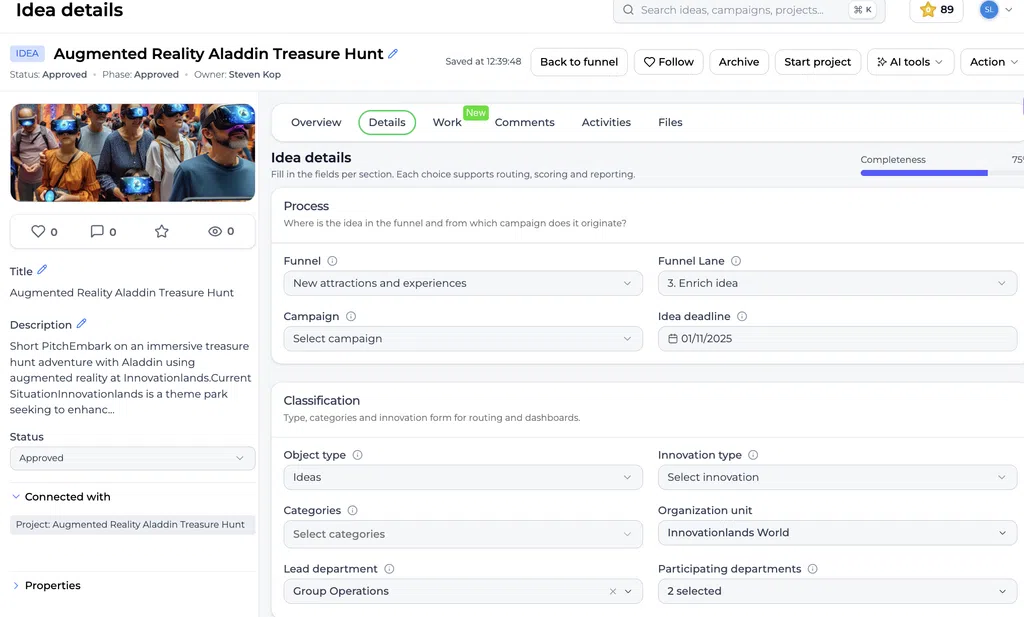
Open an idea in an Innovation Studio funnel and select the Details tab. Find the Classification section.
To classify the idea:
- Select an Organization Unit when relevant.
- Select one optional Lead department.
- Open Participating departments.
- Search or browse the hierarchy.
- Select every additional department that has a meaningful role.
- Review the final classification.
The department selectors show the hierarchy and can display contextual counts for ideas, projects, and users. Search results can also show their full hierarchy path.
Do not add departments simply because they may be affected by an idea. Participating departments should represent teams with an actual role in developing, evaluating, implementing, or supporting the item.
Assign departments to a project #
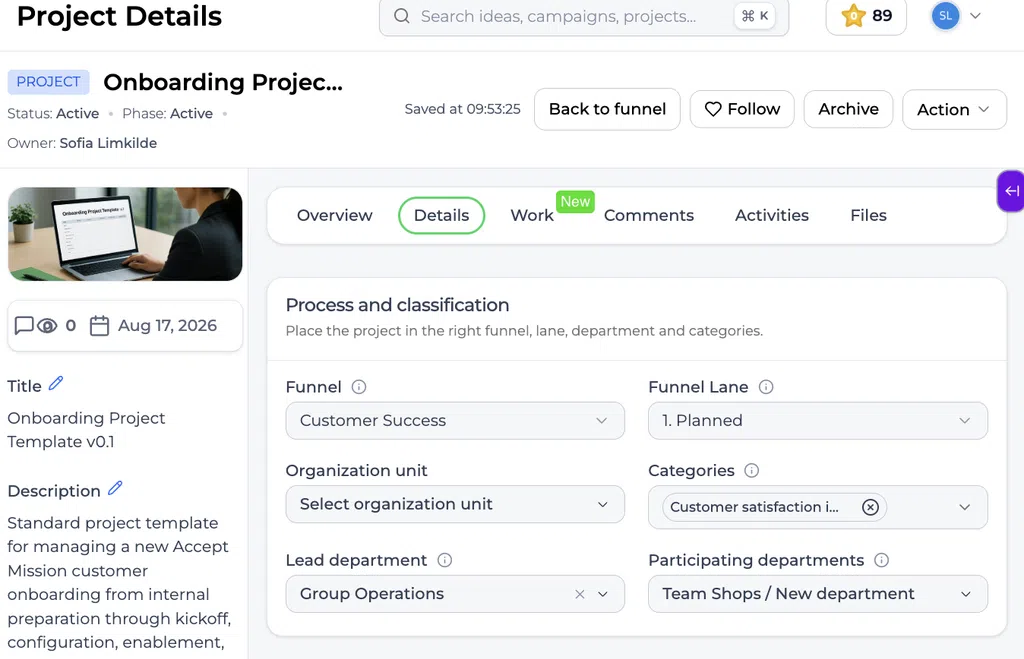
Projects use the same responsibility model:
- One optional Lead department
- Multiple optional Participating departments
- No duplication between the two roles
The Lead department normally owns coordination and delivery. Participating departments represent the teams providing people, expertise, implementation support, or other contributions.
Using the same model for ideas and projects preserves responsibility when an approved idea progresses into execution. Review the fields when starting a project because project ownership may differ from the department that originally led the idea.
Departments and Organization Units #
Organization Units and Departments serve related but different purposes.
An Organization Unit defines where an idea or project belongs from a broader business ownership perspective. A Department identifies the operational team that leads or participates in the work.
Departments can be connected to an Organization Unit. This helps organizations manage department structures within different companies, divisions, regions, business units, or other major organizational entities.
When only one Organization Unit exists #
When the system contains exactly one Organization Unit, it is selected automatically. Users do not need to make an unnecessary choice.
When multiple Organization Units exist #
When multiple Organization Units are available, the user may select the relevant Organization Unit. The field may also be left empty.
Selecting an Organization Unit can help users work with the appropriate connected department structure. Leaving the field empty is valid when an idea or project does not yet belong to a specific Organization Unit or when that level of classification is not required.
The exact governance rule should be defined by the organization. Automatic selection is a convenience, not a replacement for reviewing whether the classification is correct.
Reporting across departments #
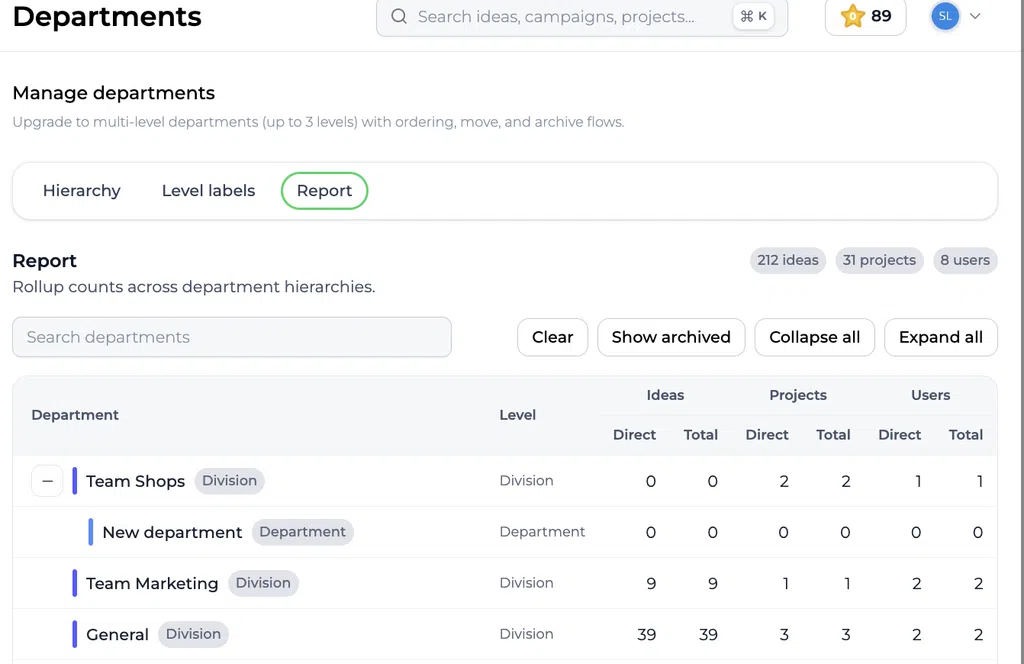
The Report tab provides hierarchical reporting across departments.
Depending on the available data, the report can show:
- Ideas assigned directly to a department
- Total ideas including child departments
- Projects assigned directly to a department
- Total projects including child departments
- Users connected directly to a department
- Total users including child departments
Direct versus total #
Direct shows the items connected specifically to the selected department.
Total includes the selected department and activity from its child departments.
For example, if a project is assigned to Digital Support, it can contribute to the total for its parent Customer Service and the higher-level Operations division.
This distinction helps managers compare local responsibility with the combined activity of a broader organizational area.
Practical examples #
Example 1: Customer portal improvement #
A company has this structure:
- Operations
- Customer Service
- Digital Support
An idea to improve the customer portal is led by Digital Support. IT Development and Marketing participate because they provide the implementation and customer communication expertise.
Classification:
- Lead department: Digital Support
- Participating departments: IT Development, Marketing
The distinction shows who coordinates the idea and which teams contribute.
Example 2: Sustainability project #
A manufacturing project to reduce packaging waste is led by Operations. Procurement, Product Development, and Sustainability participate.
Classification:
- Lead department: Operations
- Participating departments: Procurement, Product Development, Sustainability
Portfolio reporting can now show the project under the accountable department while preserving its cross-functional nature.
Example 3: University learning innovation #
A university pilots a new digital learning method.
Classification:
- Organization Unit: Faculty of Business
- Lead department: Learning Innovation
- Participating departments: IT Services, Student Support, Teaching Team
The Organization Unit shows where the project belongs. The department fields clarify accountability and collaboration.
Example 4: Idea without a confirmed owner #
An employee submits an early idea that has not yet been reviewed.
Classification:
- Organization Unit: Empty
- Lead department: Empty
- Participating departments: Empty
This is valid because the fields are optional. During triage, the innovation team can identify the correct organizational ownership and complete the classification later.
Recommended setup approach #
Before introducing the department structure:
- Decide what each hierarchy level represents.
- Use terminology already understood by users.
- Determine when an Organization Unit should be selected.
- Explain the difference between Lead and Participating departments.
- Define who may create or change departments.
- Test the hierarchy with real ideas, projects, and users.
- Review direct and total reporting.
- Remove duplicates before broad adoption.
- Archive outdated departments when the organization changes.
- Review department ownership during portfolio meetings.
Avoid creating a hierarchy that reproduces every temporary team or reporting line. The structure should be stable enough to support meaningful analysis.
Departments compared with related structures #
| Structure | Main purpose |
|---|---|
| Organization Units | Represent broader business ownership or organizational entities |
| Departments | Record operational responsibility and participation |
| Strategic Domains | Connect ideas and projects to strategic direction |
| Categories | Group items by topic for filtering and discovery |
| Funnels | Manage the workflow through which ideas or projects progress |
| Teams on an item | Identify the individual people involved in the work |
These structures may complement one another, but they should not be treated as interchangeable.
Governance and maintenance #
A reliable department structure requires regular maintenance.
Recommended practices include:
- Assign a responsible owner where useful
- Keep names consistent with organizational terminology
- Prevent duplicate departments
- Review whether Lead departments reflect actual accountability
- Use Participating departments only for meaningful contributors
- Check Organization Unit connections after reorganizations
- Archive outdated departments
- Review the effect of moves and merges on reporting
- Explain classification rules during onboarding
- Periodically review items without a Lead department
Related articles #
- Organization Units: Functional Overview and Hierarchy Management
- Strategic Domains: Functional Overview
- How to manage categories for your company
- Innovation dashboard overview
Summary #
Departments connect innovation work to the operational teams responsible for leading and contributing to it. Accept Mission supports a flexible three-level hierarchy, optional Organization Unit relationships, one optional Lead department, and multiple optional Participating departments for both ideas and projects.
The Lead department provides clear accountability. Participating departments preserve cross-functional collaboration. Preventing the Lead department from also being selected as a participant keeps classification and reporting clean.
When departments are configured consistently, organizations gain clearer ownership, stronger collaboration insights, and more reliable reporting across their innovation portfolio.



 English
 Dutch
Dutch Portuguese
 Spanish
 French
 German
 Arabic