
 Doc Summary
The Properties tab in funnel management lets admins decide which additional fields are connected to a specific funnel. These fields help users capture extra information on idea or project cards beyond the standard fields shown on the main form.
Why this feature is needed #
Standard fields such as title and description are not always enough to evaluate and compare ideas or projects properly. Many organizations need extra fields to capture information such as Risk, complexity, expected lead time, required expertise, feasibility, or implementation details.
The Properties tab helps solve this by letting admins select the most relevant additional fields for a funnel. This makes data collection more structured and gives users better information for comparison, reporting, and Decision-making.
What this feature is #
The Properties tab is part of funnel management in Application Settings. It defines which properties are connected to a specific funnel and appear in the item detail view.
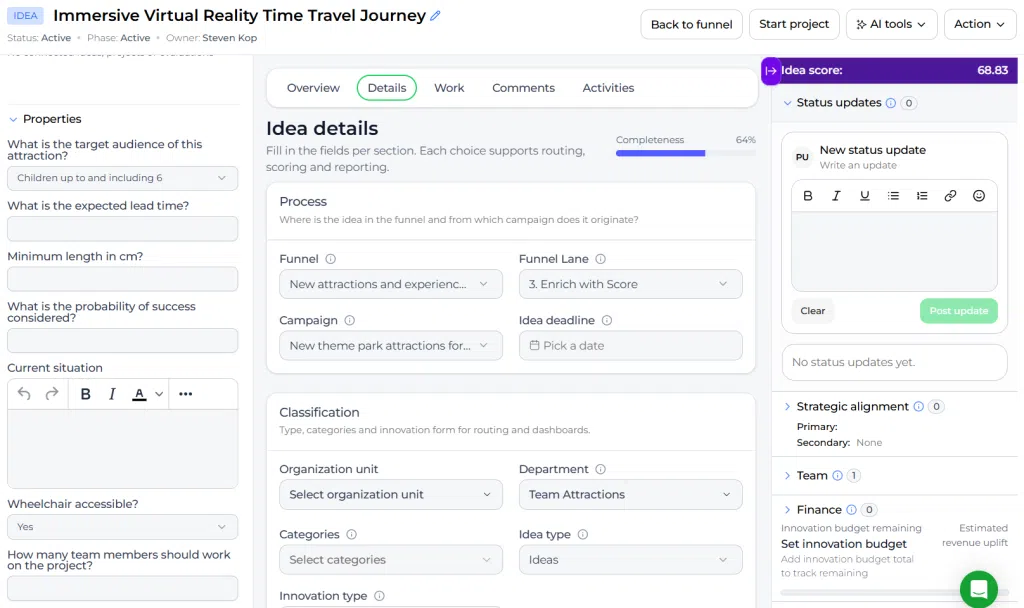
In your broader application settings, you can create all available properties. In the Properties tab, you then choose which of those properties should be used in this funnel. Based on the interface shown, these selected fields appear on the right side of the item to capture extra data and context.
Properties can use different field types, such as dropdowns, text fields, number fields, percentages, dates, times, and other supported formats. This makes the tab useful for both idea and project funnels that need more structured detail.
Rich text properties and tooltips #
Property configuration now supports rich text for Property content and for the Description (tooltip) field. Administrators can use formatting and links to explain what a Property means and how users should complete it.
Example Property value: A rich text Property named Customer Problem could contain a short Problem statement followed by a bulleted list of affected user groups and a link to supporting research.
Example tooltip: For Feasibility, add guidance such as: “Describe the main technical, operational, or regulatory constraints. Link to the relevant feasibility checklist so reviewers use the same standard.”
Keep tooltips short and action-oriented. Rich text is best for descriptive fields and guidance; use structured field types for values that need consistent comparison.
Access level #
Prerequisites:
- The user must have Admin access to Application Settings.
- The funnel must already exist.
- Relevant properties must already be available in the environment.
- The user must have permission to edit funnel configuration.
Navigation path #
Navigation path: Application Settings → Funnel configuration → Open funnel → Properties
How to use this feature #
The Properties tab is used to connect additional fields to a funnel. These fields are not the main form fields on the first page. Instead, they provide extra structure and context in the item detail view.
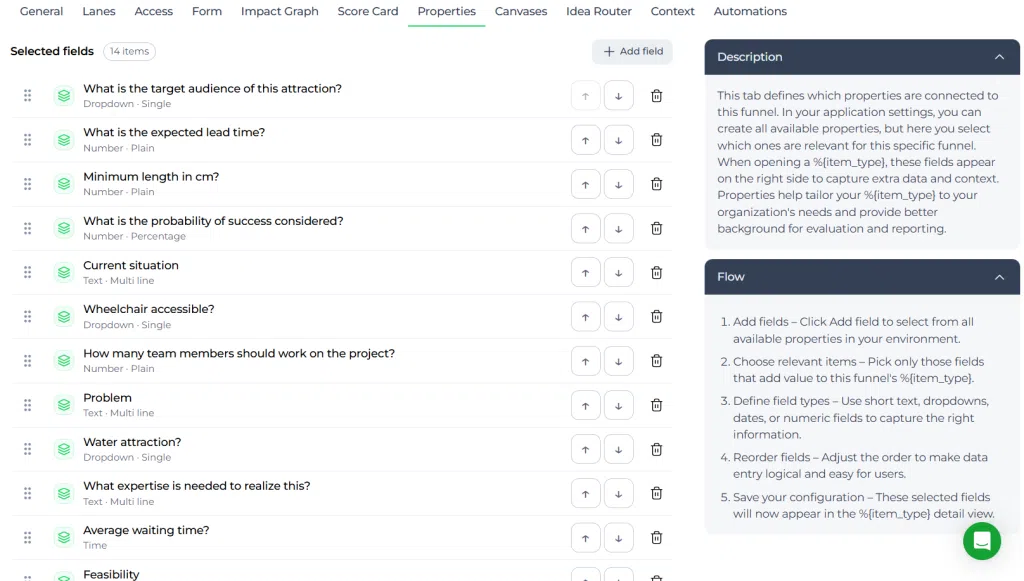
Each selected Property appears in a list. For every Property, you can review the field label and field type, change the display order, or remove the Property from the funnel. You can also add another Property by clicking Add field.
Step by step instructions #
- Open Application Settings.
- Go to Funnel configuration.
- Open the funnel you want to edit.
- Click the Properties tab.
- Review the list of selected properties already connected to the funnel.
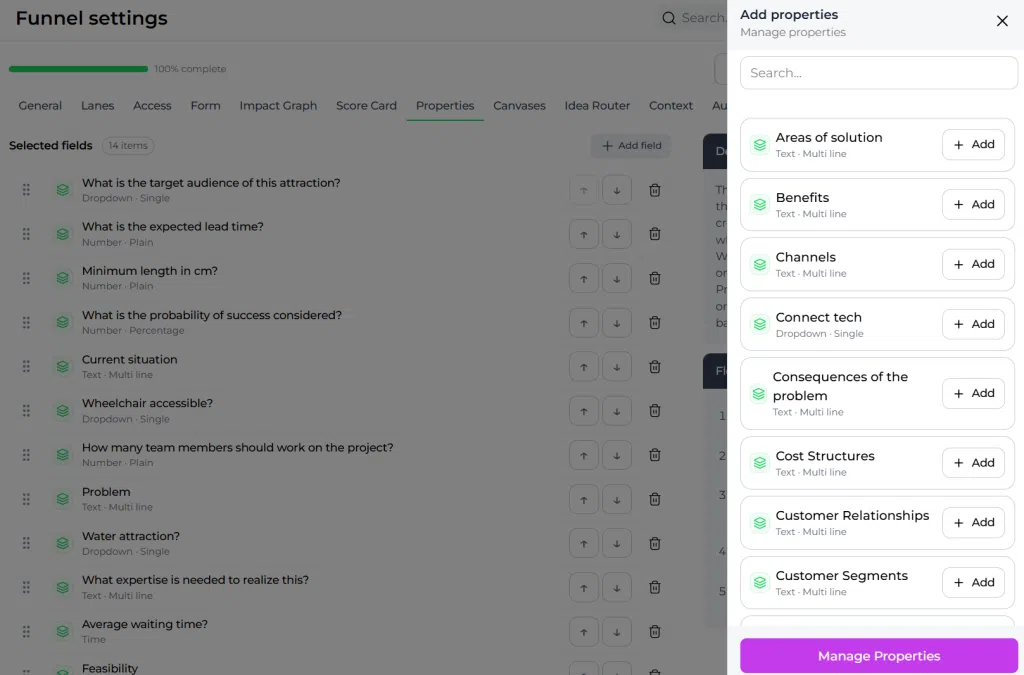
- Click Add field to include another available Property.
- Select the properties that are relevant for this funnel.
- Use the move controls to change the order of the selected properties.
- Remove a Property if it should no longer appear in the funnel.
- Save the funnel configuration.
What you can configure in the properties tab #
Selected fields #
The main list shows which properties are currently connected to the funnel. In the example shown, the funnel includes fields such as What is the target audience of this attraction?, What is the expected lead time?, Minimum length in cm?, Current situation, Wheelchair accessible?, Problem, Average waiting time?, and Feasibility.
This list determines which additional data points users can work with in the item detail view.
Field types #
Each Property also shows its field type. In the example shown, the funnel uses several different types, including Dropdown · Single, Number · Plain, Number · Percentage, Text · Multi line, and Time.
This allows the funnel to capture different kinds of information in a structured format.
Add and remove properties #
The Add field button allows you to select from all available properties in your environment. This helps you tailor each funnel to its specific purpose.
If a Property is no longer relevant, you can remove it from the selected list for that funnel.
Reorder properties #
You can change the order of the selected properties using the move controls. Reordering helps present the most important fields first and makes the detail view easier for users to complete.
Common examples of properties #
Properties can be used to capture many types of extra information for idea and project cards. Common examples include:
- Risk level such as low, medium, or high
- Complexity or project size
- Whether external input is required
- Which manager or department must approve the item
- Approval status
- Implementation date or time
- Project hours spent
- Problem description
- Critical success factors
- Necessary steps in the process
These examples show how properties can support richer comparison and better-informed evaluation.
How properties are used in item detail views #
Once selected in the funnel, these properties appear in the item detail view so users can enter and manage the requested information. The guidance shown in the interface explains that these fields appear on the right side to capture extra data and context.
This means the Properties tab controls which additional fields are available when users work on ideas or projects in that funnel.
How properties support comparison and reporting #
Properties help organizations collect structured data that can later be reviewed across multiple items. This makes it easier to compare records and understand differences in Risk, feasibility, timing, audience, or other important dimensions.
Because the data is structured by field type, it is also easier to sort, compare, and report on the information collected through the funnel.
Guidance shown in the properties tab #
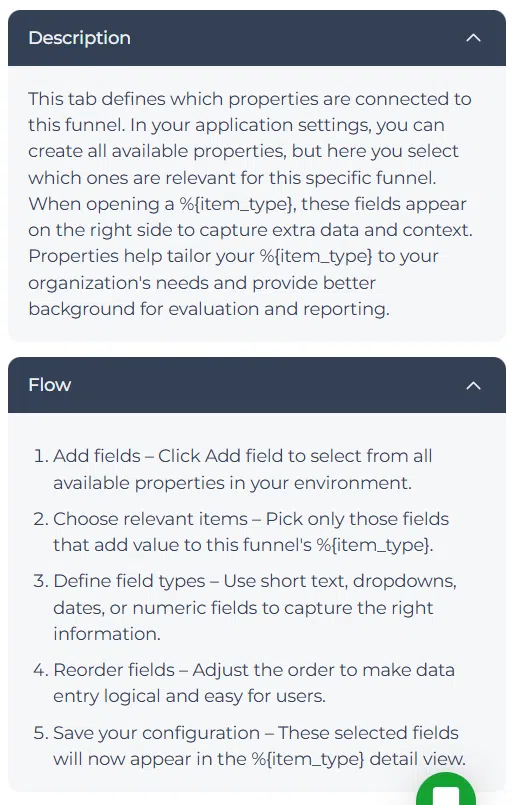
The interface includes a description panel that explains the purpose of the tab. It states that the tab defines which properties are connected to the funnel and that, in application settings, you can create all available properties while selecting only the relevant ones here for this specific funnel.
The flow guidance on the right also outlines the setup process:
- Add fields.
- Choose relevant items.
- Define field types.
- Reorder fields.
- Save the configuration.
This guidance helps admins build a practical field setup for the funnel.
Configuration and adjustments #
The Properties tab should be reviewed whenever a funnel needs extra data for better evaluation, filtering, or reporting. The right setup depends on the kind of items in the funnel and the information Decision-makers need.
When adjusting the properties setup, consider the following:
- Only include properties that add clear value for this funnel.
- Use field types that match the kind of data users should enter.
- Keep the order practical and easy to follow.
- Review old properties if they are no longer being used consistently.
- Align the Property set with the evaluation and reporting goals of the funnel.
Because these fields affect the detail view for all items in the funnel, changes should be made with care.
Practical example – Innovationlands #
Innovationlands uses a funnel to evaluate new attraction concepts across its theme park organization. The Admin team selects properties that help reviewers compare proposals in a more structured way. These include expected lead time, target audience, wheelchair accessibility, feasibility, average waiting time, and the expertise needed to realize the concept.
When a new attraction idea enters the funnel, users can complete these additional properties in the item detail view. This gives the innovation board more than just a title and description. It provides practical data about operational fit, audience relevance, accessibility, and implementation effort.
As a result, Innovationlands can compare ideas more consistently, support better scoring discussions, and build a stronger basis for deciding which ideas should move forward toward deeper validation or project transition.
Related article #
For more information about funnel management, go to funnel management.



 English
 Dutch
Dutch Portuguese
 Spanish
 French
 German
 Arabic