
 Doc Summary
Why this feature is needed #
User roles define what each person can do inside Accept Mission. They help separate participation from administration, so contributors can focus on ideas and collaboration while administrators manage workflows, settings, and governance.
Understanding user roles is important when inviting people, assigning responsibilities, and controlling access to platform features. It also helps organizations decide who should work in the Innovation Portal and who should work in the Innovation Studio.
What this feature is #
Accept Mission uses roles to control access and responsibilities across the platform. Every user in the system has a role. By default, most internal users are assigned the User role when they are added manually or through Single Sign On.
The main roles are User, Guest user, Admin, and Super Admin. These roles determine whether someone can participate in missions, manage innovation workflows, or change platform configuration.
Normal users and guest users mainly work in the participant environment of the platform. Admins and Super Admins work more often in the Innovation Studio, where funnels, ideas, missions, selections, and projects are managed.
Access level #
You need sufficient permissions to change another user’s role. If a role is not available in the role list, you do not have permission to assign it.
Navigation path #
Navigation path: Innovation Studio → Settings → User management
How to use this feature #
User roles should be assigned based on the responsibilities of each person. Internal contributors usually remain standard users, while external collaborators are treated as guest users. Admins manage innovation activities, and Super Admins manage broader platform configuration and high-level access control.
Before changing a role, confirm that the user needs the permissions connected to that role. This helps prevent unnecessary access to administrative or configuration features.
Step by step instructions #
- Open Innovation Studio.
- Go to Settings.
- Select User management.
- Open the user record you want to update.
- Find the User role field.
- Select the required role from the list.
- Save the user record.
- If the required role is not visible, contact a Super Admin for help.
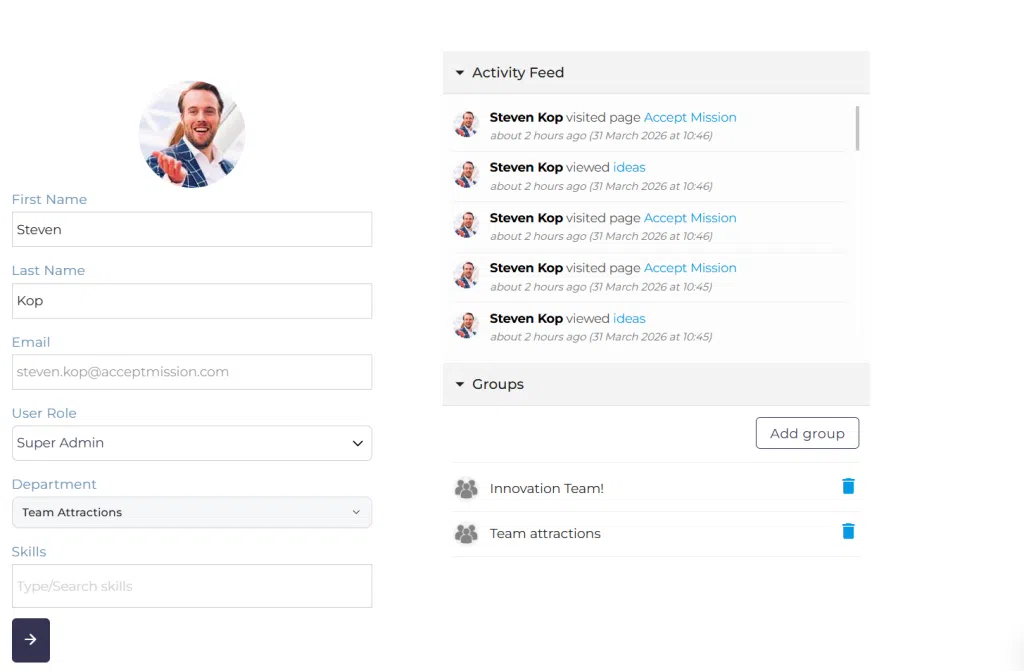
Screenshot: Changing a user role in user management.
Description: The User management screen with a user profile open, showing the User role field and the available role options.
User roles #
User #
This is the default role for standard internal users added manually or through Single Sign On. Users can participate in idea missions, be assigned to ideas or projects as team members, and take part in selections.
Guest user #
This role is used for external users whose email domain does not match your company domain. For example, if your company domain is example.com and you invite someone from xyz.com, that person becomes a guest user.
Guest users can only participate in missions, selections, and similar activities when they are explicitly added to the access list.
Admin #
Admins are the operational managers of the platform. They can create and manage missions, funnels, selections, projects, and related innovation activities.
Super Admin #
Super Admins have the highest configuration authority in the platform. They can manage software configuration for specific elements and assign other users to the Super Admin role. Super Admins also have access to all missions, funnels, and related management areas.
Configuration and adjustments #
Roles are managed in Innovation Studio → Settings → User management. Changes to user roles affect what the user can access and manage across the platform.
If the role you want to assign does not appear in the list, your account does not have permission to assign it. In that case, a Super Admin must complete the change.
Guest user behavior is also influenced by domain and access control logic. External users only gain guest access when their email address belongs to a different domain than the company domain, and they still need to be added to relevant access lists to participate.
Practical example – Innovationlands #
Innovationlands uses Accept Mission across several parks and departments. Most employees who submit and discuss new attraction ideas are assigned the User role, because they mainly participate in missions and selections.
When Innovationlands invites an external ride design partner from designpartner.com, that person is added as a Guest user. The partner can only join a Mission selection after being added to the access list for that activity.
The park innovation lead is assigned the Admin role so they can create funnels, manage selections, and coordinate idea reviews in the Innovation Studio. A central platform owner at group level has the Super Admin role to manage broader configuration and assign high-level permissions when needed.
This role structure helps Innovationlands keep participation open where needed while maintaining controlled governance over platform setup and Decision-making.



 English
 Dutch
Dutch Portuguese
 Spanish
 French
 German
 Arabic