
 Doc Summary
Why this feature is needed #
Innovation projects often involve multiple tasks, phases, and contributors. Without time tracking, it becomes harder to understand how much effort has been spent, how much time is still available, and whether the project is staying within its expected planning.
Time tracking helps project teams monitor effort more clearly, improve planning, and create better visibility into project progress. It also supports reporting and helps teams use time data to improve future project estimates.
What this feature is #
Time tracking in Accept Mission is a project-level feature that helps users assign total project time, register spent time on tasks, and monitor how much time has been used and how much time remains.
The feature connects project-level time planning with task-level execution. A total time value can be assigned to the project, while task records can store both spent time and estimated time. The project time tracker then uses this information to calculate time usage and remaining time.
Time tracking data is also available in reporting and can be used through the OData connector for more advanced analysis in Power BI.
Access level #
You need access to the relevant project in the Innovation Studio to track time. Access to reporting or external reporting tools may depend on additional permissions.
Navigation path #
Navigation path: Innovation Studio → Projects → Open project
How to use this feature #
Time tracking works on two levels. First, you assign the total available time for the project. Then, you track time on individual tasks so the project can show how much effort has already been used and how much time remains.
This helps teams monitor project workload more accurately and keeps execution connected to realistic time expectations.
Step by step instructions #
- Open Innovation Studio.
- Go to Projects.
- Open the project you want to manage.
- In the Admin block on the right side, enter the total time connected to the project.
- Open the Tasks tab.
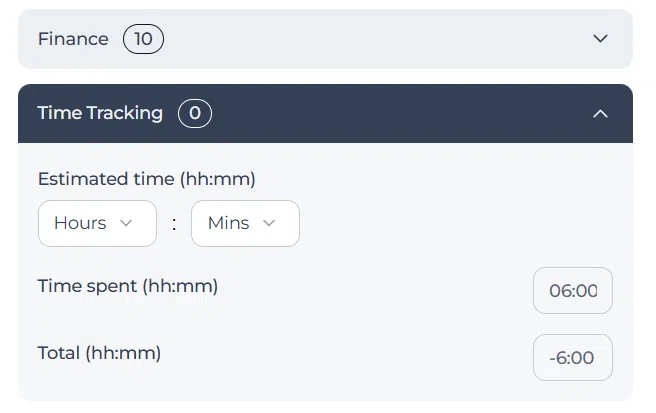
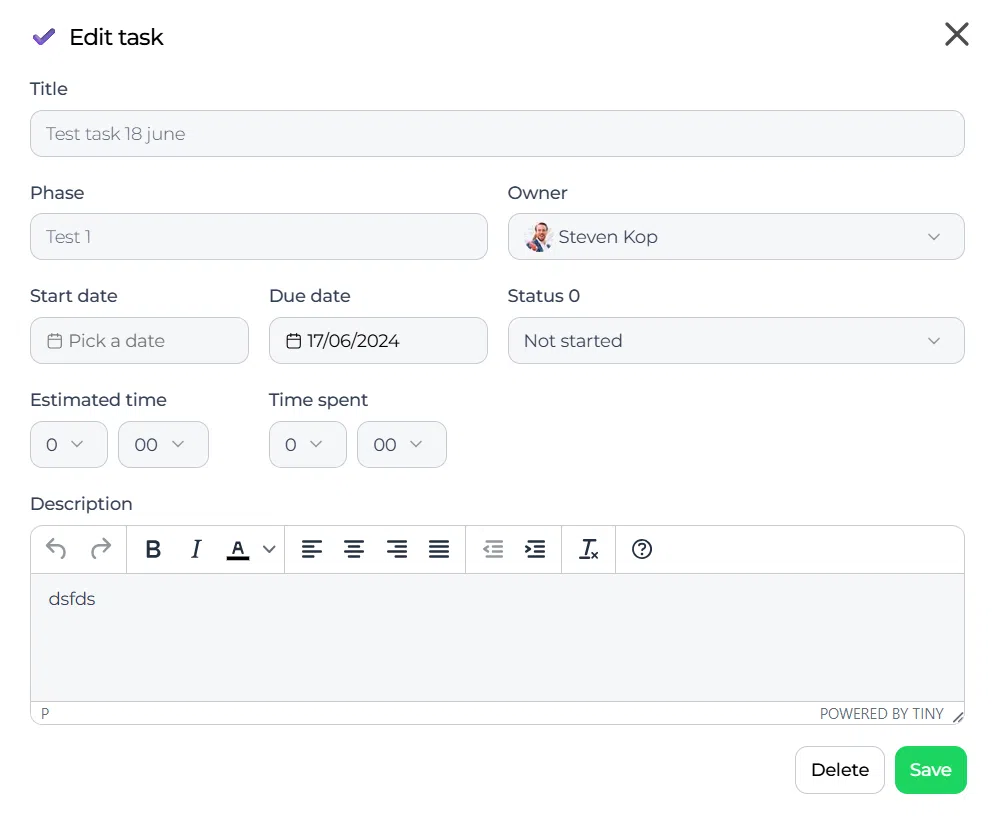
- For each task, fill in the spent time and the estimated time.
- Save the task updates.
- Review the time tracker in the Admin block to see the total spent time and remaining time for the project.
Introduction to time tracking #
Time tracking allows you to assign a duration to your projects and tasks, helping you stay on schedule and manage resources efficiently. By tracking time, you can gain insight into how much time is spent on various tasks and help make sure projects stay within the allocated time frame.
Assign total time to a project #
The total time for a project can be assigned in the Admin block on the right side of the project view. This represents the planned total duration or effort connected to the full project.
Setting this value creates the baseline for the project time tracker, which then compares planned time with tracked task effort.
Track time per task #
Inside the Tasks tab, each task can include both spent time and estimated time. This helps the team monitor task-level effort while also contributing to the project-level time overview.
As users update the time spent on tasks, the project time tracker calculates how much time has been used and how much time is left for the project.
View time reports #
Time fields are available in reports so teams can analyze project progress and effort more clearly. This makes time tracking useful not only for daily follow-up, but also for reporting and portfolio analysis.
The OData connector can also be used with Power BI to build more detailed reports and visualizations based on time data.
Benefits of time tracking #
Resource management #
Time tracking helps teams understand how effort is distributed across tasks and projects, which supports better resource planning.
Budget control #
When time is connected to project cost or effort planning, teams can monitor whether the project is still within expected limits.
Improved planning #
Historical time data can help teams estimate future projects more accurately.
Increased accountability #
Clear ownership of tasks and time entries helps teams stay aligned on project responsibilities and progress.
Configuration and adjustments #
Time tracking is managed inside the project and its tasks. To keep time reporting useful, project teams should update total project time and task-level time values consistently.
If time insights are not useful enough, review whether tasks are being maintained with realistic estimates and current spent time values. Consistent task updates improve the value of the project time tracker and reporting.
For broader reporting needs, time fields can be connected to external reporting through the OData connector and Power BI.
Practical example – Innovationlands #
Innovationlands is managing a project to develop a new interactive guest experience for one of its parks. The project manager sets the total project time to 200 hours in the Admin block.
The team then breaks the project into tasks such as concept research, prototype development, testing, and launch preparation. Each task includes an estimated time, and team members update the spent time as work progresses.
After several weeks, the project time tracker shows that 30 hours have already been used on the research phase and that the remaining available project time has decreased accordingly. This helps Innovationlands decide whether the current planning is still realistic and whether time needs to be reallocated before the next project stage.



 English
 Dutch
Dutch Portuguese
 Spanish
 French
 German
 Arabic