
 Doc Summary
Save and manage draft ideas in a campaign #
Campaign participants can now begin an idea and save it as a draft before submitting it. The campaign also saves the work automatically while the participant is completing the submission.
This gives participants time to develop their idea gradually instead of losing their work when they leave the campaign page.
How draft ideas work #
When a participant starts an idea in a campaign:
- The idea is saved automatically while they work.
- The participant can select Save draft at any time.
- The draft remains private to the participant.
- The participant can leave the campaign and return later.
- The participant can continue editing the draft or delete it.
- The participant submits the idea only when it is ready.
A draft is not treated as a submitted idea until the participant selects Submit idea.
Save an idea as a draft #
- Open the campaign.
- Select Submit idea.
- Start completing the idea form.
- Continue adding information, such as the title, description, properties, Canvas content, or files.
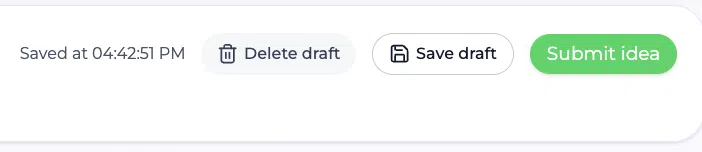
- Select Save draft if you want to save your progress manually.
The campaign also saves the idea automatically while you work. The save indicator shows when the latest changes have been saved.
Continue working on a draft #
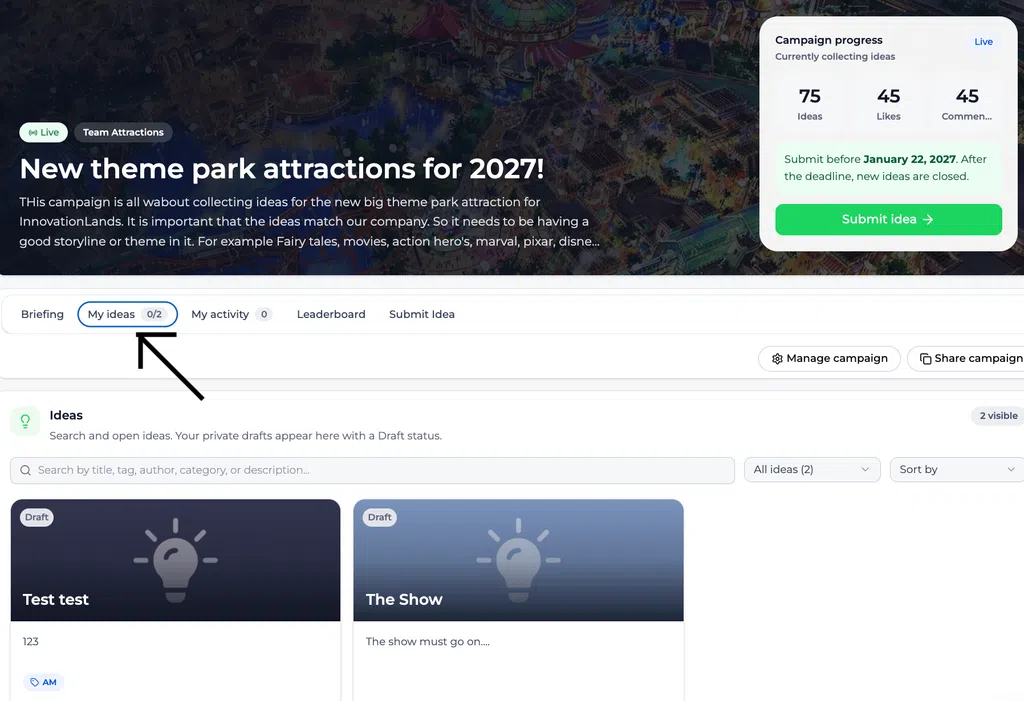
Return to the campaign and open My ideas. Draft ideas appear in the ideas list with a Draft status.
Select the draft you want to continue. You can update the content, add missing information, and save it again before submitting.
Draft ideas remain private and are not visible to other campaign participants as submitted ideas.
Delete a draft #
To remove a draft:
- Open the draft from My ideas.
- Select Delete draft.
- Confirm the deletion if prompted.
Delete a draft only when you no longer need it. Deleting a draft removes the unfinished idea from your campaign view.
Submit the completed idea #
When the idea is ready:
- Open the draft from My ideas.
- Review the title, description, properties, Canvas content, and attachments.
- Select Submit idea.
- Complete any required fields.
- Confirm the submission.
After submission, the idea is no longer an unfinished draft. It becomes a submitted idea and follows the campaign’s configured workflow.
View drafts and submitted ideas #
The My ideas area gives participants an overview of their activity in the campaign.
The campaign badge shows the participant’s submitted-idea count compared with the number of ideas allowed by the campaign. For example, My ideas 0/2 means that no ideas have been submitted yet out of a maximum of two allowed ideas. Drafts can still appear in the ideas list with a Draft status.
Example #
A participant has an idea for a new theme park attraction but only has time to enter the initial concept. They select Save draft and leave the campaign.
Later, they return to My ideas, open the draft, add the expected customer value and implementation approach, and attach supporting information. When the idea is complete, they select Submit idea.
The participant can therefore develop the idea over multiple sessions without losing their work or submitting it prematurely.
Draft status and submitted status #
- Draft: The idea is private and can still be edited or deleted by the participant.
- Submitted: The idea has been sent into the campaign workflow and is handled according to the campaign configuration.
Saving a draft does not notify reviewers as though the idea had been submitted. Submission happens only when the participant selects Submit idea.
Related article #
For guidance on planning and running an idea campaign, see Run a successful idea campaign.



 English
 Dutch
Dutch Portuguese
 Spanish
 French
 German
 Arabic