
 Doc Summary
Why this feature is needed #
Funnels help you structure how ideas and projects move through review, validation, approval, execution, and completion. They make it easier to compare similar items, assign ownership, and track progress in a clear workflow.
You should create a separate funnel when items are not easily comparable, when they belong to a different department or strategic domain, or when another team is responsible for managing them. This keeps evaluation logic, ownership, and reporting consistent.
Funnels are also useful when you want to work with a clear stage gate process, pipeline workflow, or Kanban based flow. In Accept Mission, these terms describe closely related ways of organizing work.
What this feature is #
A funnel is the structured workflow that groups related ideas or projects and moves them through lanes. Funnels are available in both Idea Management and Project Portfolio Management.
Each funnel contains one or more lanes. Lanes define how items progress from one step to the next. A funnel can include working stages, review gates, and end statuses.
Funnels support multiple working views:
- Kanban view for drag and drop workflow management
- List view for sorting, filtering, and reviewing records in rows
- Graph view for comparing items on configurable X, Y, and Z axes
- Bubble chart view for grouping items by categories such as department, tags, or other fields
Funnels also connect to scorecards, properties, canvases, automations, and access settings. This means a funnel is not only a board layout. It is the operating structure for how a set of ideas or projects is managed.
Video tour funnel management
#
Access level #
Users need rights to manage funnel configuration. In practice, this is typically available to admins and selected power users with permission to edit or administer funnels.
Navigation path #
Navigation path: Innovation Studio → Idea Management or Project Portfolio Management → Open a funnel → Funnel settings
How to use this feature #
Before creating a funnel, first decide whether the items belong together in one workflow. A good check is whether the items are similar enough to compare fairly. If they are not, create a separate funnel.
It is also useful to ask whether the same team owns the process. When ownership, Decision logic, or review flow differs, a separate funnel is usually easier to manage.
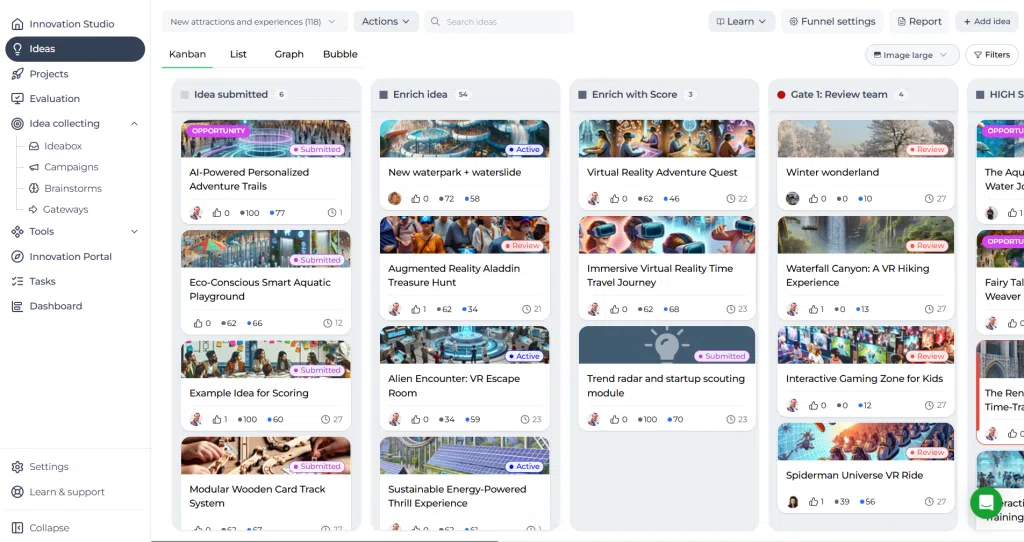
Within a funnel, lanes can have different meanings:
- Stage: a working step where the item is actively developed, enriched, or executed
- Gate: a review or Decision checkpoint where progression is evaluated
- Status: a final or non-working state such as approved, denied, finished, or stopped
A stage is where work happens. A gate is where a Decision is made. A status shows the current condition of the item, but does not necessarily represent active work.
For example, a Lane called Enriched idea is usually a stage, because the team is still improving the idea. A Lane called Innovation board review is usually a gate, because it represents a formal Decision moment. A Lane called Approved ideas or Denied ideas is usually a status, because the item has reached a defined state.
Step by step instructions #
- Open Innovation Studio and go to Idea Management or Project Portfolio Management.
- Open the funnel you want to manage, or create a new funnel if needed.
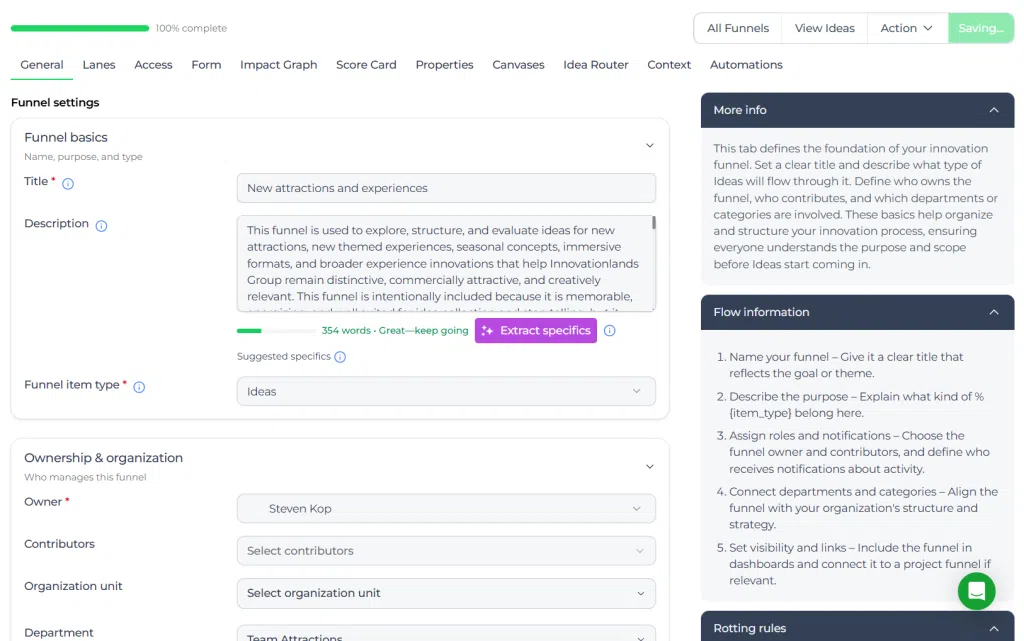
- Select Funnel settings in the top right corner.
- In the General tab, enter or update the funnel title and assign the funnel owner.
- Decide whether the funnel should remain open to relevant users or be restricted through access settings.
- Open the Lanes section and add the lanes needed for your workflow.
- For each Lane, define whether it behaves as a stage, gate, or status based on the purpose of that step.
- Arrange the Lane order so the workflow follows the real process from intake to outcome.
- Open the Scorecard section if items in this funnel need formal evaluation criteria.
- Open the Properties section to define which fields are shown in the item detail view. These properties appear in the left sidebar of the item detail.
- Configure Scorecards as needed. Scorecard content appears in the right sidebar of the item detail.
- Open the Canvases section to decide whether all canvases are available or only selected canvases are shown in this funnel.
- Open the Automations section if you want to control automated workflow behavior.
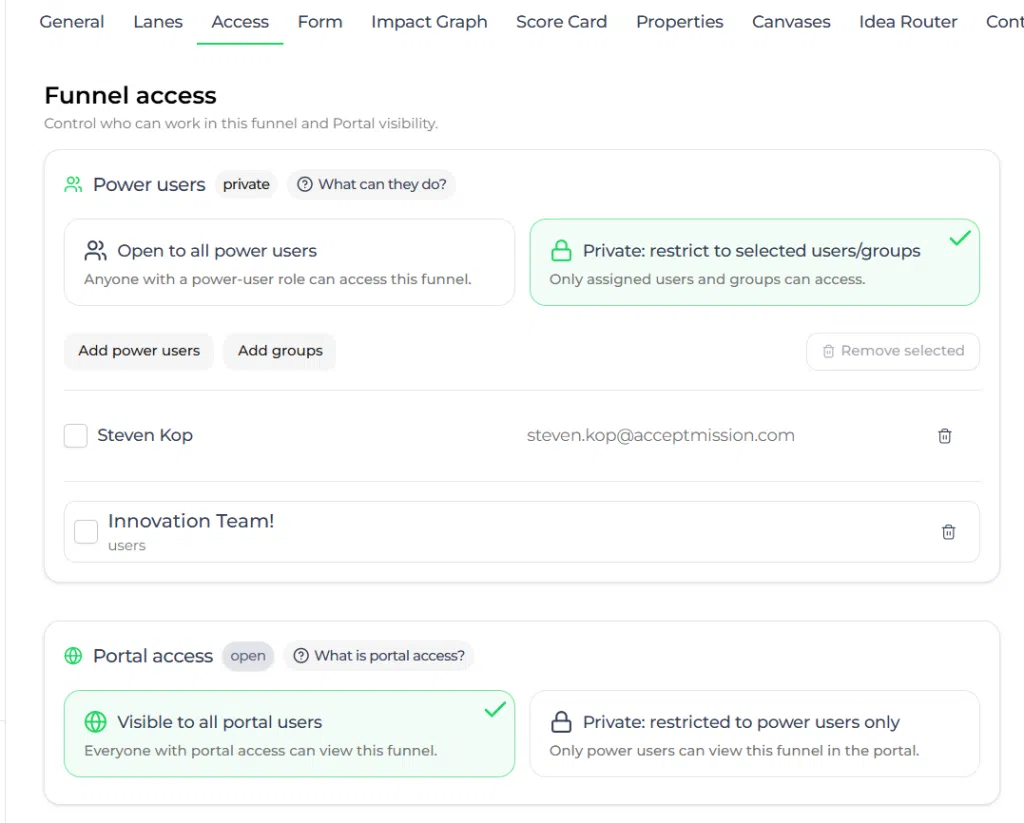
- Open the Access section to define who can view, edit, or administer the funnel.
- Save the funnel settings and return to the funnel views.
- Use Kanban view to drag and drop items between lanes as work progresses.
- Use List view when you need row based filtering, sorting, or bulk review.
- Use Graph view when you want to compare items on configurable X, Y, and Z axes.
- Use Bubble chart view when you want to group items by categories such as department, tags, or another field.
Configuration and adjustments #
Funnel settings can be adjusted after a funnel has been created. This allows you to refine the workflow without rebuilding everything from scratch.
General settings #
Use the General tab to manage the title, owner, and inactivity thresholds. This is also where warning and critical levels can be configured for items that are becoming inactive or rotting.
The warning level defines when a notification should be sent because an item has not been updated for too long. The critical level defines when that inactivity becomes more urgent. These settings help teams keep ideas and projects active and prevent them from stalling unnoticed.
Lanes #
You can manage lanes directly in funnel settings or live in the Kanban view. Updating Lane names, order, and type changes how users move items through the workflow and how the process is interpreted.
Scorecards and properties #
Scorecards define how items in the funnel are evaluated. Properties define which supporting data fields are visible and editable. Together, they shape the item detail experience and influence how teams review and compare records.
Rich text properties in funnel management #
Properties can now contain rich text, and their tooltips can also use rich text and links. This is useful when a funnel needs descriptive context in addition to structured values.
Example: In an attraction-concept funnel, use a rich text Property called Concept rationale for the explanation and supporting evidence, while using separate dropdown or number properties for Feasibility, Expected lead time, and Risk level.
When setting up a Property, use the Description (tooltip) area to explain what users should enter. For example: “Describe the customer Problem, who experiences it, and what evidence supports it. Add a link to the relevant research when available.”
Canvases #
You can decide whether a funnel supports all canvases or only selected canvases. This keeps the development experience focused on the type of work the funnel is meant to handle.
Access control #
By default, a funnel can be open to relevant users, but it can also be set to private. In a private funnel, only the users you assign can access it based on their permission level.
Cloning, archiving, and deleting #
You can clone a funnel to reuse the same setup in a new context. This copies the configuration so you do not need to rebuild the funnel structure manually.
You can archive a funnel when it still contains items. When archived, the connected items are archived as well.
You can only delete a funnel when it contains no items. A funnel that still has ideas or projects cannot be deleted.
Each idea or project can only be connected to one funnel at a time.
Practical example – Innovationlands #
Innovationlands uses Accept Mission to manage both new attraction ideas and approved improvement projects across its parks.
The Innovationlands Experience team creates an idea funnel for guest experience improvements. Because all items in that funnel focus on similar experience opportunities, they can be compared using the same Scorecard. The funnel includes the lanes Idea submitted, Enriched idea, Scored ideas, First approval, Innovation board review, Approved ideas, and Denied ideas.
In this setup:
- Idea submitted, Enriched idea, and Scored ideas are stages because active work is happening
- First approval and Innovation board review are gates because decisions are made there
- Approved ideas and Denied ideas are statuses because they represent outcomes
The team uses a Scorecard with criteria such as guest impact, operational effort, and strategic fit. Once an idea is approved, it can move into Project Portfolio Management for execution in a separate project funnel.
At the same time, the Maintenance and Engineering team creates a different funnel for infrastructure related projects. These items are not easily comparable to guest experience ideas, and they are managed by another team with different review logic. Because of that, Innovationlands keeps them in a separate funnel.
When Innovationlands launches a new campaign for seasonal park concepts, the Admin clones the guest experience funnel to reuse the same structure. This saves time while preserving a consistent workflow.
For more information about these tabs, view General, Lanes, Access, Form, Impact Graph, Score Card, Properties, Canvases, Idea Router, Context, and Automations.



 English
 Dutch
Dutch Portuguese
 Spanish
 French
 German
 Arabic