
 Doc Summary
Why this feature is needed #
Before people can participate in innovation activities, they need access to your Accept Mission environment. User management allows administrators to invite colleagues and other approved users in a structured way.
This feature is useful when your organization is starting with Accept Mission, expanding participation to more teams, or onboarding a larger group of contributors for missions, selections, and other innovation workflows.
What this feature is #
User management is the area in Accept Mission where authorized users manage access to the platform. From here, you can invite individual users manually or add multiple users through a CSV import.
This feature is part of Application Settings because it controls who can enter your company environment. Once invited, users receive an invitation email and can join the platform using the details provided during the invitation process.
Access level #
You need permission to manage users before you can send invitations from user management.
Navigation path #
Navigation path: Innovation Studio → Settings → User management
How to use this feature #
User invitations can be sent in two ways. You can invite one user at a time by entering their details manually, or you can upload a CSV file to invite a larger group at once.
Use the manual method for a small number of users. Use CSV import when onboarding a team, department, partner group, or larger participant list.
Step by step instructions #
- Open Innovation Studio.
- Go to Settings.
- Select User management.
- Choose whether you want to invite one user manually or import multiple users with a CSV file.

Invite a new user manually #
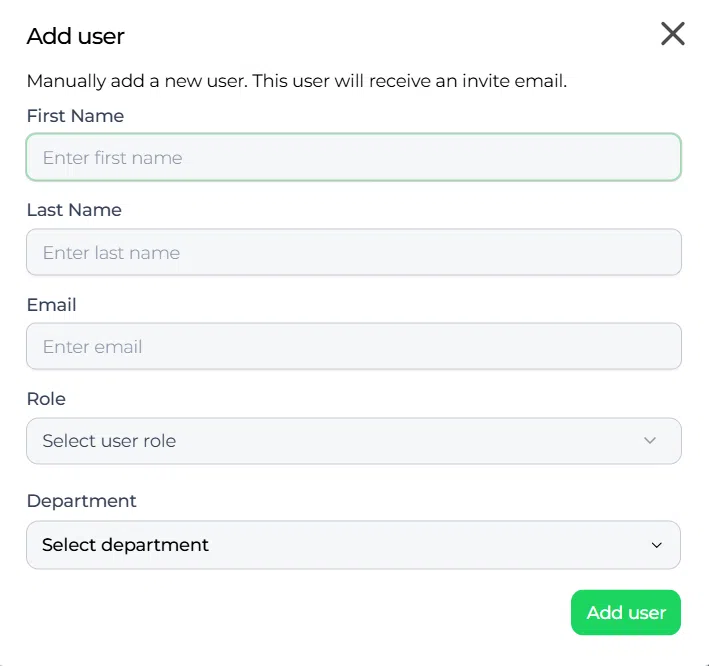
Manual invitation is the simplest option when you only need to add one or a few users.
- In User management, click Add user.
- In the pop-up window, enter the user’s first name and last name.
- Enter the user’s email address, role and department.
- Click Add user.
- Confirm the invitation to send the user an invitation email.
Invite multiple users with CSV import #
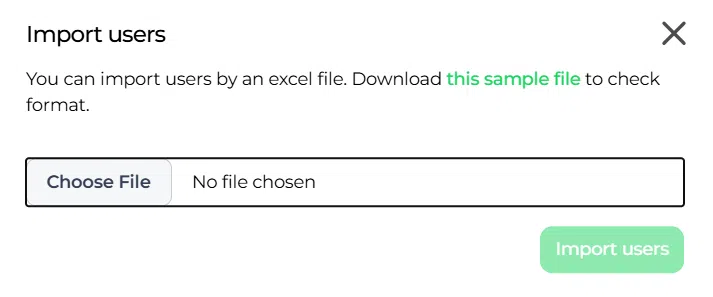
CSV import is useful when you need to invite a larger group of users at the same time.
- Prepare an Excel file with the required user details.
- Include the following columns: Firstname Lastname and Email.
- Save the file as a CSV file.
- In User management, choose the CSV import option.
- Upload the CSV file.
- Review the imported entries.
- Confirm the import to send invitation emails to the listed users.
Configuration and adjustments #
User invitations are managed in Innovation Studio → Settings → User management. This is where administrators control how new users are added to the platform.
When preparing a CSV file, make sure the contact details are complete and correctly formatted before uploading. Incorrect names or email addresses can prevent users from receiving their invitation.
If you invite external users, their access behavior may depend on your organization’s domain and security settings. Review your access control rules if external participants need a specific type of access.
Practical example – Innovationlands #
Innovationlands has launched a new Mission to improve queue experience across its parks. The innovation team wants employees from operations, guest services, and digital experience to participate in idea submission and review.
For a few internal stakeholders, the platform Admin uses the manual invitation option in User management and sends invitations one by one. To onboard a larger park operations group, the Admin prepares a CSV file with employee names and email addresses and uploads it through the import option.
Once invited, these users can join the Accept Mission environment and start participating in the Mission. This allows Innovationlands to quickly activate a broad contributor group while keeping user onboarding organized through one central settings area.



 English
 Dutch
Dutch Portuguese
 Spanish
 French
 German
 Arabic