
 Doc Summary
Why this feature is needed #
Managing ideas manually across funnels, lanes, and evaluation steps can quickly become time-consuming and inconsistent. Innovation managers often need to repeatedly move ideas, assign labels, or trigger actions based on scoring or content.
Automation rules solve this by applying predefined logic to ideas as they evolve. This ensures consistent Decision-making, reduces manual work, and keeps funnels structured without constant intervention.
What this feature is #
Automation rules are configurable workflows that automatically trigger actions based on defined conditions. These rules operate on ideas within funnels and respond to changes such as scoring, field updates, or content.
Automation rules are configured in the Application Settings and apply across the Innovation Studio. They support the idea management process by automating movement, tagging, and classification decisions.
This aligns with the platform’s goal to improve Decision quality and efficiency across the innovation lifecycle :contentReference[oaicite:0]{index=0}
Access level #
Users need access to Application Settings to create and manage automation rules.
Navigation path #
Navigation path: Innovation Studio → Settings → Automations
How to use this feature #
Automation rules follow a structured logic:
- Scope: Defines when the rule is triggered
- Conditions: Defines what must be true
- Actions: Defines what happens when conditions are met
Rules are evaluated automatically. If multiple rules apply, the system will process them sequentially unless configured otherwise.
Step by step instructions #
- Go to Innovation Studio
- Open Settings
- Select Automations
- Click Create Rule
- Enter a rule title
- Define the Scope to determine when the rule should trigger
- Add one or more Conditions
- Select the Action(s) to execute
- Save the rule
- Manually turn the rule ON
Important: New rules are turned off by default. You must activate them after creation.
System behavior: The system checks for errors or conflicts before activating the rule.
Optional: Enable the setting to stop execution of further rules after this rule is applied.
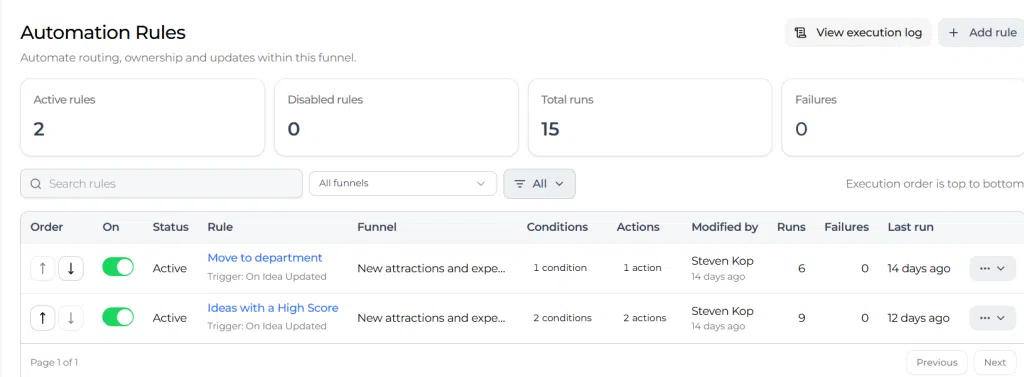
Example rule #
A common automation rule is based on idea scoring:
- Condition: Idea score is greater than or equal to 80
- Action: Move idea to Lane “Interesting”
Additional actions could include:
- Add tag “High Potential”
- Assign to a reviewer
- Move to another funnel
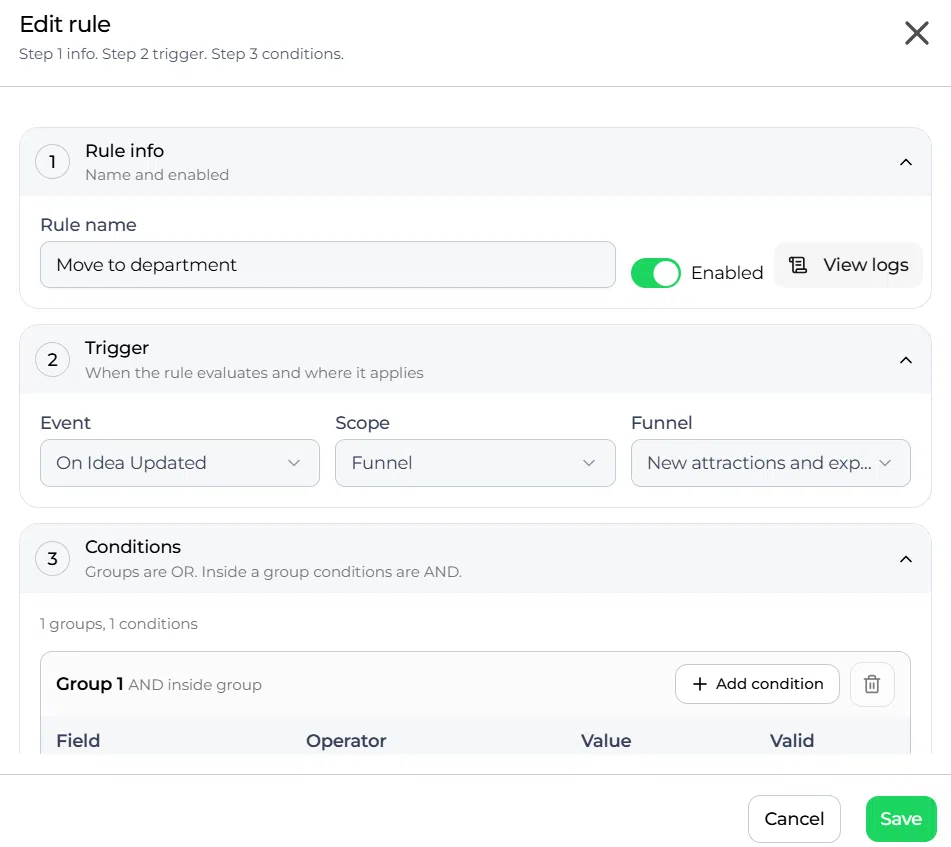
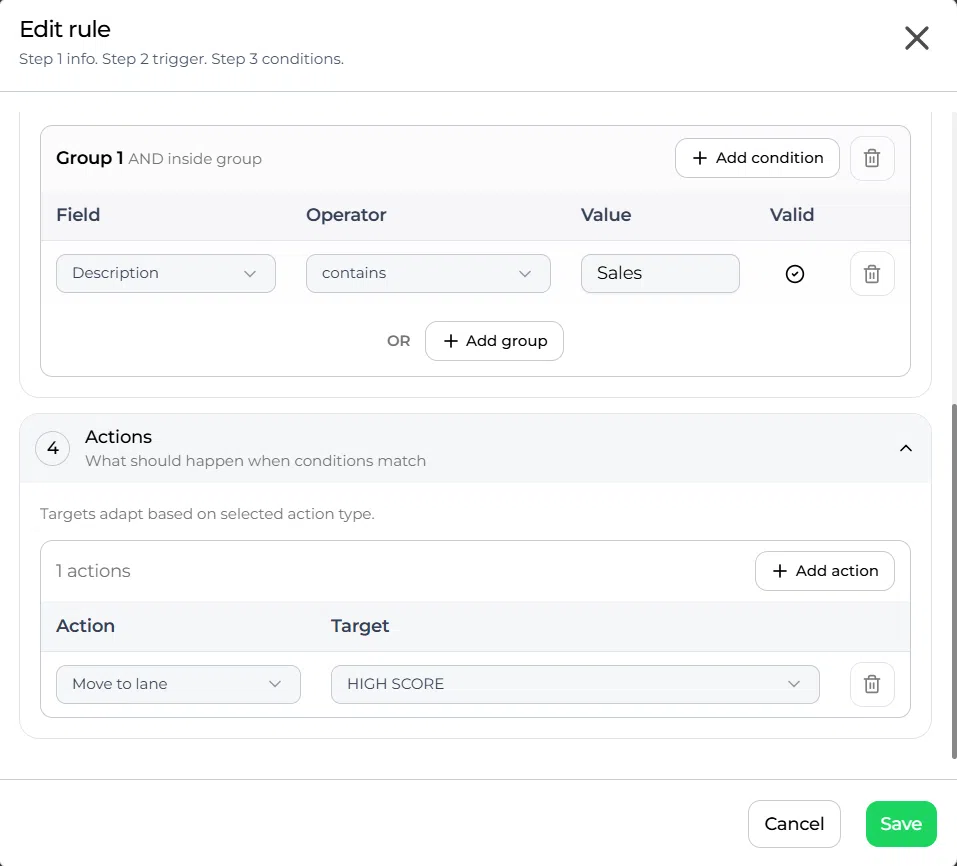
Configuration and adjustments #
Automation rules can be monitored and adjusted through:
- Automation Log: Shows which rules were executed and on which ideas
- Activity Feed: Displays actions taken by automation rules on ideas
- Funnel and Lane Settings: Shows which automations are linked to specific funnels or lanes
Rules can be edited, disabled, or reordered at any time.

Practical example – Innovationlands #
At Innovationlands, park innovation teams manage ideas for improving guest experiences across multiple funnels.
In one funnel, ideas move from “Submitted” to “Enrichment” where they are scored based on guest impact, feasibility, and revenue potential.
An automation rule is configured:
- If idea score is 80 or higher
- Then move the idea to the “High Potential” Lane
This ensures that strong ideas automatically move forward without waiting for manual review.
Another rule is configured:
- If idea contains keyword “AI”
- Then assign category “Emerging technologies and AI”
This helps align ideas with strategic domains defined at group level.
As a result:
- Innovation managers save time
- Ideas are consistently categorized
- High-value ideas progress faster through the funnel
Additional automation scenarios #
- Move ideas with low scores directly to archive
- Assign ideas to specific departments based on keywords
- Add tags based on strategic domain selection
- Move ideas to validation stage after enrichment completion
- Assign reviewers automatically when ideas enter a Lane
- Notify stakeholders when high-priority ideas are submitted
- Categorize ideas based on selected organization or department
- Move ideas between funnels based on Decision outcomes
- Flag ideas missing required fields
- Trigger follow-up actions after scoring is completed



 English
 Dutch
Dutch Portuguese
 Spanish
 French
 German
 Arabic