
 Doc Summary
Organization Units: Functional Overview and Hierarchy Management #
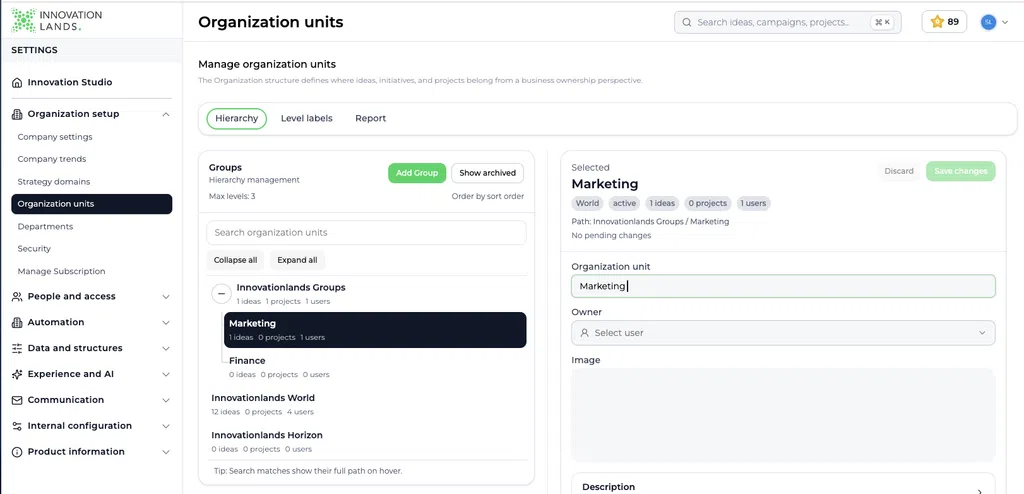
Organization Units help organizations show where ideas and projects belong from a business ownership perspective. They provide a higher-level organizational structure that can represent companies, divisions, regions, faculties, business units, or other major parts of an organization.
Organization Units can be configured in a hierarchy with up to three levels. They can be selected on ideas and projects and can also provide organizational context for Departments.
Why this feature is needed #
Larger organizations often manage innovation across multiple entities. A single Accept Mission environment may serve several companies, regions, faculties, divisions, or business units.
Without an Organization Unit structure, it can be difficult to answer questions such as:
- Which part of the organization owns an idea or project?
- How is innovation activity distributed across regions or business units?
- Which organizational entities have many ideas but few active projects?
- Which Departments belong to a particular business unit?
- How can reports distinguish direct activity from activity in lower-level units?
- When should a user make an organizational choice?
Organization Units create a consistent business ownership structure without using Departments, Categories, or Strategic Domains for the wrong purpose.
What Organization Units enable #
Organization Units can be used to:
- Build an organizational hierarchy with up to three levels
- Customize the name of each hierarchy level
- Represent major organizational entities
- Connect ideas and projects to an Organization Unit
- Connect Departments to an Organization Unit
- Automatically select the Organization Unit when only one exists
- Leave the Organization Unit empty when multiple units exist and no selection is required
- Search and browse the hierarchy
- Review direct and rolled-up idea and project activity
- Move, merge, archive, and restore organizational units
- Filter and analyze innovation activity by business ownership
One feature, different organizational models #
The product uses Organization Units as the universal feature name. The hierarchy labels can reflect the terminology used by the organization.
Common examples include:
- Group > Company > Business Unit
- Global > Region > Country
- University > Faculty > School
- Directorate > Division > Service Area
- Holding > Subsidiary > Branch
- Business Group > Operating Company > Location
The structure should represent relatively stable organizational ownership. Temporary programs, strategic priorities, topics, and project teams normally belong in other structures.
How the three-level hierarchy works #
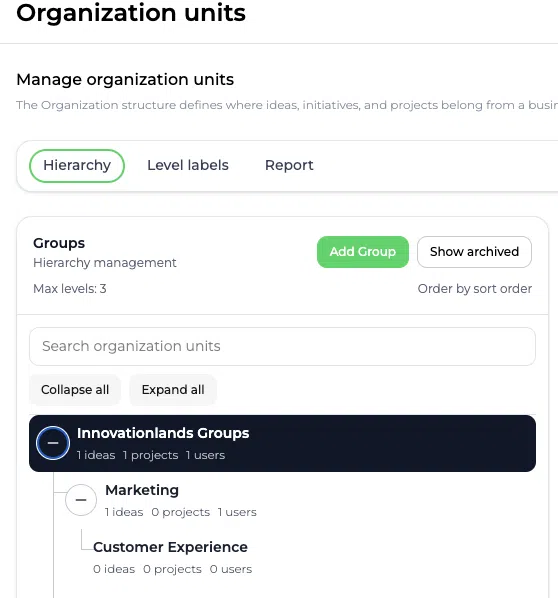
Organization Units support a maximum of three levels.
Level 1: highest organizational context #
Level 1 represents the broadest entity, such as a group, university, global organization, or directorate.
Level 2: organizational subdivision #
Level 2 can represent a company, region, faculty, division, or another major subdivision.
Level 3: detailed organizational entity #
Level 3 can represent a business unit, country, school, branch, or service area.
Organizations do not need to use all three levels. Use only the depth required to support ownership, selection, and reporting.
Configure the level labels #
Admins can customize the label for every level.
Go to:
Innovation Studio > Settings > Organization Setup > Organization Units > Level labels
Enter the preferred label for Level 1, Level 2, and Level 3. Choose language that users already recognize within the organization.
Examples include:
| Level 1 | Level 2 | Level 3 |
|---|---|---|
| Group | Company | Business Unit |
| Global | Region | Country |
| University | Faculty | School |
| Directorate | Division | Service Area |
Consistent labels improve selection and make reports easier to interpret.
Create and manage Organization Units #
Go to:
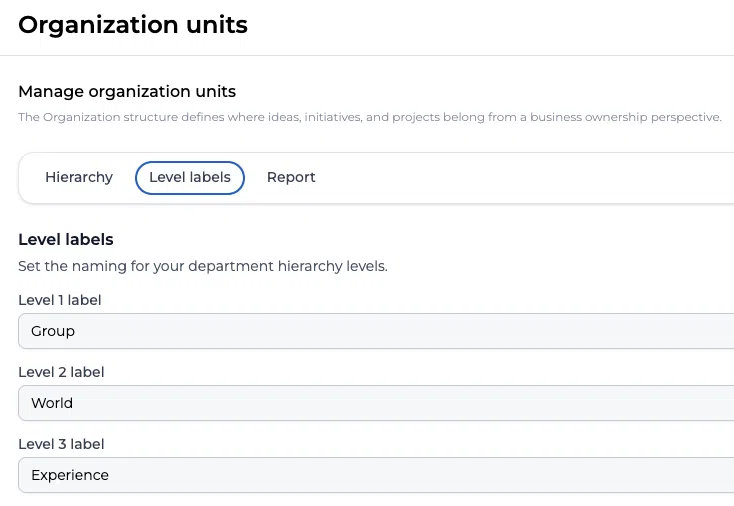
Innovation Studio > Settings > Organization Setup > Organization Units > Hierarchy
From the hierarchy screen, admins can build and maintain the organizational structure.
Create a top-level Organization Unit #
- Add an item at the highest hierarchy level.
- Enter a clear name.
- Complete the available ownership or descriptive information.
- Save the changes.
Add child and sibling units #
Add a Child when the new unit belongs underneath an existing unit.
Add a Sibling when the new unit belongs at the same level as the selected unit.
The hierarchy cannot exceed three levels.
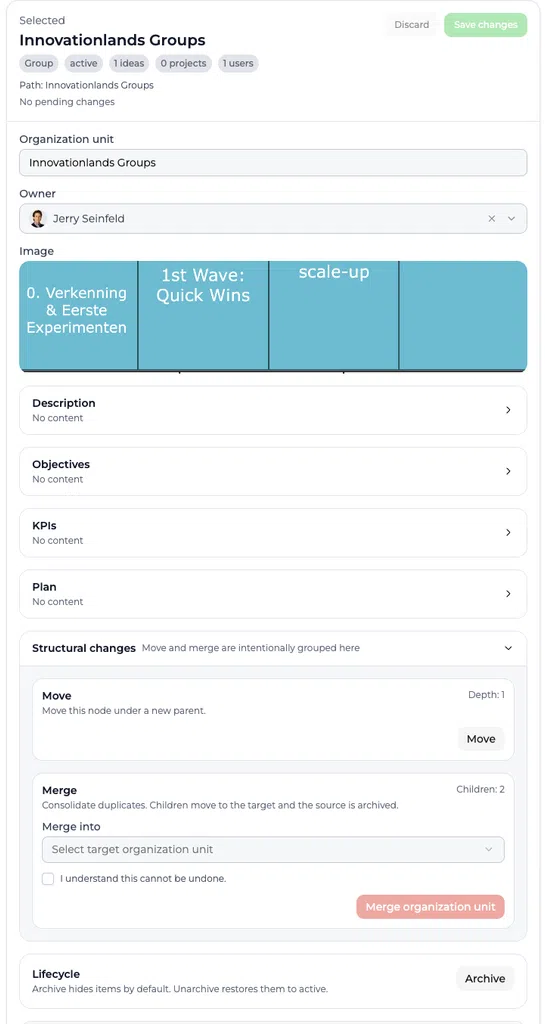
Move units #
Move an Organization Unit when it belongs under a different parent. Review this carefully because the change affects its hierarchy path and rolled-up reporting.
Merge duplicate units #
Merge units when duplicate records represent the same organizational entity. Confirm the correct target before completing the action because merging may affect existing connections and cannot normally be treated as a simple naming change.
Archive units #
Archive an Organization Unit when it should no longer be available for new selection. Archived units can be reviewed and restored where supported.
Archiving preserves history and is preferable to removing organizational context from existing ideas and projects.
Select an Organization Unit on an idea #
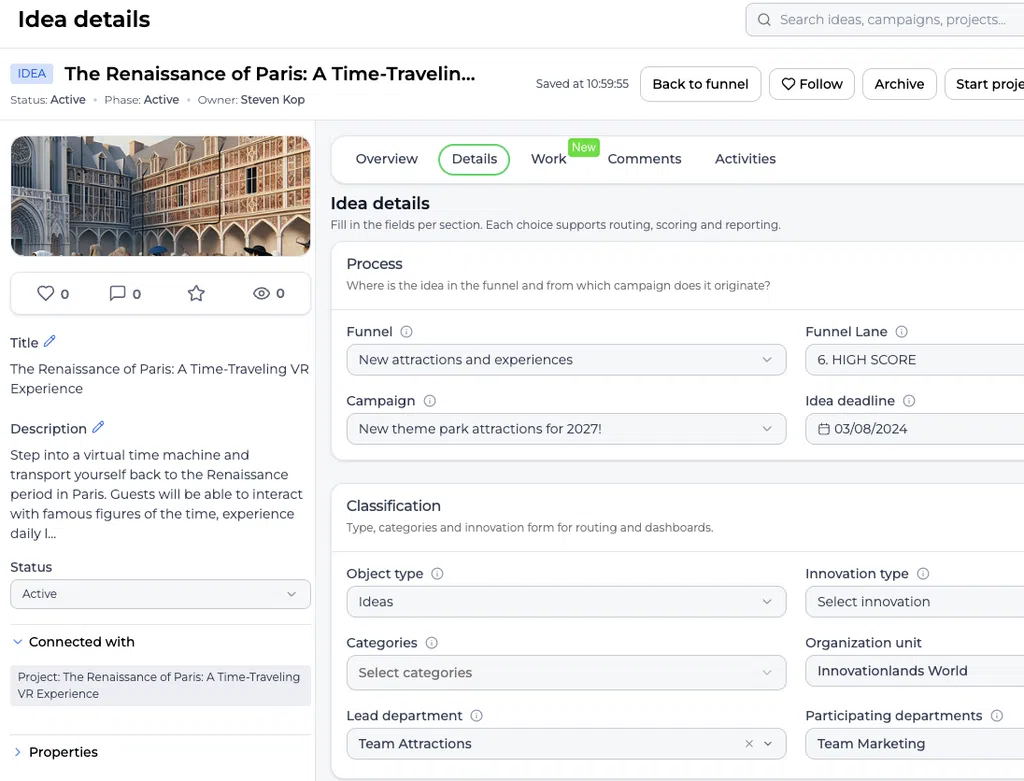
Open an idea in an Innovation Studio funnel and select the Details tab. Find Organization unit in the Classification section.
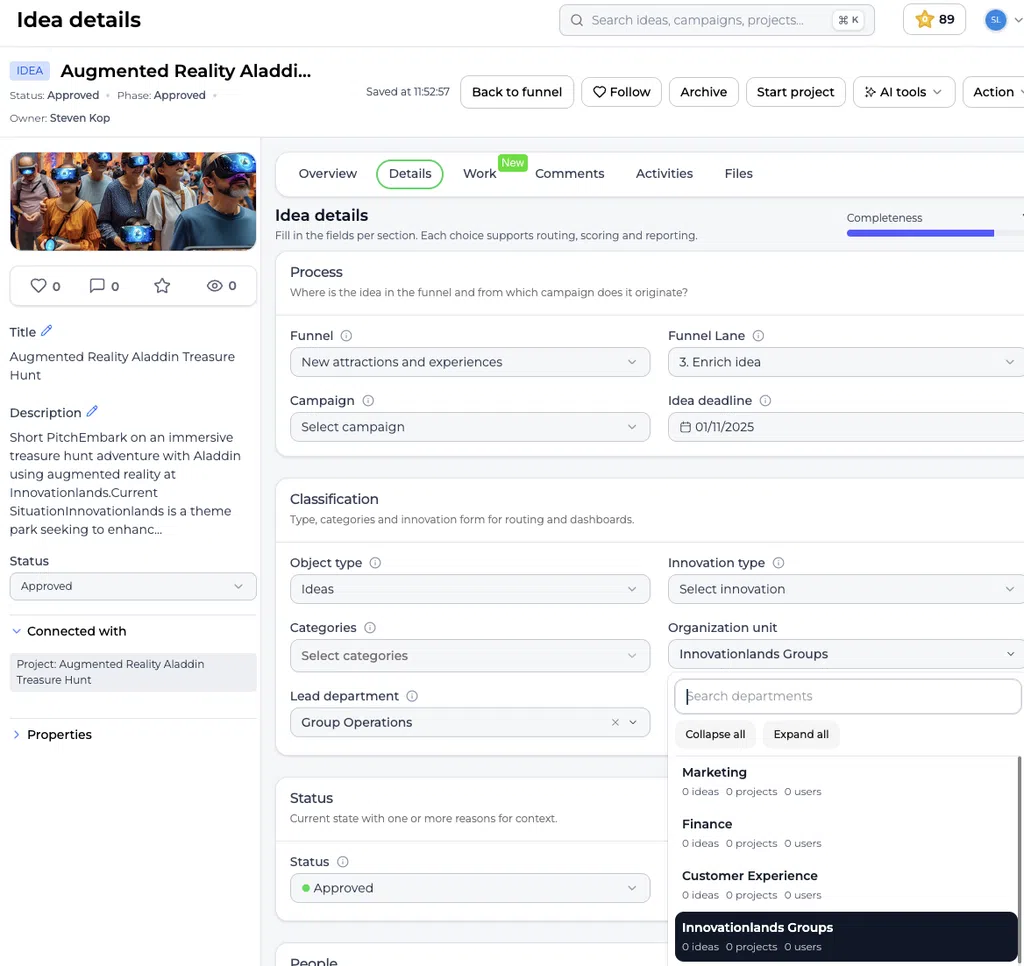
The field is a single-select field. An idea can therefore belong to one Organization Unit at a time.
To classify an idea:
- Open the Organization Unit selector.
- Search or browse the hierarchy.
- Select the relevant unit.
- Review the Department fields when departmental responsibility must also be recorded.
The selector can show contextual counts for ideas, projects, and users. Search matches may show their complete hierarchy path.
Select an Organization Unit on a project #
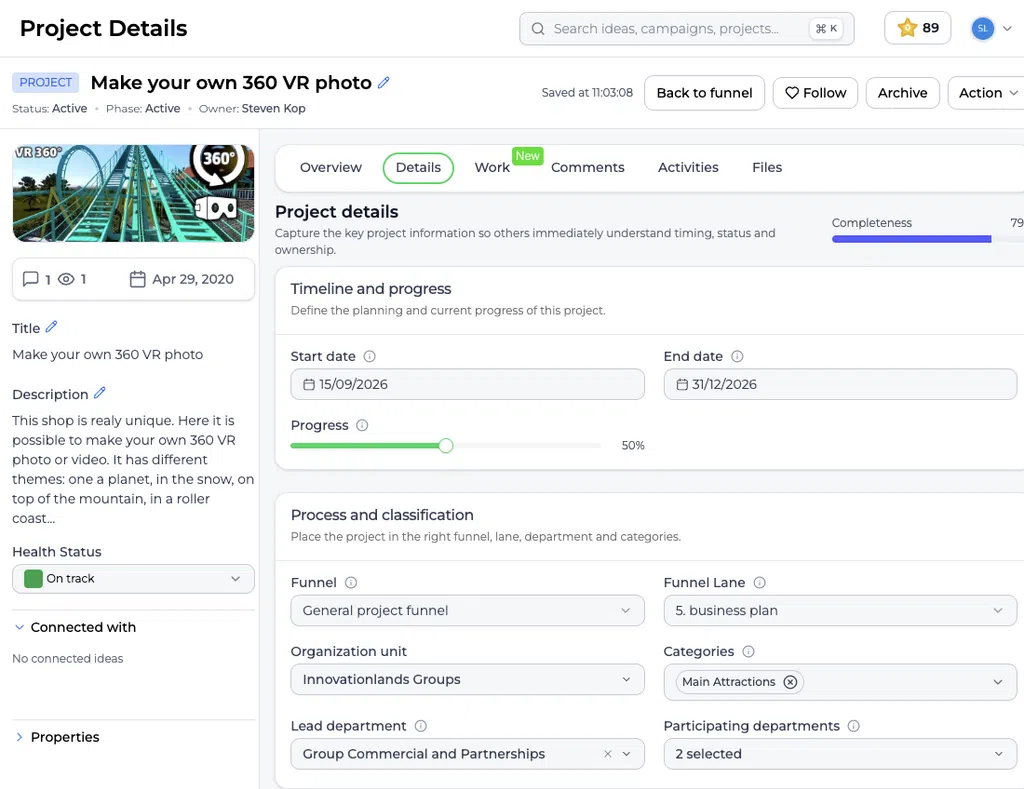
Projects use the same single-select Organization Unit field. It shows where the project belongs from a business ownership perspective.
The selected Organization Unit may remain the same when an approved idea becomes a project, but this should be reviewed. The unit that owned the initial idea is not always the unit responsible for execution.
Automatic selection and optional classification #
The behavior depends on the number of Organization Units configured.
When exactly one Organization Unit exists #
If the system contains only one Organization Unit, it is selected automatically. This removes an unnecessary choice for users working in a single-entity environment.
When multiple Organization Units exist #
When multiple units are available, the user can select the relevant Organization Unit. The field can also be left empty.
An empty value can be valid when:
- Organizational ownership has not yet been determined
- The item applies across the full organization
- The organization does not require OU classification at that stage
- The innovation team will complete the classification during triage
Organizations should define when selection is expected. Optional classification is useful, but too many unclassified items reduce the value of reporting.
Organization Units and Departments #
Organization Units and Departments provide complementary organizational perspectives.
| Structure | Question answered |
|---|---|
| Organization Unit | Where does this idea or project belong from a broader business ownership perspective? |
| Lead department | Which operational department is primarily responsible? |
| Participating departments | Which additional departments actively contribute? |
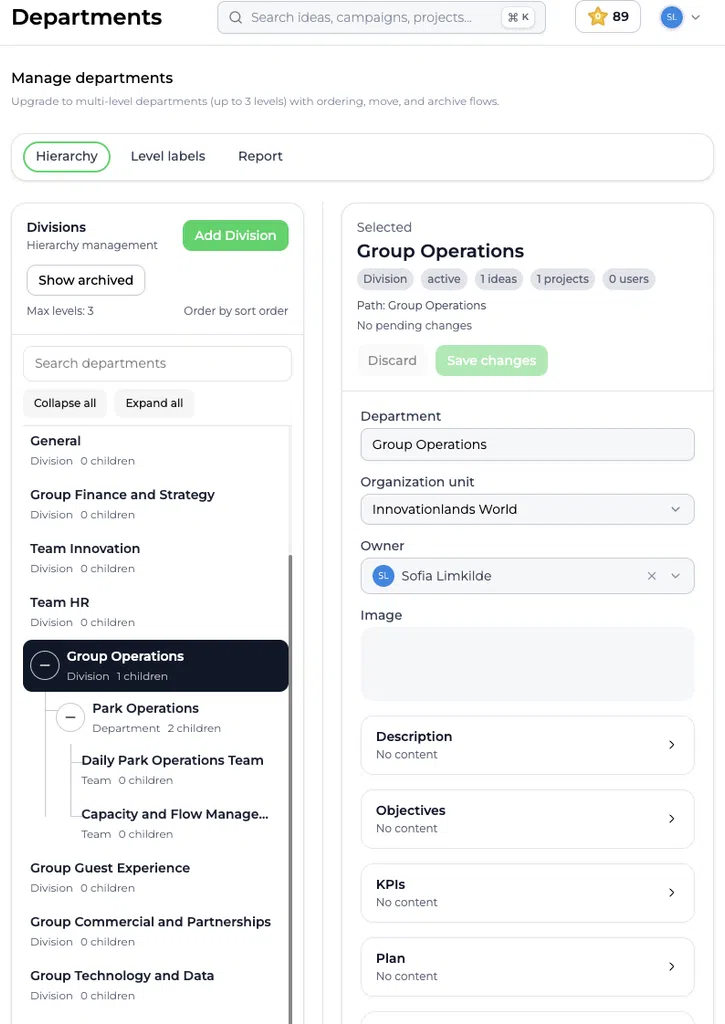
Departments can be added to or connected with an Organization Unit. This helps organizations organize departmental structures within a company, division, region, faculty, or other broader entity.
For example:
- Organization Unit: Netherlands
- Lead department: Digital Innovation
- Participating departments: Customer Service, IT, Marketing
The OU identifies the broader owner. The Department fields show operational accountability and collaboration.
An Organization Unit can also remain empty when multiple units exist. Department classification can still be managed according to the organization’s configuration and governance.
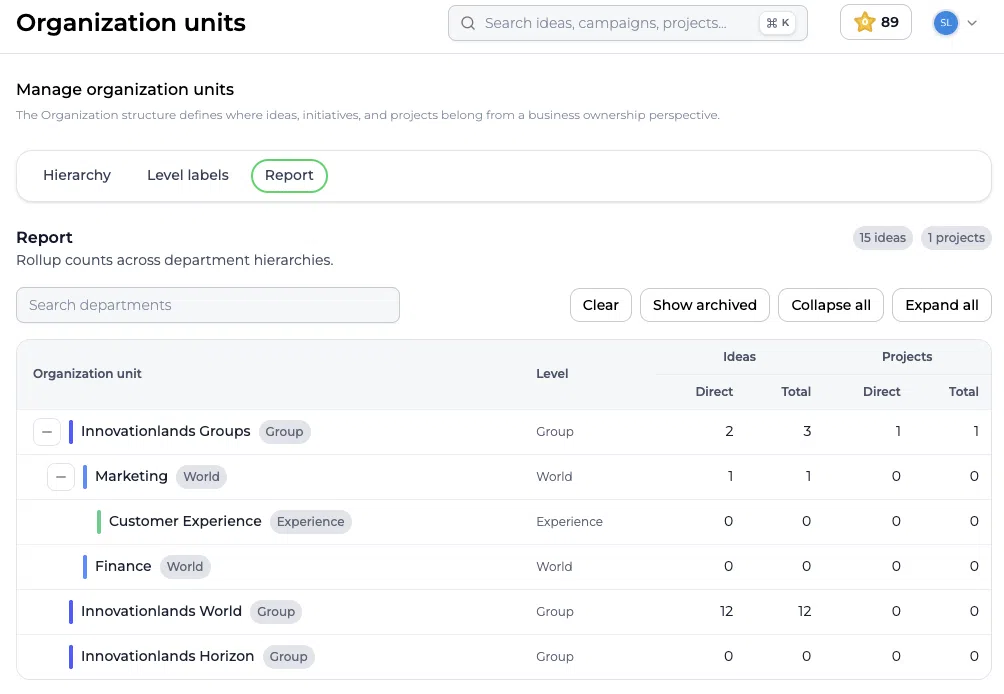
Report on Organization Units #
Go to:
Innovation Studio > Settings > Organization Setup > Organization Units > Report
The report combines the hierarchy with idea and project counts.
It can show:
- Ideas assigned directly to an Organization Unit
- Total ideas including activity from child units
- Projects assigned directly to an Organization Unit
- Total projects including activity from child units
- The hierarchy level of each unit
- Active and archived units where relevant
Direct versus total #
Direct shows items connected specifically to the selected Organization Unit.
Total includes items assigned directly to the selected unit and items assigned to its descendants.
For example, an idea assigned to Netherlands can contribute to the total for its parent Europe and the higher-level Global Organization.
This makes it possible to review local activity and aggregated organizational performance from the same hierarchy.
Practical examples #
Example 1: International organization #
An international company configures:
- Global Organization
- Europe
- Netherlands
An idea submitted by the Dutch business is assigned to Netherlands. The report shows the idea directly under Netherlands and rolls it up into Europe and Global Organization.
Leadership can review both country-level activity and the combined regional portfolio.
Example 2: University innovation #
A university configures:
- University
- Faculty
- School
A project to introduce a digital learning environment belongs to the Faculty of Business. The Lead department is Learning Innovation, while IT Services and Student Support participate.
The OU identifies business ownership. The Department fields clarify who leads and contributes.
Example 3: Group with multiple companies #
A holding company uses one Accept Mission environment for several operating companies.
A process improvement idea is assigned to Company A. Another cross-company initiative leaves the Organization Unit empty until governance decides where the project should be owned.
This supports both clear ownership and early-stage exploration.
Example 4: Single-entity organization #
A municipality has only one configured Organization Unit. The system selects it automatically for every idea and project.
Users can focus on the Lead and Participating departments without repeatedly selecting the same OU.
Recommended setup approach #
Before configuring Organization Units:
- Define the business ownership question the hierarchy must answer.
- Choose stable organizational entities.
- Decide which hierarchy levels are genuinely needed.
- Use terminology already known by users.
- Determine when OU selection is expected and when it may remain empty.
- Connect Departments to the appropriate Organization Units.
- Test the selector with representative ideas and projects.
- Verify Direct and Total reporting.
- Review the hierarchy after organizational changes.
- Archive outdated units rather than leaving them available.
Avoid using Organization Units for temporary project groups, strategic priorities, or general topics. Those belong in other structures.
Organization Units compared with related structures #
| Structure | Main purpose |
|---|---|
| Organization Units | Represent broader business ownership and organizational entities |
| Departments | Record operational responsibility and participation |
| Strategic Domains | Connect ideas and projects to strategic direction |
| Categories | Group ideas or projects by topic |
| Funnels | Manage workflow and process |
| Teams on an item | Identify the individual people involved |
Using each structure for its intended purpose produces clearer classification and more reliable reports.
Governance and maintenance #
Recommended practices include:
- Limit hierarchy editing to responsible admins
- Assign clear and recognizable names
- Prevent duplicate organizational entities
- Review unclassified ideas and projects
- Check Department connections after reorganizations
- Review moves and merges before confirming them
- Archive outdated units
- Explain OU selection during onboarding
- Compare Direct and Total results during portfolio reviews
- Update the hierarchy when business ownership changes
Related articles #
- Departments: Functional Overview and Hierarchy Management
- Strategic Domains: Functional Overview
- How to manage categories for your company
- Innovation dashboard overview
Summary #
Organization Units provide a flexible three-level structure for showing where ideas and projects belong from a business ownership perspective. They can represent companies, regions, faculties, divisions, business units, or other major organizational entities.
The Organization Unit field is single select. It is selected automatically when only one unit exists and may remain empty when multiple units exist. Departments can be connected to Organization Units to combine broader ownership with clear operational responsibility.
Consistent configuration makes it easier to classify innovation work, aggregate activity through the hierarchy, and compare idea and project portfolios across the organization.



 English
 Dutch
Dutch Portuguese
 Spanish
 French
 German
 Arabic