
 Doc Summary
The Form tab in funnel management controls which standard fields are shown when an item is opened in Innovation Studio. It helps admins decide which fields should be visible first and which of those fields are required for users working in a specific funnel.
Why this feature is needed #
Different funnels often require different levels of detail. A lightweight intake funnel may only need a few basic fields, while a more advanced funnel may require a structured first page with specific information visible from the start.
The Form tab helps you configure that first-page experience. This makes it easier for users to capture the right information quickly and keeps the item layout consistent across all records in the funnel.
What this feature is #
The Form tab is part of funnel management in Application Settings. It defines the standard form fields displayed when an item type that uses the funnel is opened in Innovation Studio.
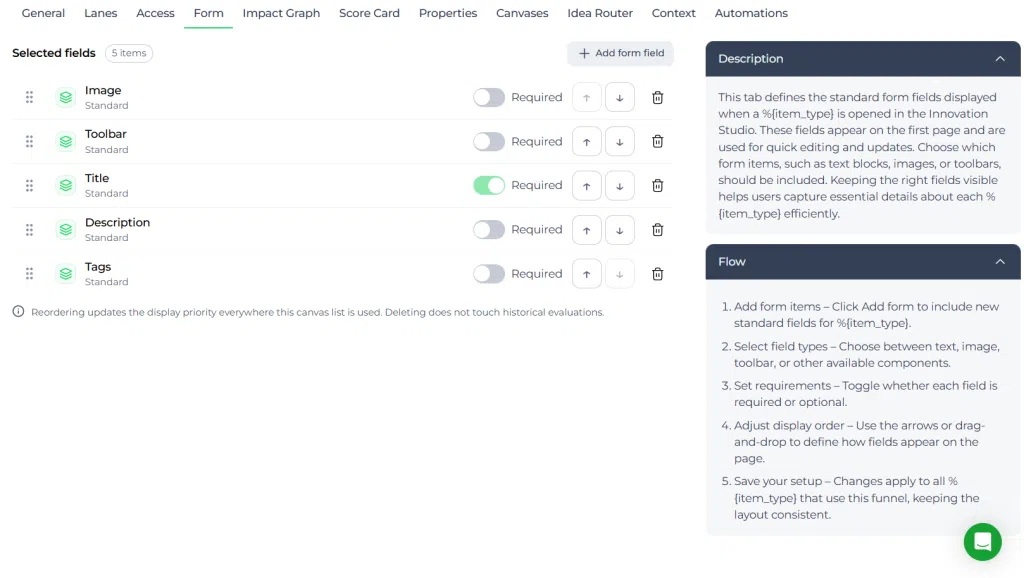
From this tab, admins can add form fields, decide whether a field is required, and control the display order. Based on the interface shown, standard fields such as Image, Toolbar, Title, Description, and Tags can be included in the selected fields list.
Changes in this tab affect how items using the funnel are presented on the first page for quick editing and updates.
Access level #
Prerequisites:
- The user must have Admin access to Application Settings.
- The funnel must already exist.
- The user must have permission to edit funnel configuration.
Navigation path #
Navigation path: Application Settings → Funnel configuration → Open funnel → Form
How to use this feature #
The Form tab is used to define the standard fields shown on the first page of an item in Innovation Studio. It works as a layout and requirement control layer for the funnel.
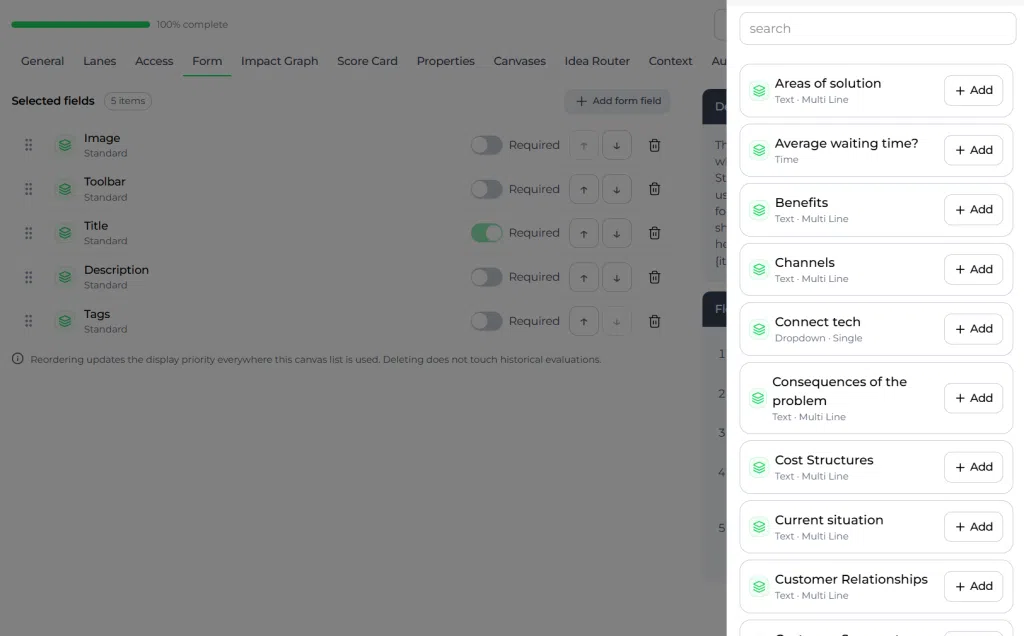
Each selected field appears in a list. For each field, you can review the field type, switch the required setting on or off, move the field up or down, or remove it from the form. You can also add new form fields with the Add form field button.
Step by step instructions #
- Open Application Settings.
- Go to Funnel configuration.
- Open the funnel you want to edit.
- Click the Form tab.
- Review the list of selected fields currently included in the funnel form.
- Click Add form field to include another standard field.
- Use the Required toggle to decide whether a field must be completed.
- Use the up and down controls to change the display order of a field.
- Remove a field if it should no longer appear in the form.
- Save the funnel configuration so the updated field setup is used for items in that funnel.
What you can configure in the form tab #
Selected fields #
The main area shows the standard fields currently included in the form. In the example shown, the selected fields include Image, Toolbar, Title, Description, and Tags.
This list determines which fields appear on the first page when an item is opened in Innovation Studio.
Required fields #
Each field can be marked as required or optional. When the required toggle is enabled, users are expected to complete that field when working with items in the funnel.
This is useful when certain information, such as a title, should always be present before an item can be handled consistently.
Display order #
The order of fields can be changed using the move controls. Reordering changes the display priority everywhere this canvas list is used, helping you decide which information should appear first on the page.
This supports a more structured editing experience for users.
Add or remove fields #
You can add additional standard form fields with the Add form field button. You can also remove fields from the selected list when they are no longer needed in that funnel layout.
Based on the interface guidance, deleting a field from this setup does not affect historical evaluations.
Guidance shown in the form tab #
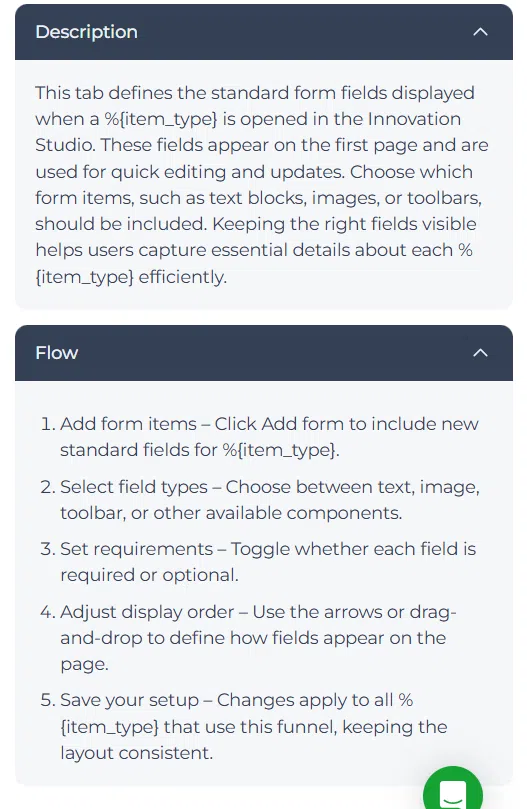
The interface includes an information panel that explains the purpose of the tab and the expected flow for configuration. It describes that the tab defines the standard form fields displayed when an item type is opened in Innovation Studio and that these fields appear on the first page for quick editing and updates.
The guidance also outlines the basic setup flow:
- Add form items.
- Select field types.
- Set requirements.
- Adjust display order.
- Save the setup.
This guidance helps admins keep the layout consistent for all items that use the funnel.
Configuration and adjustments #
The Form tab should be configured based on the type of item managed in the funnel and the amount of information users need to provide at the start.
When adjusting the form setup, consider the following:
- Keep only the most relevant standard fields on the first page.
- Mark only essential fields as required to avoid unnecessary friction.
- Place the most important fields near the top of the list.
- Review the setup when funnel goals change or when users need a simpler intake flow.
Because this configuration affects all items that use the funnel, changes should be made carefully and tested with the intended workflow.
Practical example – Innovationlands #
Innovationlands uses different funnels for different types of innovation work across its theme park organization. In an early-stage idea funnel for guest experience improvements, the Admin team configures the Form tab so users first see Title, Description, Tags, and Image when opening an idea in Innovation Studio.
The team makes Title required so every idea has a clear name, while keeping Image optional because not every early idea includes visual material. They move Description higher in the order to make sure idea details are captured before evaluation starts.
Later, when Innovationlands reviews the funnel setup, the Admin notices that users rarely need the toolbar in the first position. The field order is adjusted so the most important content appears earlier on the page. This improves consistency in how ideas are structured before they move into scoring, Decision-making, and possible project transition.
Related article #
For more information about funnel management, go to funnel management.
Campaign form groups #
Campaign forms can now organize related participant fields into groups. For the campaign-specific setup and participant view, see Create and manage groups in a campaign form.



 English
 Dutch
Dutch Portuguese
 Spanish
 French
 German
 Arabic