
 Doc Summary
Rich text tooltips in properties #
Property tooltips help users understand what a field means and what information they should enter. The tooltip is configured in the Property’s Description (tooltip) field.
Because the tooltip uses a rich text editor, administrators can add formatting, examples, and links to supporting guidance.
Why use a rich text tooltip #
A clear tooltip reduces uncertainty and helps users provide more consistent information. It is especially useful when:
- A Property could be interpreted in more than one way
- Users need a specific unit or measurement
- A field requires evidence or a particular level of detail
- The organization has a process or policy users should follow
- A link to additional guidance would be helpful
How to add a rich text tooltip #
- Open Application Settings.
- Go to Data and structures → Properties.
- Create a new Property or open an existing Property.
- Find the Description (tooltip) field.
- Add a short explanation of what the Property means.
- Use the editor to add emphasis, lists, or a link to supporting information.
- Save the Property.
- Test the tooltip from the user-facing Property field to confirm that it is clear and useful.
Add links to a tooltip #
To add a link:
- Enter the tooltip text.
- Select the words that should become the link.
- Use the editor’s link option.
- Add the destination URL.
- Check that the linked text clearly describes where it leads.
- Save and test the Property.
Avoid displaying a long raw URL when descriptive link text is available.
Pasting content into a tooltip #
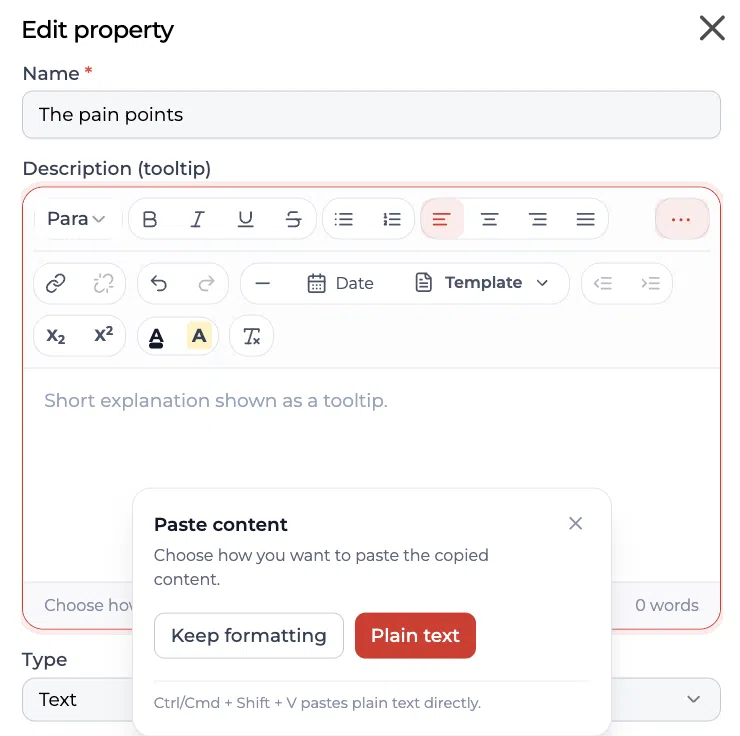
When you paste copied content into the tooltip editor, the Paste content dialog offers:
- Keep formatting to preserve links, lists, emphasis, and paragraph structure
- Plain text to remove copied formatting
Use Ctrl + Shift + V on Windows or Cmd + Shift + V on Mac to paste plain text directly.
Examples #
Example 1: Expected lead time #
Tooltip text:
“Enter the expected time from approval to first delivery. Use weeks as the unit. For guidance, see the Properties: Functional Overview article.”
Example 2: Feasibility #
Tooltip text:
“Select the option that best reflects the current feasibility of the idea. Consider technical, operational, and regulatory constraints. Use the feasibility checklist when reviewing the field.”
Example 3: Customer Problem #
Tooltip text:
“Describe the Problem from the user’s perspective. Include who experiences it, when it occurs, and what evidence supports it. Link to the relevant research or interview notes where available.”
Recommended practice #
Keep tooltips short enough to read quickly. Explain what the field means, what the user should enter, and where to find more information if necessary.
A good tooltip should answer:
- What does this Property measure?
- What should I enter?
- Which unit or format should I use?
- Where can I find more guidance?
Related article #
For the broader role of properties and how they are connected to funnels, see Properties: Functional Overview.



 English
 Dutch
Dutch Portuguese
 Spanish
 French
 German
 Arabic