
 Doc Summary
Why this feature is needed #
Lane settings define how ideas are handled at each step of a funnel. Without clear Lane configuration, teams may miss follow-up actions, apply inconsistent status updates, or create confusion about what should happen next.
By configuring each Lane properly, organizations can standardize review steps, automate routine actions, support communication, and create a clearer workflow for everyone involved in idea management.
What this feature is #
Idea funnel Lane settings are the configuration options available for each Lane in an idea funnel. These settings determine the role of the Lane, the guidance shown to users, the automatic actions that happen when ideas enter the Lane, and how follow-up is managed.
Each Lane includes six configuration tabs: General, Details, Automation, Tasks, Communication, and Celebration. Together, these tabs allow admins and power users to define the behavior and experience of that Lane in a structured way.
This feature is part of funnel configuration and supports consistent idea progression from intake through review, Decision, and archive.
Access level #
You need permission to manage funnel configuration before you can change Lane settings.
Navigation path #
Navigation path: Innovation Studio → Settings → Funnel configuration → Open funnel → Open Lane settings
How to use this feature #
Each Lane in a funnel should be configured based on the purpose of that stage in the process. For example, an intake Lane may focus on ownership and basic follow-up, while a Decision Lane may include deadlines, review tasks, and communication rules.
Use the six tabs to define both the workflow behavior and the user experience of the Lane. This helps make sure ideas move through the funnel in a predictable and manageable way.
Step by step instructions #
- Open Innovation Studio.
- Go to Settings.
- Go to Data and structures.
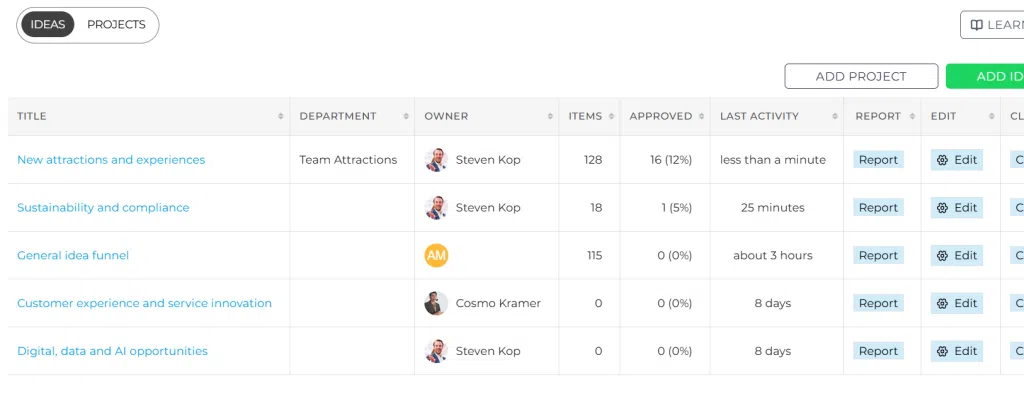
- Select Funnel overview.
- Open the funnel you want to manage.
- Select the Lane you want to configure.
- Open the Lane settings.
- Review and update the settings in each relevant tab.
- Save the changes.
- Repeat this for other lanes if you want to standardize the full funnel flow.
General #
The General tab contains the core settings of the Lane.
- Title: The name shown for the Lane in the funnel.
- Owner: The person responsible for follow-up and content in that Lane.
- Type: Set the Lane as Default, Decision, or Archive.
- Color: Choose a Lane color to improve the visual structure of the board.
- Show in graph: Decide whether ideas in this Lane are included in graph and bubble views.
Details #
The Details tab provides extra guidance and context for the Lane.
- Description: A short explanation of the Lane’s purpose. This is visible when users hover over the Lane header in the funnel.
- Link to file: Add a file link for a checklist or additional work instructions related to the Lane.
Automation #
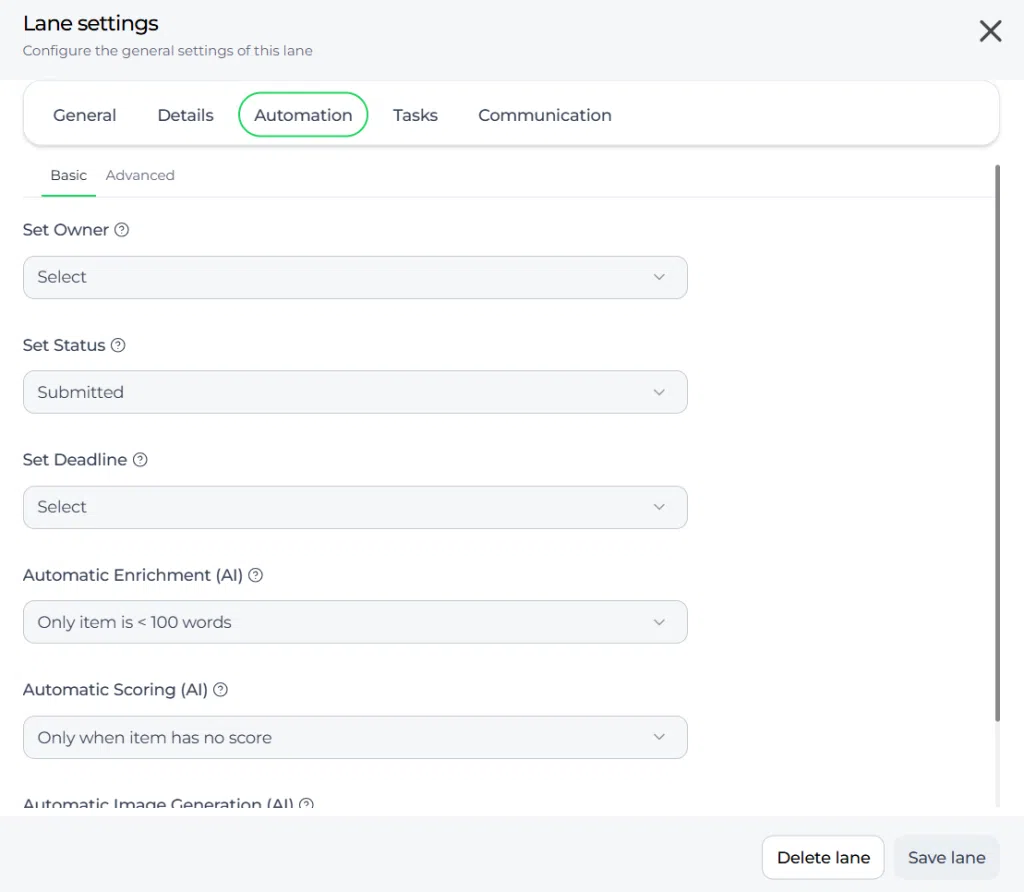
The Automation tab controls actions that are applied automatically when an idea enters the Lane.
- Set idea owner: Automatically assign or update the idea owner.
- Set deadline: Apply a deadline using a fixed date or a number of days.
- Set status: Automatically update the idea status, for example to Under review or Approved.
Tasks #
The Tasks tab allows you to create default tasks automatically when an idea enters the Lane. This helps ensure that required actions are not missed.
- Task title
- Task phase
- Task owner
- Task deadline
- Task status
- Task description
Use automatic tasks when a Lane always requires the same type of follow-up, such as a completeness check, expert review, or feasibility assessment.
Communication #
The Communication tab manages notifications related to the Lane.
- Send email notification: Automatically send an email to the idea owner or another target group.
- Target group: Choose who should receive the message.
- Dynamic mail template: Connect a dynamic mail template that defines the email content.
This is useful when people need to be informed automatically about a new review stage, a Decision, or a required next step.
Celebration #
The Celebration tab adds a visual success effect when ideas reach an important Lane.
- Enable celebration: Turn on an effect such as confetti, fireworks, or stars.
This is often used in Decision lanes such as approval or selection to acknowledge progress and create a more positive user experience.
Configuration and adjustments #
Lane settings are managed per Lane inside a funnel. This means each Lane can behave differently depending on its role in the process.
Keep the Lane setup aligned with the purpose of the stage. Intake lanes may need simple automation and guidance, while Decision lanes may need more structured tasks, communication, and celebration settings. Archive lanes are often simpler and may be excluded from graph views.
Before changing automation, tasks, or communication rules, consider how those updates affect all ideas that move into that Lane going forward. A clear and consistent Lane structure makes the full funnel easier to manage.
Practical example – Innovationlands #
Innovationlands uses a funnel called New attractions funnel to manage ideas for new park experiences. Each Lane is configured to match a specific review step.
The Submitted Lane is configured as the default Lane. It is owned by the Innovation Manager, shown in blue, and included in the graph. Automation assigns the idea owner and sets the idea status to Submitted. A task is created to check whether the submission is complete, and a thank-you email is sent to the contributor.
The Under review Lane is owned by the review committee. It updates the idea status to In review, adds review tasks automatically, and sends reminders to reviewers. This ensures that promising ideas are enriched and scored consistently.
The Selected for testing Lane is configured as a Decision Lane. It sets a 14-day deadline, changes the status to Testing, and creates feasibility and cost-analysis tasks. The idea owner is notified that the idea has moved forward.
The Approved Lane also uses Decision settings. It updates the status to Approved, creates planning and budgeting tasks, and enables a celebration effect so contributors receive a visible success moment when their idea is approved.
The Archived Lane is configured as an archive Lane, shown in grey, and excluded from graph views. This keeps closed ideas available without mixing them into active Decision reporting.



 English
 Dutch
Dutch Portuguese
 Spanish
 French
 German
 Arabic