
 Doc Summary
Why this feature is needed #
Organizations sometimes need external users to do more than participate in missions. In some cases, a trusted external partner, consultant, or collaborator needs administrative access to help manage the platform.
By default, guest users are treated as external users because their email address does not match your company domain. To allow one of these users to become an Admin, their domain must first be added to the trusted domain list in the platform security settings.
What this feature is #
A guest user is an external user who does not share the same email domain as your organization. Guest users can be invited to participate in missions, selections, and other collaboration activities, but they are not automatically trusted for administrative access.
To upgrade a guest user to an Admin role, you must first trust the user’s email domain in Application Settings. Once the external domain is listed as trusted, that user can be assigned an Admin role according to your organization’s access rules.
Access level #
You need Admin permissions to manage security settings and assign administrative access to another user.
Navigation path #
Navigation path: Innovation Studio → Settings → Security
How to use this feature #
External users are identified by their email domain. If a user belongs to another company, their domain is treated as external. This means the user remains a guest until their domain is explicitly trusted.
Before assigning the Admin role, confirm that the user should have elevated access and that their domain is approved by your organization.
Step by step instructions #
- Open Innovation Studio.
- Go to Settings.
- Select Organizational setup.
- Select Security.
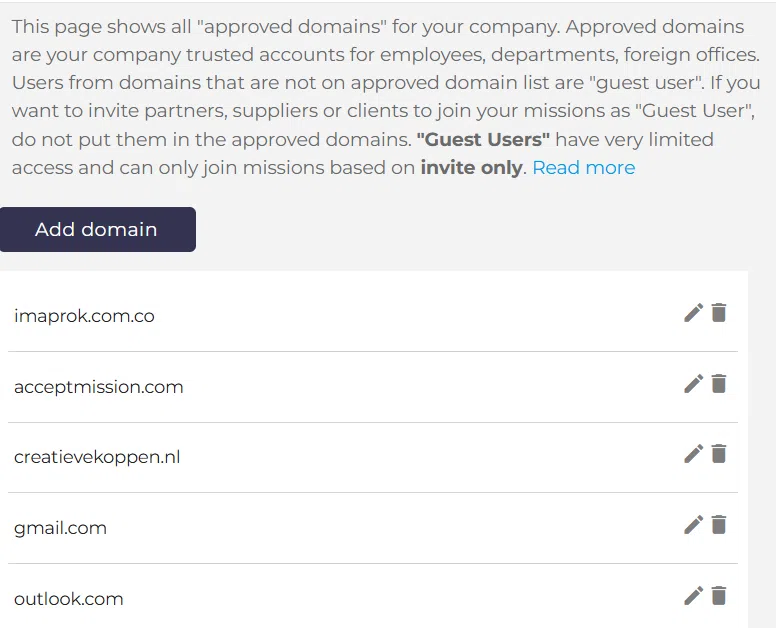
- Locate the list of trusted domains.
- Review your current company domain, for example example.com.
- Add the external user’s domain to the trusted domain list, for example xyz.com.
- Save the security settings.
- Go to the relevant user management area and assign the user the Admin role.
Configuration and adjustments #
Trusted domains are managed in Innovation Studio → Settings → Security. Any domain added here is treated as trusted by the platform for access control purposes.
Only add external domains that are approved by your organization. Expanding the trusted domain list affects who can potentially receive elevated access, so this should be reviewed carefully as part of your governance process.
Practical example – Innovationlands #
Innovationlands works with an external innovation consultancy to support a seasonal attraction program. One consultant has already joined several Mission selections as a guest user using the email domain partner-innovation.com.
The Innovationlands Admin decides that this consultant now needs broader platform access to help manage evaluation settings and oversee cross-park collaboration. To allow this, the Admin opens Settings → Security and adds partner-innovation.com to the trusted domain list.
After saving the change, the consultant can be assigned an Admin role. This allows Innovationlands to extend administrative responsibility to a trusted external partner while keeping access controlled through the domain trust configuration.



 English
 Dutch
Dutch Portuguese
 Spanish
 French
 German
 Arabic