
 Doc Summary
A Canvas gives an idea or project a structured visual workspace based on a reusable template. This guide explains how to select a Published template, review connected information, and complete item-specific fields.
Canvas guide series: Start with the Canvas functional overview. Admins can create and configure a Canvas template and manage which templates are available in a funnel. After completing a Canvas, learn how to export and publish it.
Why this feature is needed #
Ideas and projects can contain information across many fields. A Canvas brings the most important details together in a consistent layout so teams can develop an item, identify missing information, and prepare it for review without rebuilding the structure each time.
Using a reusable template also means that different ideas or projects can be reviewed through the same structure while still displaying their own item-specific information.
What this feature is #
A Canvas is an item-specific working view created from a Published Canvas template. The template controls the layout and connected properties, while the current idea or project supplies the values.
Some blocks populate automatically from existing information. Unlocked fields can be completed directly in the Canvas, and changes save automatically.
Platform area #
Innovation Studio
Access level #
Users with access to the relevant idea or project can work with its available Canvas templates. Admin access is required to create or change reusable Canvas templates.
Only Published templates are available for normal team use.
Navigation path #
Idea navigation: Open an idea → Work → Canvases
Template management: Innovation Studio → Tools → Canvases
How to use this feature #
Open the idea you want to develop and select a Published Canvas template from its Canvases working area. The selected template determines which fields appear and how they are arranged.
Review information that is already populated from the idea, then complete any unlocked fields required for the activity. Changes made in an item-specific Canvas save automatically. Wait for the Saved indicator before leaving the Canvas.
Step-by-step instructions #
Use a Canvas in an idea #
- Open the required idea.
- Select Work.
- Select Canvases.
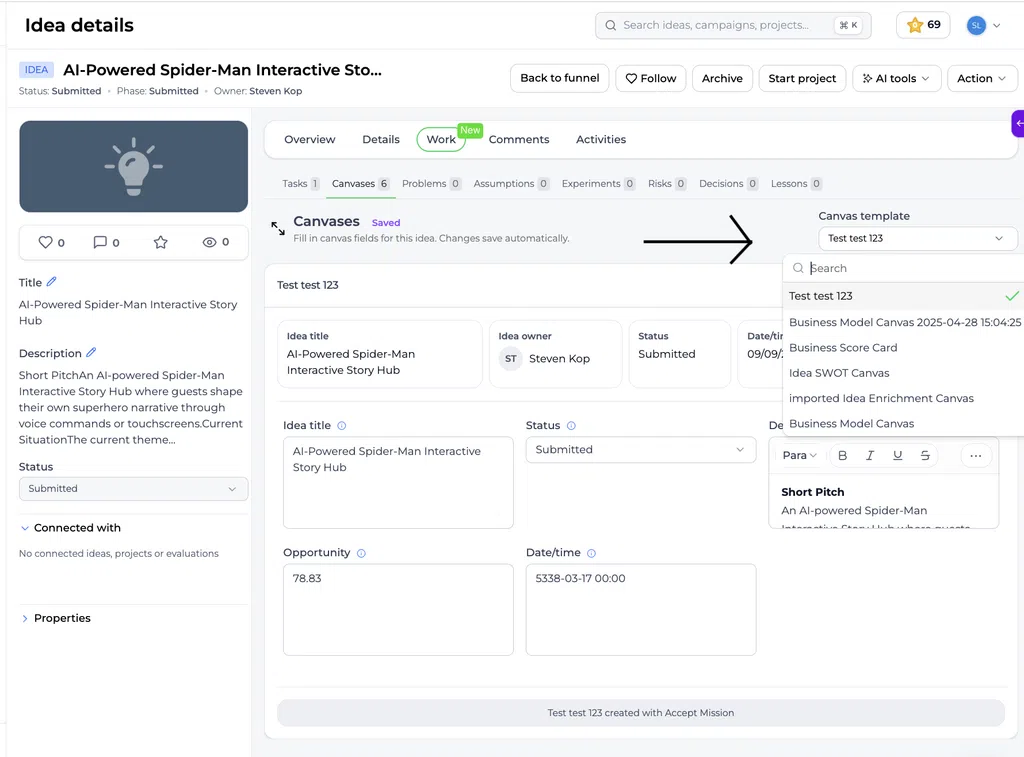
- Open the Canvas template dropdown.
- Search for or select the appropriate Published template.
- Wait for the Canvas to load.
The Canvas template dropdown shows the available Published templates. Select the template you want to apply to the idea; the selected template is then shown in the Canvas working area.
The same reusable layout can be used across multiple ideas, while each idea displays its own information.
Review connected information #
Check the blocks that populate from the idea. Depending on the template, these can include:
- Idea title
- Owner
- Status
- Date/time
- Description
- Other configured properties
If a value is incorrect, update the source Property where appropriate. The Canvas displays information from each block’s Connected Property.
An AI Summary block only displays an AI Summary already stored on the item. It does not generate one.
Complete editable fields #
- Select an unlocked field.
- Enter or update the item-specific information.
- Complete every field marked Required.
- Move through the Canvas in its intended reading order.
- Wait for the Saved indicator before leaving.
Changes made inside an item-specific Canvas save automatically. The Saved indicator confirms that the latest changes have been stored before you leave the Canvas.
In the idea Canvas view, the Saved indicator appears beside the Canvases heading while the selected Published template is active.
Understand locked and required fields #
- Required means the field must be completed.
- Unlocked means the item-specific value can be edited in the Canvas.
- A locked field can still display connected information but cannot be changed there.
Admins control these behaviors in the Canvas Template Builder.
Switch to another template #
- Open the Canvas template dropdown.
- Search for or select another Published template.
- Wait for the new layout to load.
- Review the item through the selected structure.
Use a Canvas in a project #
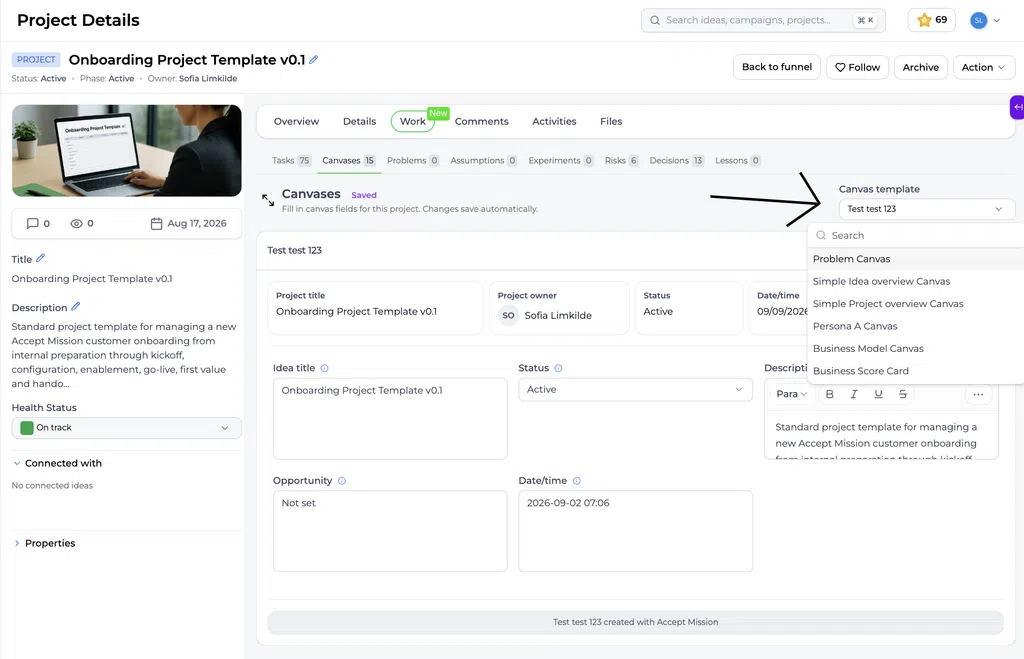
Choose the template that matches the activity or Decision being supported.
- Open the required project.
- Go to its Canvas working area.
- Select a Published Canvas template.
- Review the automatically populated project information.
- Complete the editable fields.
- Wait for the Saved indicator.
- Export or publish the Canvas when it is ready.
Using rich text properties in a Canvas #
When a Canvas displays a connected rich text Property, review the formatted content and any links as part of the item’s supporting context. The Canvas shows the Property value stored on the idea or project; the tooltip helps explain the field when it is configured or completed.
Example: A Canvas for a new attraction idea can display a rich text Concept rationale Property containing the customer need, three supporting bullet points, and a link to the research source. If the block is empty, check that the source item contains a value.
Configuration and adjustments #
The Canvas templates available to users can depend on the relevant funnel configuration. Contact an Admin if the expected template is not available.
For individual templates, Admins can configure connected properties and whether fields are Required, locked, or unlocked in the Canvas Template Builder at Innovation Studio → Tools → Canvases.
If you need a different structure for the same idea or project, use the Canvas template dropdown to select another available Published template.
Practical example: Innovationlands #
Innovationlands is a fictional organization used for support-documentation examples. Its innovation team is developing an idea for an interactive nighttime attraction and wants the concept documented in the same structure used for other attraction ideas.
The idea owner opens the idea, goes to Work → Canvases, and selects the Published New Attraction Concept Canvas created by the Admin.
Information such as the idea title, owner, and status is shown through the connected properties. The owner then completes the unlocked fields for Target visitor, Visitor Problem, Proposed experience, Expected impact, and Key risks. After the Saved indicator appears, the team can continue developing the same Canvas as the idea progresses.
This gives the innovation team a consistent way to structure the attraction concept before it is reviewed. When the Canvas is ready, the team can use the separate Export and publish a Canvas guide to share or preserve the completed view.
Show an image in your Canvas #
A Canvas can display the image connected to your idea or project. The template must contain the Idea image or Project image field. You add the image to the source idea or project; the Canvas displays it through that field.
- Open the relevant idea or project and check that it has an image. Add or update the image on the source item if needed.
- Open its Canvas area and select the appropriate Published template.
- If the template has an image block, check that it shows the item’s image. Reopen or refresh the Canvas after changing the source image if needed.
- If the template has no image block, ask an Admin to add Idea image or Project image through Add Property in the Canvas Template Builder and save the template.
Admins can follow the image field instructions. Selecting a different Canvas template can change which fields are displayed.
If an image or score does not appear #
For a missing image, check three things: the selected template contains an image block, its Connected Property matches the item type, and the source idea or project has an image. An empty image field does not supply a default picture.
For a missing Property value or score, check that the template is connected to the intended application Property or Scorecard criterion and that the current item has a value. A Canvas can include application fields, configured properties, Scorecard criteria, and stored AI fields, but only the fields selected in the template are shown.
If a block is empty #
- Identify the field represented by the block.
- Check whether the source idea or project contains a value.
- Complete the source information when appropriate.
- Return to the Canvas and refresh or reopen it if necessary.
An empty block can mean that the connected Property has no value.
If a template is missing #
Check that:
- The template has Published status.
- You have access to the item.
- The template is available in the relevant context or funnel.
- You are using the correct Canvas template dropdown.
If it still does not appear, contact your Accept Mission Admin.
Next steps #
- Canvases: Functional Overview
- Create and configure a Canvas template
- Manage the Canvases tab in funnel management
- Export and publish a Canvas
Video walkthrough #
Watch this short walkthrough to see the updated Canvas experience in action:
Viewing Static Text in a Canvas #
When a Canvas template includes a Static Text block, users see the fixed heading or guidance while working on the idea or project. They do not edit this block as an item value.
For example, a Canvas may display Add supporting evidence above a connected Property so users understand what information to provide.



 English
 Dutch
Dutch Portuguese
 Spanish
 French
 German
 Arabic