
 Doc Summary
Overview #
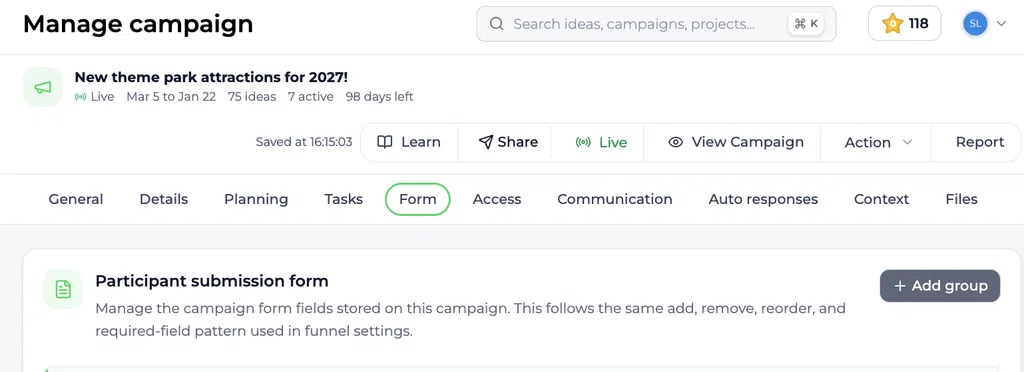
Campaign form groups let you organize related fields into separate sections of a participant submission form. This makes longer forms easier to read and helps participants understand which information belongs together.
A group is a real form structure, not only a visual label or static text block. Each group can have its own title and short description, and you can add the fields that participants need to complete inside it.
When to use a group #
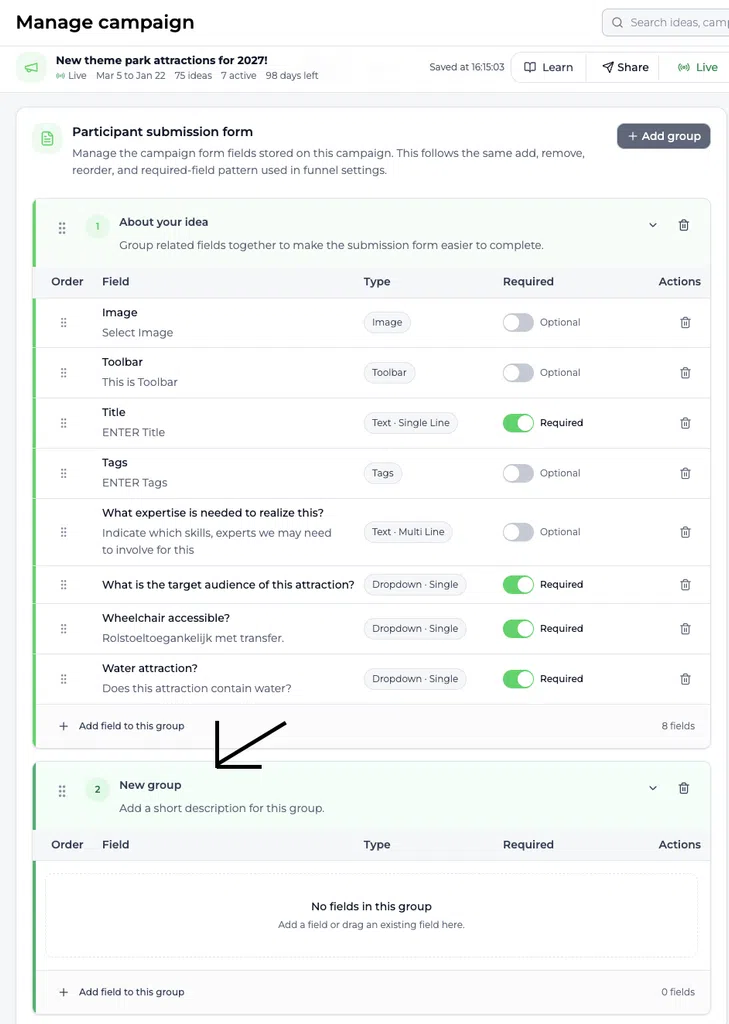
Use a group when several fields belong to the same topic or step. For example, a campaign about new theme park attractions could use a group called New group for questions about the attraction’s target audience, accessibility, and whether it uses water.
Groups are especially useful when a campaign form contains many fields because they make the form easier to scan and complete.
Add a group to a campaign form #
- Open the campaign you want to configure.
- Open Manage campaign.
- Select the Form tab.
- In Participant submission form, select Add group.
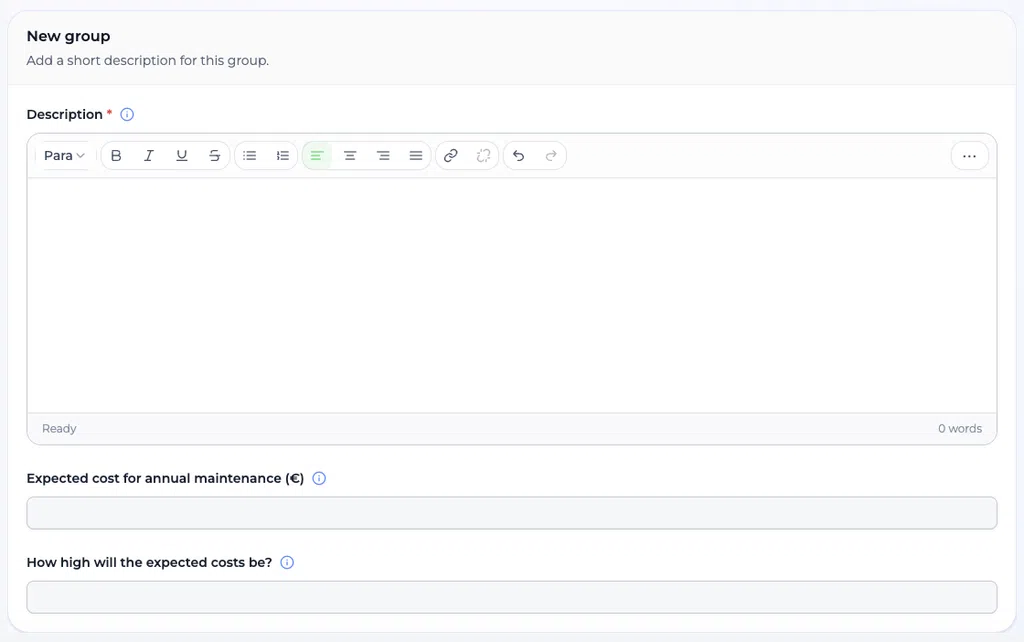
- Enter a clear group title.
- Add a short description explaining what information participants should provide.
- Select Add field to this group.
- Choose the fields that participants should complete in this group.
- Configure each field as required or optional, where available.
- Arrange the fields and groups in the order in which participants should complete them.
- Review the form from the participant view before making the campaign available.
Configure the group fields #
A group can contain different field types, including custom questions created for the campaign. Give each field a clear label so participants know exactly what information to enter.
For each field, check:
- Whether the field is required.
- Whether the field is in the correct group.
- Whether the field appears in the correct order.
- Whether the wording is clear to participants.
If the form supports field width or layout settings, related fields can be displayed next to one another where this improves readability. Keep the layout simple on smaller screens.
What participants see #
When a participant selects Submit idea, the group appears as a separate block in the idea submission form. The participant sees the group title and description, followed by the fields assigned to that group.
For example, a group named New group might contain:
- What is the target audience of this attraction?
- Wheelchair accessible?
- Water attraction?
The participant completes these fields as part of submitting the idea.
Example #
A campaign for new theme park attractions could use:
Group title: New group
Group description: Add a short description for this group.
Fields:
- What is the target audience of this attraction?
- Wheelchair accessible?
- Water attraction?
The group appears below the existing idea details section in the participant submission form.
Best practices #
- Group fields that belong to the same subject.
- Use a descriptive title instead of leaving the default name New group.
- Add a short description when participants need extra context.
- Make only essential fields required.
- Keep the field order logical.
- Test the form from the participant perspective before launching the campaign.
- Check the form on both desktop and smaller screens.



 English
 Dutch
Dutch Portuguese
 Spanish
 French
 German
 Arabic