
 Doc Summary
Why this feature is needed #
Gateways help you structure idea collection around a specific challenge, topic, or submission flow. Instead of relying on one general intake route, you can create a dedicated entry point with its own title, form, access settings, notifications, and supporting context.
This is useful when you want to guide contributors toward a focused submission process, make participation easier for a specific audience, or separate one intake flow from another for reporting and ownership.
What this feature is #
A gateway is a configurable idea collection entry point in Accept Mission. It is managed in the Innovation Studio and is part of the idea collecting setup. From the gateway workspace, power users can define the basic content, edit the form, manage access, configure notifications, and prepare contextual guidance for participants.
Gateways connect idea collection with the broader innovation process. After ideas are submitted through a gateway, they can be reviewed, enriched, and moved into structured evaluation and Decision-making flows.
Access level #
You need access to the Innovation Studio and permission to manage idea collecting features.
Navigation path #
Navigation path: Innovation Studio → Idea collecting → Gateways
How to use this feature #
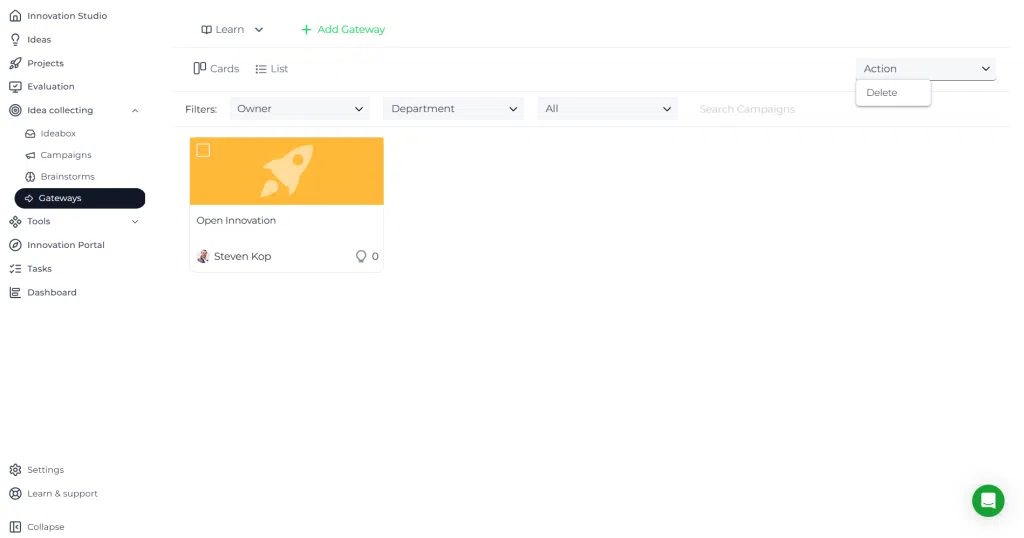
The gateways overview shows all available gateways in either card view or list view. From this screen, you can create a new gateway, filter existing gateways, and open a gateway for editing.
Each gateway can include a visual header image, a title, descriptive text, a briefing, form settings, access rules, notification settings, and context for participants. Based on the interface shown, gateways can also be switched between online and offline states.
Step by step instructions #
1. Open the gateways overview #
- Go to Innovation Studio.
- In the left menu, open Idea collecting.
- Select Gateways.
Here you can review existing gateways and use filters such as owner, department, and status to find the correct one.
2. Create a new gateway #
- Click Add Gateway.
- Open the new gateway record.
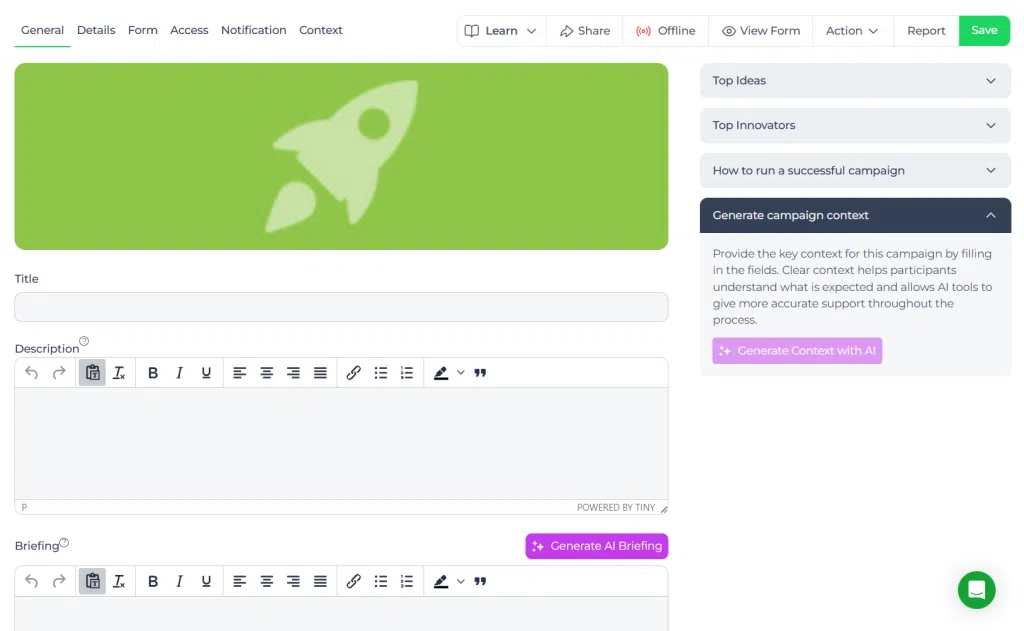
- Start on the General tab.
The General tab is where you prepare the basic structure of the gateway before making it available to participants.
3. Add the core gateway content #
- Add or update the gateway image.
- Enter a clear Title.
- Write a short Description that explains what contributors should submit.
- Add a Briefing if participants need more structure or context before they submit ideas.
Keep the title specific and action oriented. The description should explain the type of input expected. The briefing can be used for additional instructions, constraints, or evaluation context.
4. Configure participant guidance #
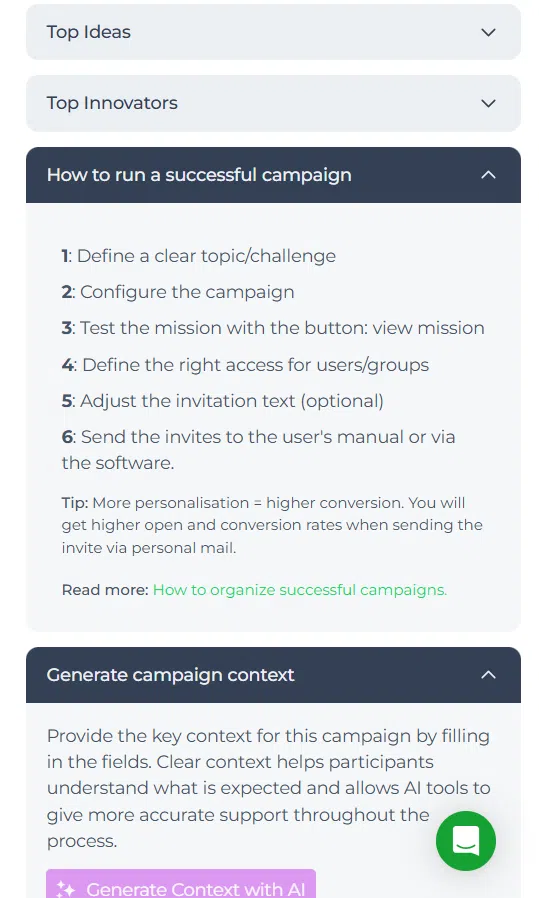
- Review the supporting guidance panels on the right side of the gateway.
- Expand sections such as Top Ideas, Top Innovators, and contextual guidance if available.
- Use the available AI actions where appropriate to generate supporting context or briefing text.
These sections help you prepare a more complete submission environment. Use them to give participants useful direction and make the gateway easier to understand.
5. Adjust form settings #
- Open the Form tab.
- Review the fields that contributors will use during submission.
- Adjust the structure so the form captures the information needed for evaluation and follow-up.
The form should balance clarity and completeness. Only ask for information that is useful for later enrichment, scoring, and Decision-making.
6. Define who can use the gateway #
- Open the Access tab.
- Review which users or groups should be able to see or use the gateway.
- Save your changes.
Use access settings when a gateway should only be available to a selected audience, such as one department or one campaign group.
7. Review notifications and supporting settings #
- Open the Notification tab.
- Check whether relevant participants or owners should receive updates.
- Open the Details and Context tabs as needed to complete the setup.
These tabs help you finish the operational setup of the gateway before publishing it for use.
8. Save and publish the gateway #
- Click Save after each important change.
- Use View Form to review the submission experience.
- When the gateway is ready, set it to the appropriate status so it can be used.
The interface shows an offline state option, which indicates that a gateway can be kept inactive until the setup is complete.
Configuration and adjustments #
Gateways can be adjusted after creation through the tab structure in the gateway editor.
- General is used for title, content, image, and briefing.
- Form is used to shape the submission experience.
- Access is used to control who can participate.
- Notification is used to review communication behavior.
- Context is used to provide additional guidance and supporting information.
Changes to a gateway affect how contributors see the submission flow and what information is collected. Review updates carefully before making the gateway active.
Practical example – Innovationlands #
Innovationlands wants to collect ideas for improving visitor flow during peak periods at Innovationlands World. A Power User creates a gateway called Open Innovation for the Group Operations and Capacity and Flow Management Team.
In the gateway description, the owner explains that employees should submit ideas that reduce queue pressure, improve guest movement, or increase staff coordination. In the briefing, the owner adds context about park congestion, expected business impact, and the type of evidence that makes an idea easier to review.
In the form setup, the team asks contributors to describe the operational Problem, proposed improvement, expected effect on guest experience, and any dependencies. Access is limited to relevant departments so the gateway stays focused.
Once submissions come in, the ideas can be enriched and reviewed in a structured funnel. The strongest ideas can then be scored for feasibility, operational value, and strategic fit. If one idea is approved, it can move forward into a formal initiative or project for execution.
Related notes #
Use separate gateways when the audience, form structure, or submission context is different. This makes intake cleaner and supports better downstream evaluation.



 English
 Dutch
Dutch Portuguese
 Spanish
 French
 German
 Arabic