
 Doc Summary
Project Templates: Functional Overview #
Project Templates help organizations reuse a proven project structure when starting similar innovation projects. Instead of rebuilding the same project plan, tasks, team setup, strategic alignment, and Innovation Intelligence content each time, an Admin can save an existing project as a reusable template.
A template can then be used when creating a new project directly in a project funnel or when starting a project from an approved idea.
Why this feature is needed #
Many innovation projects follow a repeatable approach. A pilot may always begin with the same validation tasks. A rollout may require the same risks, Decision points, team roles, and implementation steps. An innovation program may use a standard project method across multiple departments, regions, or business units.
Without templates, teams must recreate this structure manually. This takes time and increases the Risk that important work is forgotten or that each project uses a different method.
Project Templates make proven project structures reusable. They help teams start faster, apply consistent working methods, and retain the flexibility to adapt each new project.
What Project Templates enable #
With Project Templates, Admins can:
- Save an existing project as a reusable template
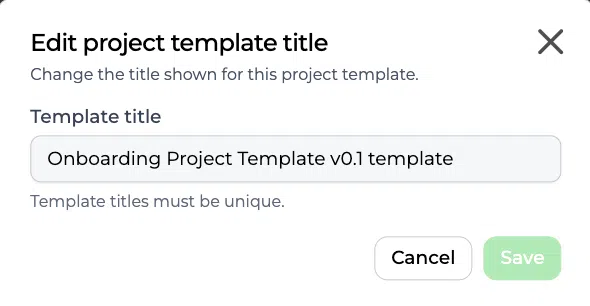
- Give each template a unique title
- Choose which types of project content to include
- Reuse the project title and selected project description
- Copy tasks with their details and recalculated dates
- Reuse files and links
- Copy Innovation Intelligence items
- Reuse team members
- Reuse Strategic Domains
- Create a new project directly from a template
- Apply a template when starting a project from an idea
- Rename, reorder, and delete templates
- Review who created a template, when it was created, what it includes, and how often it has been used
What can be included in a template #
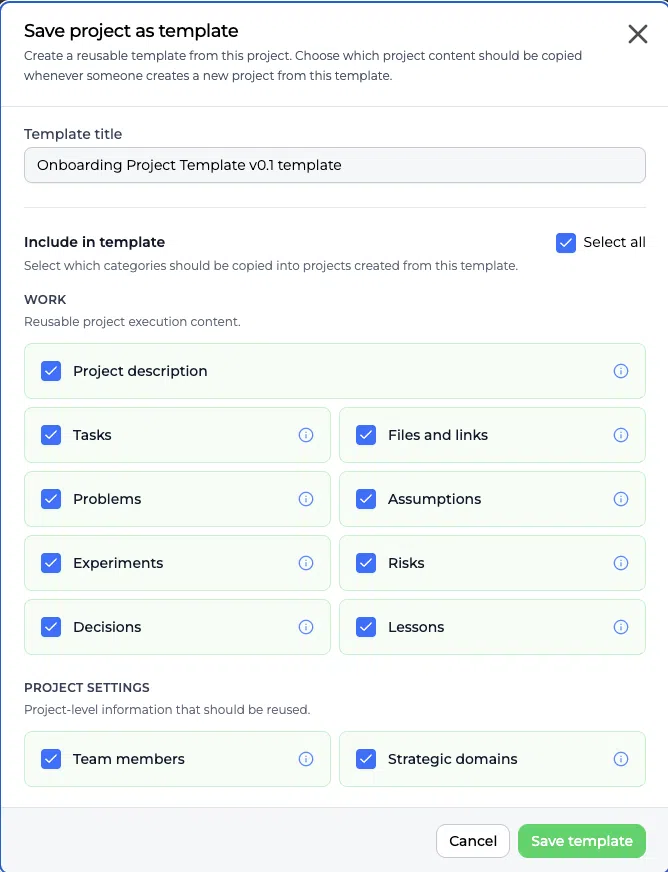
When saving a project as a template, the Admin chooses which content categories should be copied into projects created from it.
The available categories are:
| Category | What it reuses |
|---|---|
| Project description | The project description from the source project |
| Tasks | The project tasks, including their configured details |
| Files and links | Files and links connected to the source project |
| Problems | Structured problems recorded for the project |
| Assumptions | Assumptions that need to be made visible and validated |
| Experiments | Experiments used to test assumptions and reduce uncertainty |
| Risks | Risks recorded for monitoring and mitigation |
| Decisions | Decisions and their context |
| Lessons | Captured learning that should support the new project |
| Team members | The selected project team setup |
| Strategic domains | The strategic alignment connected to the project |
Use Select all when the complete project structure should be reused. Clear categories that should not become part of future projects.
The template title is used to identify the reusable template and must be unique.
Save an existing project as a template #
Only Admins can create Project Templates.
To save a project as a template:
- Open Innovation Studio.
- Open the relevant project funnel.
- Open the project that contains the reusable structure.
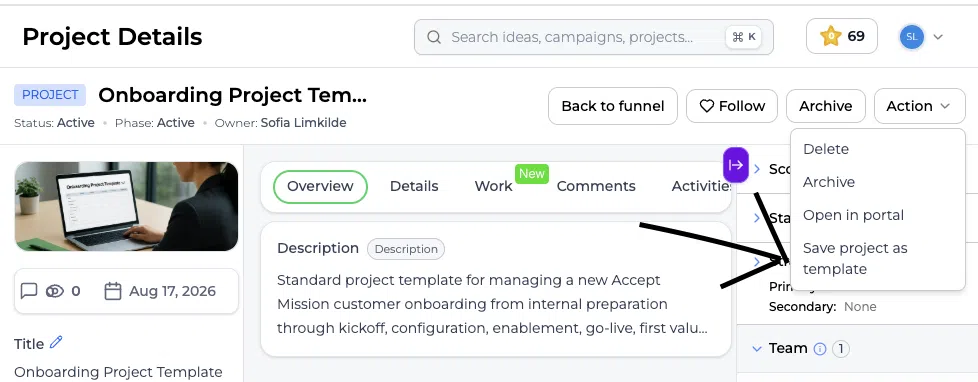
- Go to Project Details.
- Open Action.
- Select Save project as template.
- Enter a unique template title.
- Select the content categories to include.
- Select Save template.
Use a source project that represents the intended working method. Review outdated tasks, incorrect team members, temporary files, and project-specific information before saving it.
A template should be reusable. It should not accidentally carry irrelevant or confidential information into future projects.
How project titles are handled #
The source project title is copied when a project is created from a template. The new title is clearly marked as a copy.
This makes the origin recognizable, but it is not intended to remain the final project title. The user should rename the new project immediately so it describes the actual initiative, location, customer, department, or implementation.
For example:
- Source project: Customer Portal Implementation
- Newly created project: Copy of Customer Portal Implementation
- Updated title: Customer Portal Implementation for Region North
The exact copy marker shown in the interface may follow the product’s current naming format.
How task dates are recalculated #
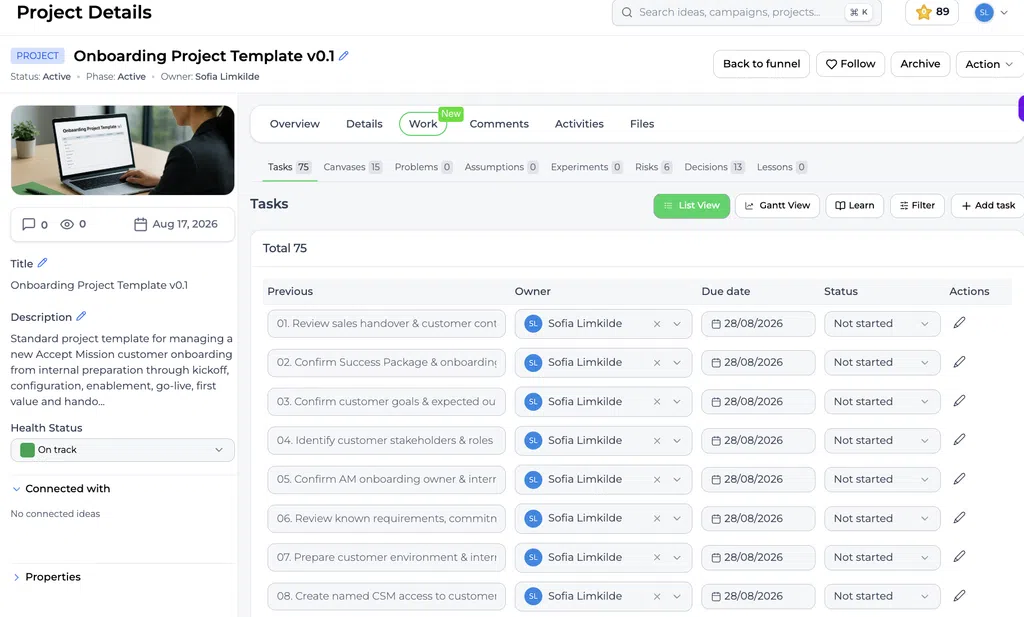
Tasks are copied with their configured content, including owners, statuses, priorities, descriptions, dependencies, and dates.
The task plan is shifted so it is relevant to the moment the new project is created:
- Accept Mission identifies the task with the earliest deadline.
- That earliest deadline is set to one week after the new project is created.
- The remaining task dates are recalculated relative to that planning anchor.
This preserves the reusable sequence of the task plan without carrying outdated calendar dates from the source project.
For example, suppose the original template contains:
- Prepare project kickoff
- Validate key assumptions
- Run first Experiment
- Review evidence
- Make go or no-go Decision
When the template is used months later, these tasks are placed into a new schedule based on the new project’s creation date.
Always review the calculated dates after creating the project. Public holidays, team availability, external deadlines, and project complexity may require adjustments.
Innovation Intelligence in a template #
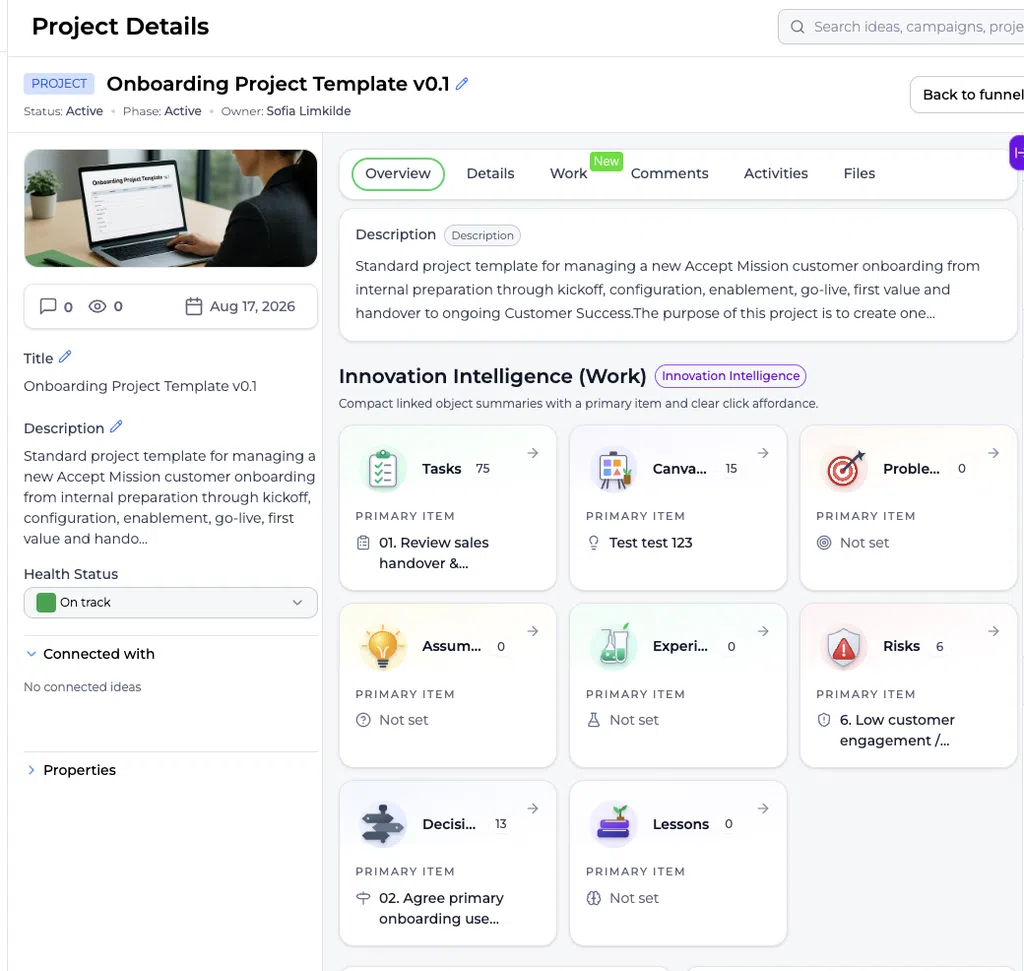
Project Templates can reuse the structured Innovation Intelligence connected to a project.
Problems #
Problems help teams avoid jumping directly to solutions. Reusing a Problem structure can provide a consistent starting point for similar projects, but each copied Problem must still be checked against the new context.
Assumptions #
Assumptions make uncertainty visible. A template can carry common customer, Solution, feasibility, adoption, timing, or impact assumptions into a new project for validation.
Experiments #
Experiments turn uncertainty into evidence. Reusable experiments are useful when every project must test a standard hypothesis or complete the same validation step.
Risks #
Risks keep threats related to timing, adoption, quality, dependencies, budget, and execution visible. A template can provide a standard Risk baseline that the new project team reviews and adapts.
Decisions #
Decisions preserve important Decision points and their context. In a template, they can provide a repeatable governance structure for stage reviews, investment choices, or go and no-go moments.
Lessons #
Lessons help organizations reuse learning. Copying relevant lessons into a new project makes previous experience visible at the start, but the project team should distinguish historical learning from lessons generated by the new project.
These copied items become part of the new project. They should be reviewed and adjusted rather than treated as automatically valid in every situation.
Create a project directly from a template #
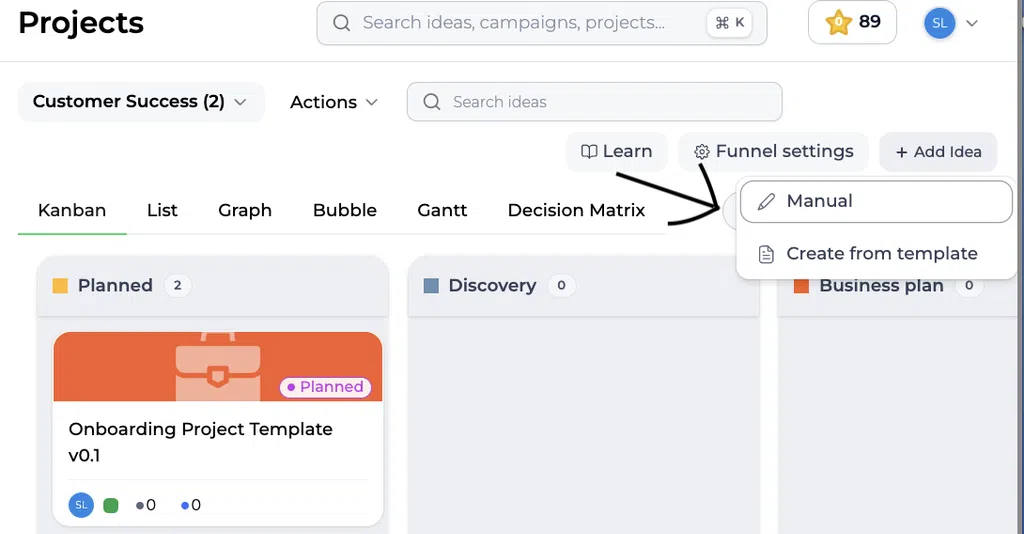
A template can be used when adding a new project to a project funnel.
To create a project from a template:
- Open Innovation Studio.
- Open the appropriate project funnel.
- Select Add Venture.
- Select Create from template.
- Choose the required Project Template.
- Complete the creation flow.
- Rename the copied project title.
- Review the copied content, team, alignment, and recalculated task dates.
Use Manual when the project should start without a predefined template.
Start a project from an idea using a template #
Project Templates are also available when an idea progresses into execution.
To use a template from an idea:
- Open the approved idea in Innovation Studio.
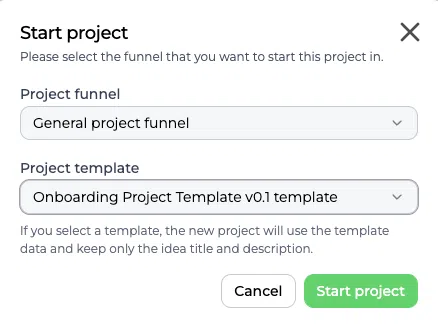
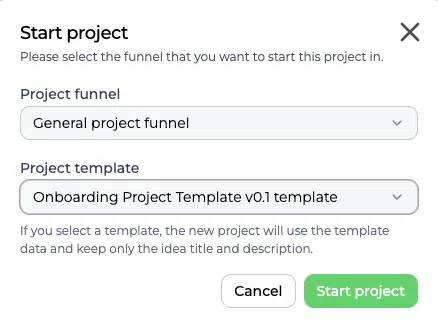
- Select Start project.
- Choose the destination project funnel.
- Select the Project Template to apply.
- Complete the project creation flow.
- Review the connection between the original idea and the new project.
- Rename the copied project title and validate all copied content.
This creates continuity from idea management to project execution while applying a standard delivery structure.
The template provides the reusable project setup. The original idea remains the source of the initiative and stays connected to the resulting project.
Manage Project Templates #
Only Admins can manage Project Templates.
Go to:
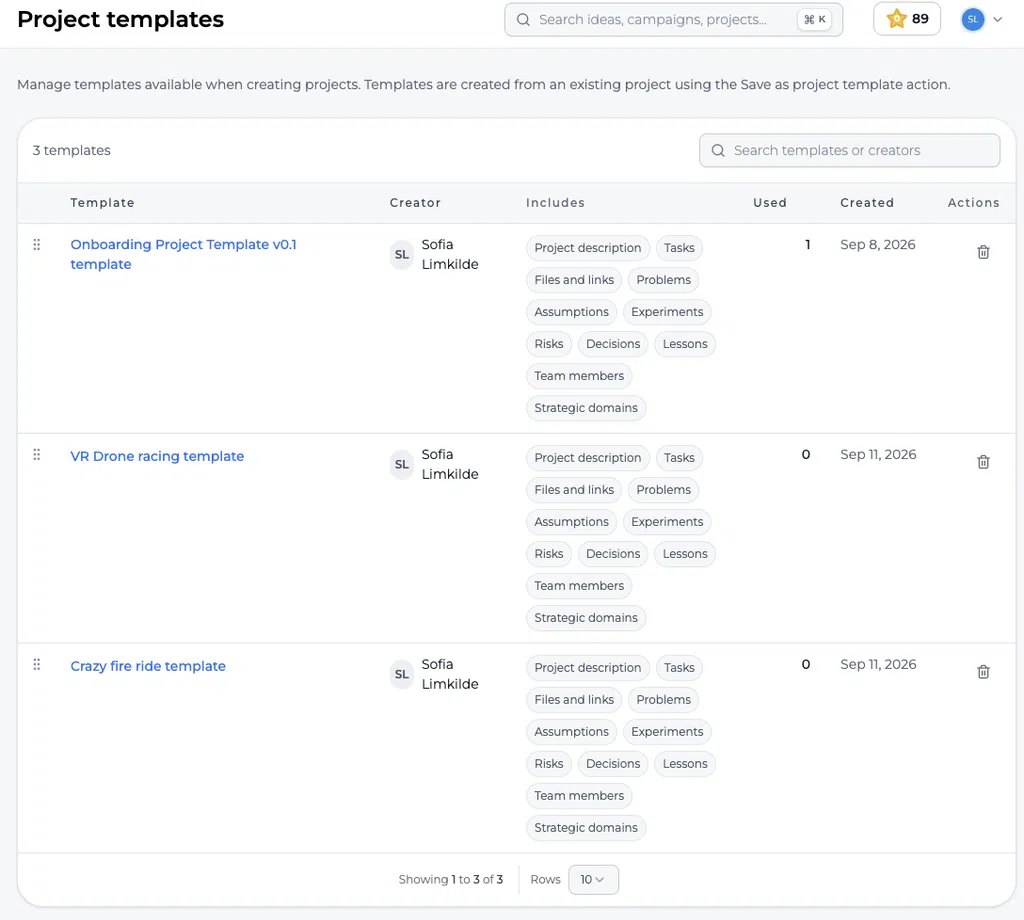
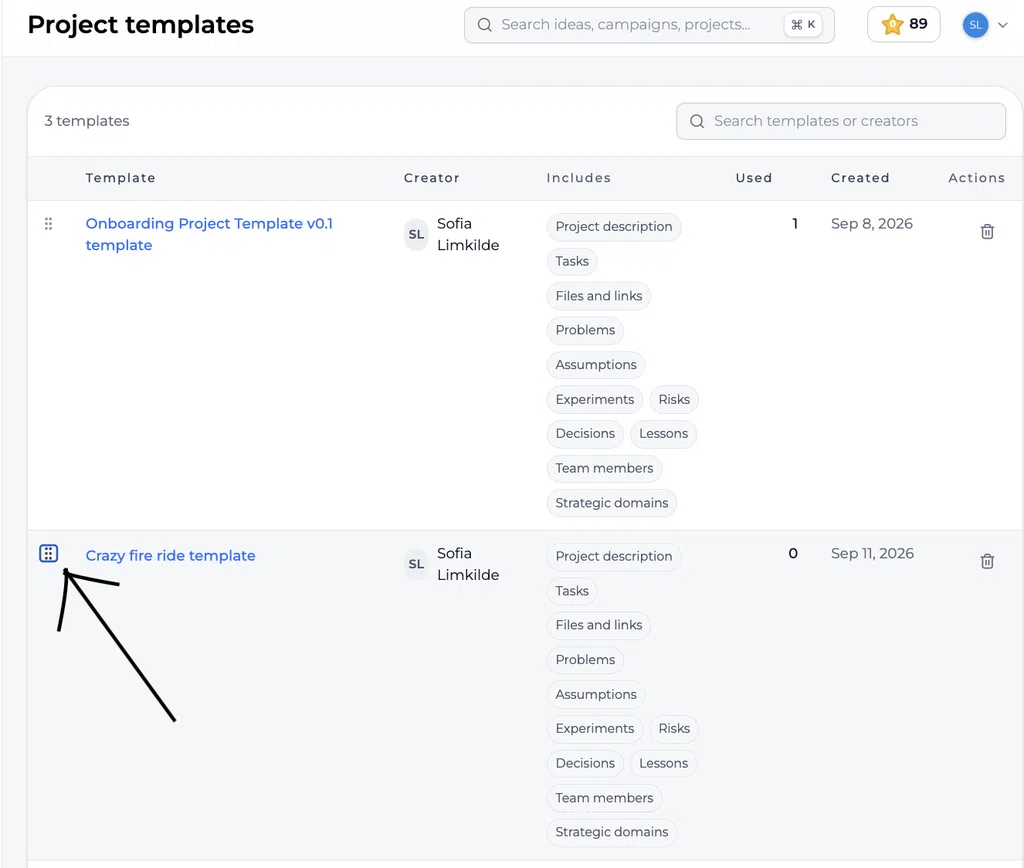
Innovation Studio > Settings > Data and structures > Project templates
The overview shows:
- Template title
- Creator
- Included content categories
- Number of times used
- Creation date
- Available actions
Admins can:
- Search templates or creators
- Rename a template
- Reorder templates
- Delete templates
- Review template usage
- Review which content categories are included
Template titles must be unique. Accept Mission prevents duplicate template titles so users can clearly identify the correct template during project creation.
Practical examples #
Example 1: Standard innovation pilot #
An organization runs every innovation pilot through the same validation process.
The template includes:
- Project description structure
- Standard pilot tasks
- Customer and feasibility assumptions
- Required experiments
- Common risks
- Decision moments
- Team roles
Each new pilot starts with the same method. The project owner then adjusts the content to the specific innovation.
Example 2: Repeating a regional rollout #
A company rolls out the same service across multiple regions.
The first successful rollout is saved as a template containing:
- Implementation tasks
- Files and links
- Known risks
- Key decisions
- Lessons from the first rollout
- Relevant team members
- Strategic alignment
A new project is created for each region. Its copied title is renamed, and the recalculated task plan starts from the new creation date.
Example 3: Start execution from an approved idea #
An idea for a digital self-service Solution is approved.
The innovation manager selects Start project, chooses a Digital Service Pilot template, and creates the project. The idea remains connected to the new project while the template supplies the standard execution and validation structure.
Example 4: Standard compliance implementation #
Projects in a regulated environment require the same reviews, risks, evidence, and Decision moments.
A template ensures every project begins with:
- Compliance tasks
- Standard Risk records
- Required decisions
- Evidence links
- Responsible team members
This improves consistency, but each project team still validates whether the copied information applies to the new situation.
Example 5: Reusable experimentation process #
An innovation lab uses a standard experimentation sequence:
- Define the primary Problem
- Identify critical assumptions
- Design experiments
- Collect evidence
- Review risks
- Record a Decision
- Capture lessons
Saving this project as a template makes the innovation method reusable across many initiatives.
Recommended setup approach #
Before creating a Project Template:
- Select a representative source project.
- Remove project-specific or confidential content that should not be reused.
- Check task owners, dependencies, statuses, and priorities.
- Review files and links.
- Review all Innovation Intelligence items.
- Confirm the team setup.
- Confirm the Strategic Domains.
- Select only the categories future projects genuinely need.
- Use a unique and recognizable template title.
- Test the template by creating a project in Innovationlands or another safe test environment.
- Review the copied title and task dates.
- Explain to users which templates apply to which project types.
What to review after creating a project #
A template provides a starting point, not a completed project plan.
After creating a project, review:
- The copied project title
- The project description
- Task deadlines and dependencies
- Task owners and team availability
- Files and access permissions
- Problems and assumptions
- Experiment relevance
- Risks and mitigations
- Decision context
- Lessons from the source project
- Team members
- Strategic Domains
This review prevents copied information from being mistaken for current project evidence or confirmed facts.
Governance and maintenance #
A practical governance approach is to:
- Limit template creation and management to Admins
- Use clear naming conventions
- Prevent overlapping templates
- Review usage counts
- Test templates after major product or process changes
- Delete templates that should no longer be used
- Create a refreshed template when the reusable content must change
- Communicate which template is the preferred standard
- Review sensitive files, team members, and strategic alignment before reuse
Too many similar templates make selection harder. Maintain a focused library of proven project approaches.
Related articles #
- Innovation project management
- Starting a project from an idea and linking it to the project portfolio
- Innovation intelligence
- Innovation tasks
- Innovation problems
- Innovation assumptions
- Innovation experiments
- Innovation risks
- Innovation decisions
- Innovation lessons
- Strategic Domains: Functional Overview
Summary #
Project Templates turn a proven project into a reusable starting point. Admins can save an existing project, choose which content categories to include, and manage a unique, ordered template library.
Templates can be applied when creating a project directly or when starting a project from an idea. The copied title is clearly marked for renaming, and task dates are recalculated so the earliest deadline falls one week after project creation while the remaining plan shifts with it.
By reusing tasks, files, Innovation Intelligence, team members, and Strategic Domains, organizations can start projects faster and apply more consistent innovation methods. Every copied project should still be reviewed and adapted to its own context.



 English
 Dutch
Dutch Portuguese
 Spanish
 French
 German
 Arabic