
 Doc Summary
Why this feature is needed #
Innovation projects often involve many activities across different people, phases, and deadlines. Without a structured way to manage tasks, teams can lose track of ownership, miss deadlines, and struggle to understand project progress.
Task management helps innovation teams stay organized inside a project. It provides a clear view of what needs to be done, who is responsible, and how work is progressing over time.
What this feature is #
Task management in Accept Mission is the task tracking area inside an innovation project. It helps teams create, assign, update, and monitor project tasks so work can be coordinated more effectively.
Tasks are managed inside the Tasks tab of a project. From there, users can work in two views: List view and Gantt view. These views help teams track deadlines, task ownership, phases, and progress in different ways.
Task management is part of innovation project execution. It supports project follow-up inside Accept Mission, while broader operational activity tracking can still be handled in other tools if needed.
Access level #
You need access to the relevant innovation project in the Innovation Studio to work with project tasks.
Navigation path #
Navigation path: Innovation Studio → Projects → Open project → Tasks
How to use this feature #
Task management is used inside a project to keep track of the activities needed to move the project forward. You can use it to assign work, group tasks, update deadlines, and monitor progress through list and Gantt views.
This is especially useful when multiple team members are involved and the project includes several phases or deadlines.
Step by step instructions #
- Open Innovation Studio.
- Go to Projects.
- Open the project you want to manage.
- Select the Tasks tab.
- Choose List view or Gantt view depending on the overview you need.
- Click Add task if you want to create a new task.
- Fill in the task details and save the task.
- Update task values directly in the list when work progresses.
- Review task ownership, deadlines, and status regularly to keep the project on track.
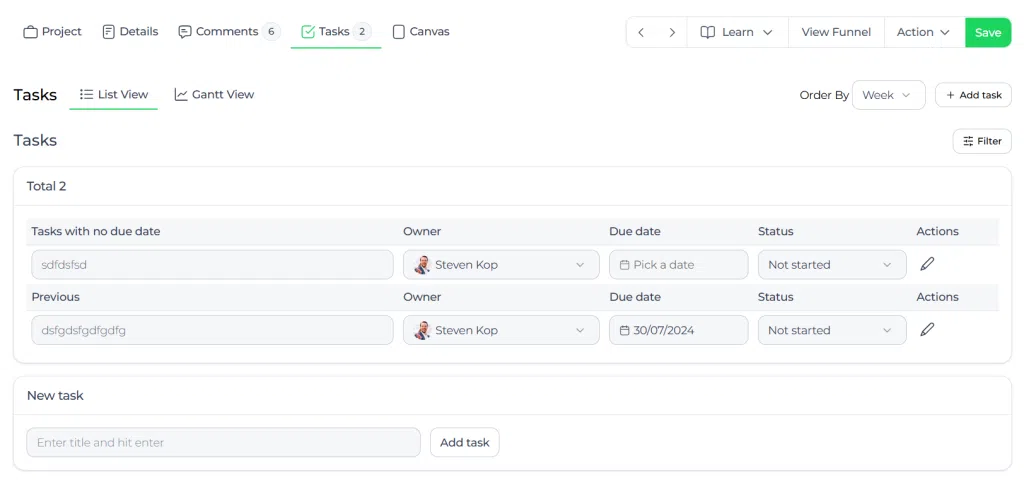
Task management views #
List view #
The list view shows a smart list of all tasks in the project. Tasks are always grouped based on the Group by selector.
You can group tasks by:
- Week for weekly task grouping
- Month for monthly task grouping
- Phases for grouping by project phase
- Status for grouping by task progress
- Owner for grouping by responsible person
This view is useful when you want a practical and editable task overview.
Gantt view #
The Gantt chart view presents all tasks of the project in an interactive time-based overview. This helps you understand task timing, sequence, and progress more clearly.
You can see the hierarchy and progress of tasks in this chart and hover over tasks to view more information.
Add a new task #
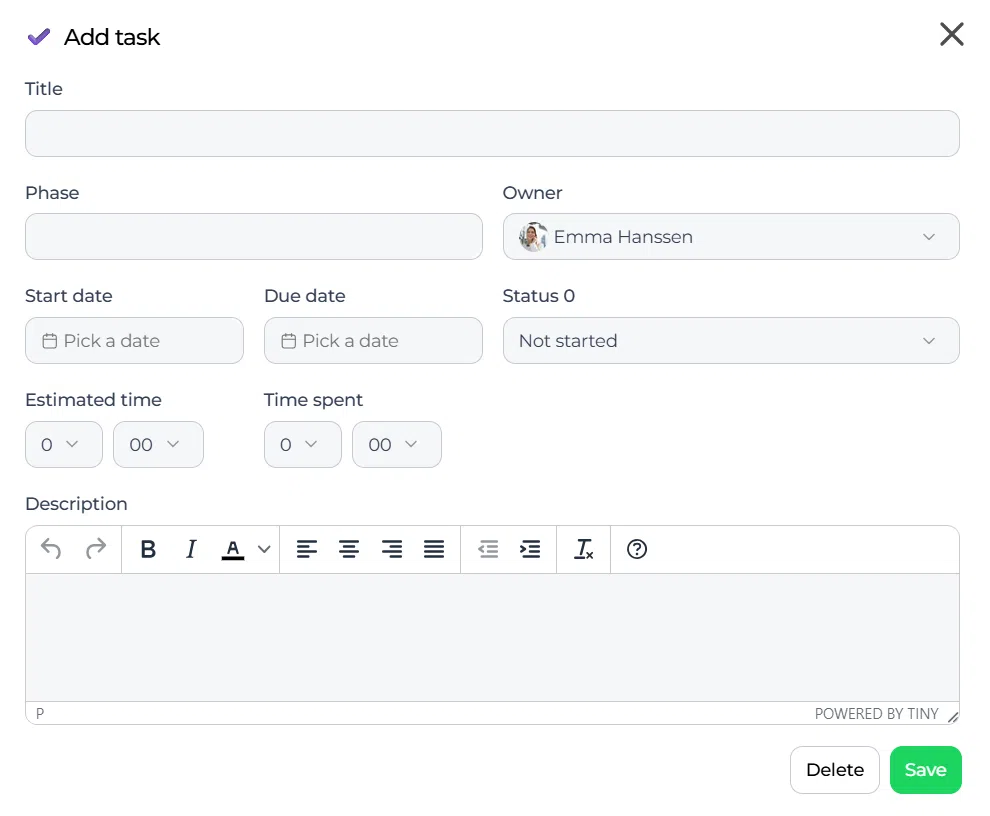
You can create a new task by clicking the Add task button in the Tasks tab.
The following fields are available when creating a task:
- Title – The title of the task. This is required.
- Phase – A free field where you can enter a new phase name or select an existing phase already used by other tasks in this project.
- Owner – The person responsible for the task. When the task is saved, the owner receives a notification.
- End date – The deadline of the task. On that date, the owner receives a reminder notification.
- Duration – The time needed to complete the task.
- Status – Indicates whether the task is not started, in progress, or completed.
- Description – A clear description of the task.
Live edit tasks directly in the smart list #
Tasks in the smart list can be updated directly. Everything is live and updated immediately.
For example, when you change the deadline, tasks in the week or month grouping are reorganized automatically. The same happens for other visible fields in the smart list.
This makes the list view useful for fast project follow-up without opening each task separately.
Notifications #
The following notifications are connected to tasks:
- A notification is sent to the task owner when a task is created or when the task owner is changed.
- A notification is sent to the task owner on the morning of the task deadline as a reminder that the deadline has arrived.
The deadline reminder is not sent when the task is already completed.
Configuration and adjustments #
Task management is available inside each project in the Tasks tab. The way tasks are used depends on how the project team structures phases, ownership, and deadlines.
To keep task management effective, use consistent phase names, assign clear owners, and update statuses regularly. This improves both list grouping and Gantt visibility.
If tasks are not being followed up properly, review whether deadlines, ownership, and status updates are being maintained consistently by the project team.
Practical example – Innovationlands #
Innovationlands is managing a project to introduce a new interactive guest queue experience. The project team includes people from Guest Experience, Park Operations, and Technology.
Inside the project, the innovation lead opens the Tasks tab and creates tasks such as concept validation, operational safety review, budget input, and prototype planning. Each task is assigned to the right owner, placed in a phase, and given a deadline.
During weekly follow-up, the team uses the List view grouped by status to see what is not started, in progress, and completed. For planning across the full timeline, they switch to the Gantt view to understand how tasks overlap and whether the project is still on schedule.
This helps Innovationlands keep the project organized, make ownership clear, and monitor whether the work is progressing toward the next project stage.



 English
 Dutch
Dutch Portuguese
 Spanish
 French
 German
 Arabic