
 Doc Summary
Why this feature is needed #
Different innovation processes require different ways of evaluating ideas. A single numeric scale is not always the best fit for every review moment. Some teams need detailed scoring, while others need quick qualitative judgments.
Custom score types make it possible to match scoring logic to the way your organization evaluates ideas. This helps reviewers score more consistently and makes scorecards easier to understand during Decision making.
What this feature is #
Custom score types are configurable evaluation formats used within Accept Mission scorecards. They define how users score ideas inside funnels and review flows.
Accept Mission supports multiple scoring types, including a numeric scale from 0 to 10, a star rating from 0 to 5, Low/Medium/High scoring, and fully custom scoring with configurable labels and options.
Score types are selected when configuring Child Criteria inside a Scorecard. Child Criteria are what evaluators score, and their results roll up into the parent category. Parent categories and Child Criteria can have configurable weights, with percentages calculated automatically from their relative weights.
Access level #
You need permission to manage scoring settings before you can create or update score types.
Navigation path #
Navigation path: Settings → Data and structures → Scorecards
How to use this feature #
Score types define the format reviewers use when evaluating ideas. Once a score type is created, it can be applied in the relevant scoring setup for a funnel or evaluation process. Choosing the right score type helps align scoring with the purpose of the review.
Step by step instructions #
- Open Innovation Studio.
- Go to Settings.
- Open Scorecards.
- Create a new Scorecard or open an existing Scorecard.
- Add a parent category and at least one child criterion.
- Choose the scoring type you want to use.
- Enter a clear name for the score.
- Add a description so reviewers understand what should be evaluated.
- For custom scoring, define the button labels or selectable options you want to use.
- Save or publish the Scorecard after each parent category has at least one child criterion.
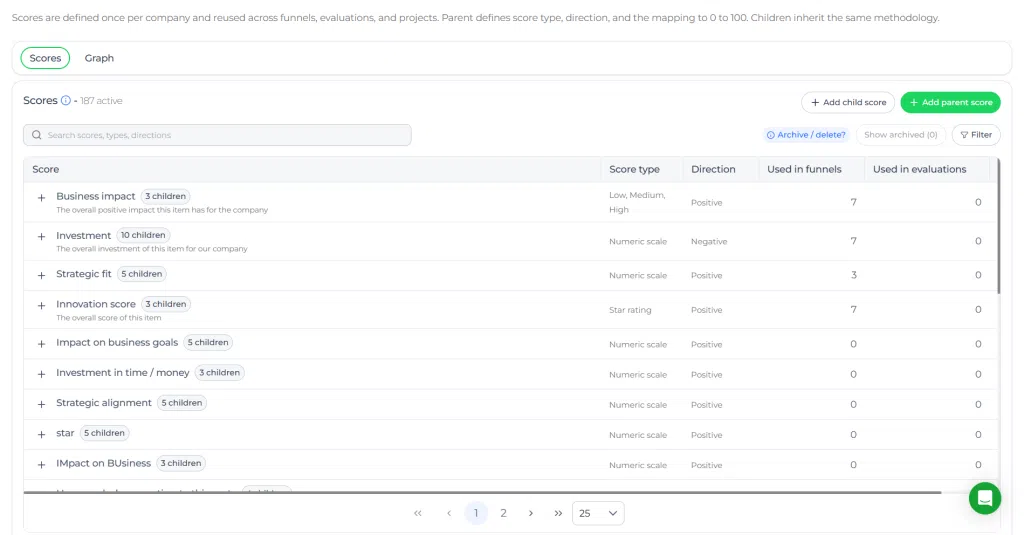
Available scoring types #
Scale scoring #
This option uses a numeric scale from 0 to 10. It is useful when reviewers need more precise scoring.
Example: Rate feasibility from 0 for not feasible to 10 for highly feasible.
Star rating #
This option uses a visual rating from 0 to 5 stars. It is useful for fast and simple evaluations.
Example: Rate customer appeal from 1 star to 5 stars.
Low, medium, high #
This option uses three qualitative levels. It is useful when a broad classification is more practical than a detailed numeric score.
Example: Assess market readiness as Low, Medium, or High.
Custom scoring #
This option lets you create your own scoring labels and choices. It is useful when standard scoring formats do not reflect your evaluation method.
Example: Use options such as High impact, Moderate impact, and Low impact.
Updating an existing score #
Existing score definitions can be adjusted when evaluation needs change. Updating a score can affect how future reviews are completed, so changes should be made carefully.
- Open Innovation Studio.
- Go to Settings.
- Open Scorecards.
- Open the Scorecard and select the parent category or child criterion you want to change.
- Update the score type, labels, description, or weighting as needed.
- Save the changes and republish the Scorecard if required.
- Save your changes.
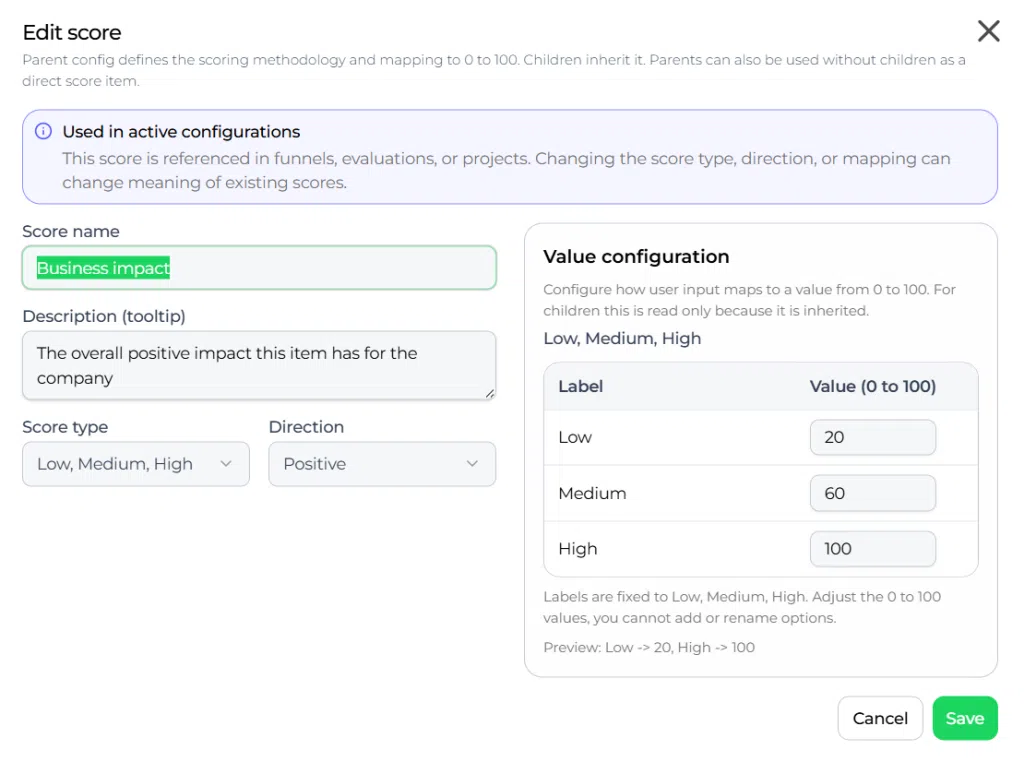
Configuration and adjustments #
Score configuration is managed in Settings → Data and structures → Scorecards. Changes made here control which scoring formats are available for evaluation.
When configuring score types, use labels that are easy for reviewers to interpret. A clear score name and description reduce ambiguity and improve scoring consistency.
If parent and child score relationships are used, the parent score is calculated as the average of the connected child scores. This helps create a consolidated view without requiring users to calculate the final score manually.
Practical example – Innovationlands #
Innovationlands uses Accept Mission to evaluate ideas for new guest experiences across its parks. In one funnel, the innovation team reviews ideas for seasonal attractions before deciding which concepts move forward.
The team creates three Child Criteria in a Scorecard: Feasibility using a 0 to 10 scale, Customer appeal using a 0 to 5 star rating, and Market readiness using Low/Medium/High. They also define a parent category and configure the relative weights of its Child Criteria.
For a new idea about an interactive evening parade, reviewers score feasibility as 8, customer appeal as 5 stars, and market readiness as High. These scores help the team compare the idea with other proposals in the funnel and prepare for the next Decision moment.
Because the scoring setup is structured and consistent, Innovationlands can quickly identify which ideas should move into deeper validation and which ideas are ready to transition toward a project workflow.



 English
 Dutch
Dutch Portuguese
 Spanish
 French
 German
 Arabic