
 Doc Summary
Why this feature is needed #
Not everyone who contributes to a project needs full Admin access. In many cases, a standard user only needs access to one specific project so they can collaborate, provide input, or help move the work forward.
Adding a Normal User to the project team makes collaboration possible without changing that person’s overall platform role. This keeps access focused while still involving the right people in project execution.
What this feature is #
Accept Mission allows admins to give a Normal User access to a specific project by adding that person to the project team. Once added, the user can access the project and collaborate with the rest of the team.
This is useful when you want to involve a subject matter expert, stakeholder, team member, or supporting contributor in one project without giving broader administrative permissions. The same access logic can also be used for ideas.
Access level #
You need Admin permissions to add team members to a project and grant collaboration access at this level.
Navigation path #
Navigation path: Innovation Studio → Projects → Open project → Team
How to use this feature #
Collaboration access is managed inside the project itself. By adding a user to the project team, you give that person access to work on the project together with the existing team members.
After the user is added, they receive a notification so they can open the project and start collaborating.
Step by step instructions #
- Open Innovation Studio.
- Go to Projects.
- Open the project you want to share.
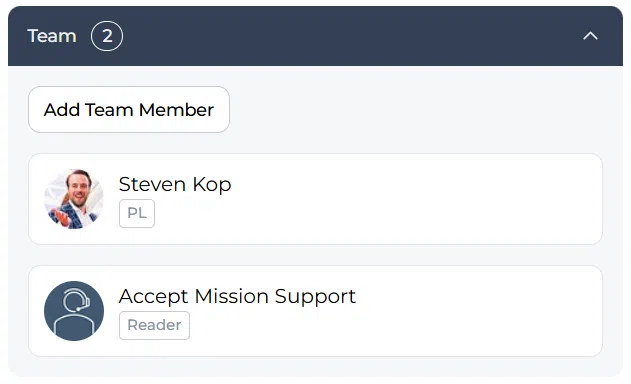
- On the right side of the project view, find the Team block.
- Click the Team member button.
- Select the Normal User you want to add.
- Save the change.
- Confirm that the user now appears in the team list.
What happens after access is granted #
Once the user is added to the project team, they gain access to that specific project for collaboration. This allows them to work with the team without being given a broader Admin role.
The user automatically receives a notification with access to the project so they can open it and participate.
Configuration and adjustments #
This type of access is managed at the project level, not by changing the user’s platform role. That means a standard user can collaborate on a specific project while still remaining a Normal User in the wider system.
Use this approach when you want focused collaboration on one project. It is a practical way to involve experts, stakeholders, or supporting team members without expanding platform-wide permissions.
Practical example – Innovationlands #
Innovationlands is running a project to introduce a new interactive guest queue experience. The project manager wants input from a guest experience specialist who is a Normal User in the platform.
Instead of changing that person’s role to Admin, the project manager opens the project, goes to the Team block, and adds the specialist as a team member. The specialist then receives a notification and can open the project to add feedback and collaborate with the rest of the team.
This allows Innovationlands to involve the right expertise at project level while keeping overall platform access controlled.



 English
 Dutch
Dutch Portuguese
 Spanish
 French
 German
 Arabic