
 Doc Summary
Why this feature is needed #
The Decision matrix view helps teams compare and score ideas inside an idea funnel in a structured way. It is used when multiple ideas need to be evaluated against the same Scorecard criteria before deciding which ideas should move forward.
Kanban and list views help users manage workflow and idea data. The Decision matrix view focuses on evaluation, scoring, comparison, and prioritization. It brings ideas and Scorecard criteria together in one overview so users can make decisions without switching between separate screens or spreadsheets.
What this feature is #
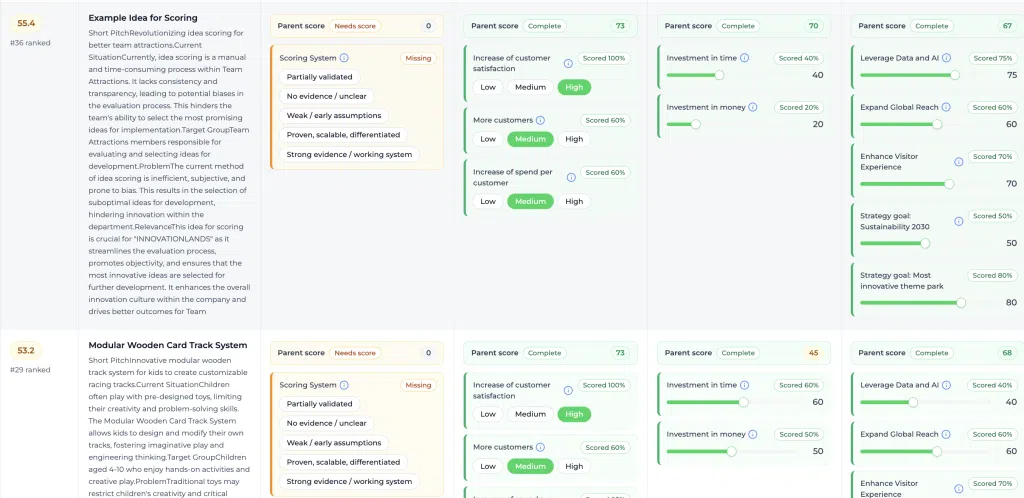
The Decision matrix view is a scoring and comparison interface inside the idea funnel. It shows the ideas in the selected funnel on the left side and the connected Scorecard criteria as columns on the right side.
Each idea can be scored directly in the matrix. Scores are grouped under the parent scores defined in the Scorecard. The total score is calculated automatically per idea and can be used to compare and rank ideas.
The view also includes AI supported idea summaries in the title column. These summaries help users quickly understand the idea before opening more details.
Platform area #
Innovation Studio –> Ideas –> Decision Matrix (view tab)
Access level #
Users need access to the selected idea funnel and permission to view and score ideas. The funnel must have a Scorecard connected before Scorecard columns can be used in the Decision matrix.
Navigation path #
Navigation path: Innovation Studio → Ideas → Select idea funnel → Decision Matrix
How to use this feature #
The Decision matrix displays each idea as a row and each Scorecard item as a column. The first columns stay visible while users scroll horizontally through the Scorecard columns.
The left side of the matrix contains the selection column, the total score column, and the idea title column. The Scorecard columns appear to the right. This allows users to keep the idea context visible while scoring across multiple criteria.
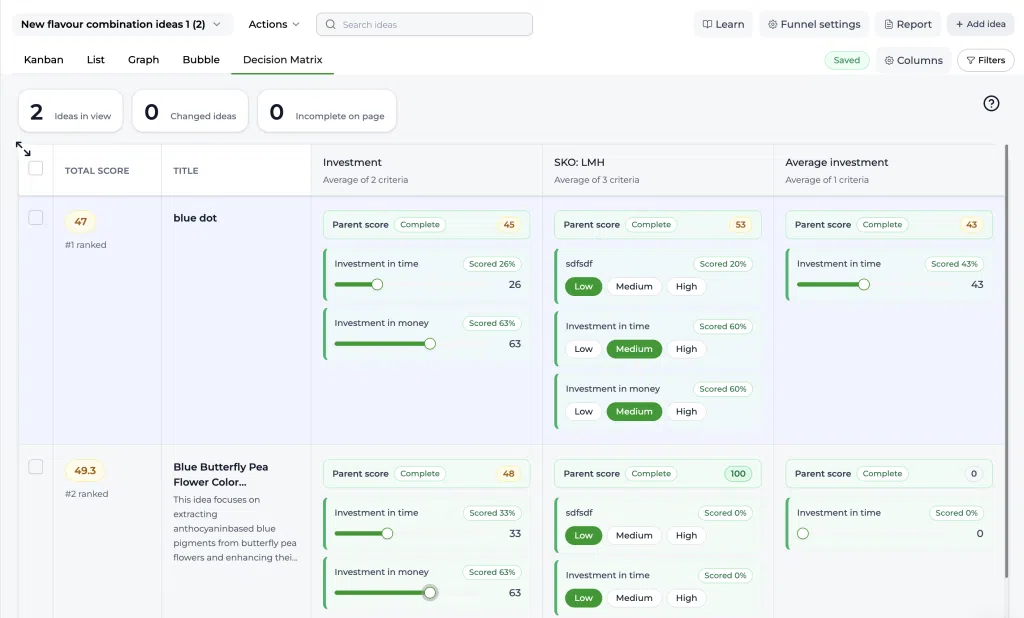
Screenshot: Decision matrix overview.
Description: Show the Decision Matrix tab in an idea funnel. The screenshot should show the frozen selection column, total score column, idea title column, and Scorecard columns with scoring fields.
Step by step instructions #
- Open Innovation Studio.
- Go to Ideas.
- Select the idea funnel you want to evaluate.
- Select the Decision Matrix tab.
- Review the total number of ideas in view at the top of the matrix.
- Use the title column to read the idea title and short description or AI summary.
- Click an idea title cell to open the idea context popup.
- Review the full title, full description, comments, strategic alignments, and other available idea information.
- Score each idea in the Scorecard columns.
- Review the parent score status to see whether a score is complete or still needs input.
- Use the total score column to compare ideas.
- Sort the total score column to identify the highest ranked ideas.
- Select one or more ideas using the checkboxes when you want to apply available funnel actions.
- Use Filters to narrow down the ideas shown in the matrix.
- Use Columns to add or remove extra visible columns on the left side of the matrix.
Screenshot: Idea context popup.
Description: Show the popup that opens after clicking the title cell. The popup should include the full idea title, full description, comments, strategic alignment information, and other relevant idea details.
Understanding the columns #
Selection column #
The first column contains checkboxes for selecting idea records. Users can select one or more ideas and then use available actions for those selected records.
Total score column #
The total score column calculates the score for each idea based on the connected Scorecard. This column can be sorted to compare ideas and identify the strongest candidates in the funnel.
Title column #
The title column shows the idea title and a short description or AI summary. This gives users quick context while scoring. Clicking the cell opens more detailed idea information.
Scorecard columns #
The Scorecard columns represent the Scorecard connected to the funnel. Each column contains scoring fields for the relevant Scorecard criteria. Depending on the Scorecard setup, a score may be entered through controls such as numeric scoring, ratings, sliders, or selectable options.
Parent score sections show whether the related scoring items are complete or still need input. Missing scores are highlighted so users can quickly identify incomplete evaluations.
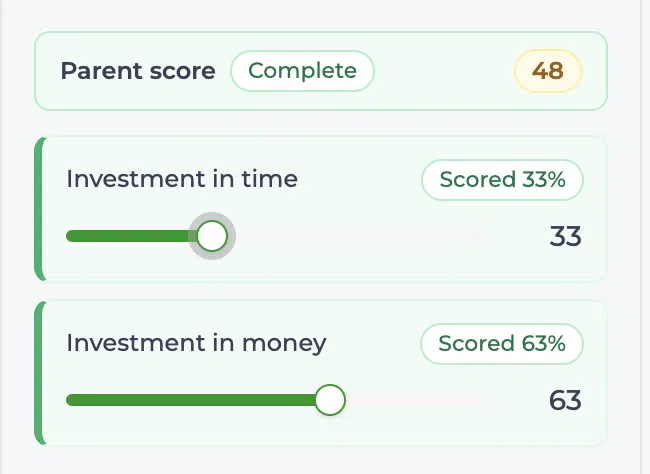
Screenshot: Scorecard scoring fields.
Description: Show several Scorecard columns with different scoring input types, such as a slider, star rating, and option buttons. The screenshot should also show parent score labels, complete status, needs score status, and missing score indicators.
Using filters and columns #
The Filters button can be used to narrow down which ideas are shown in the Decision matrix. This is useful when users only want to review ideas from a specific status, owner, department, category, or other available funnel data.
The Columns button can be used to add extra columns to the left side of the matrix. This helps users include additional idea information while keeping the scoring columns available for comparison.
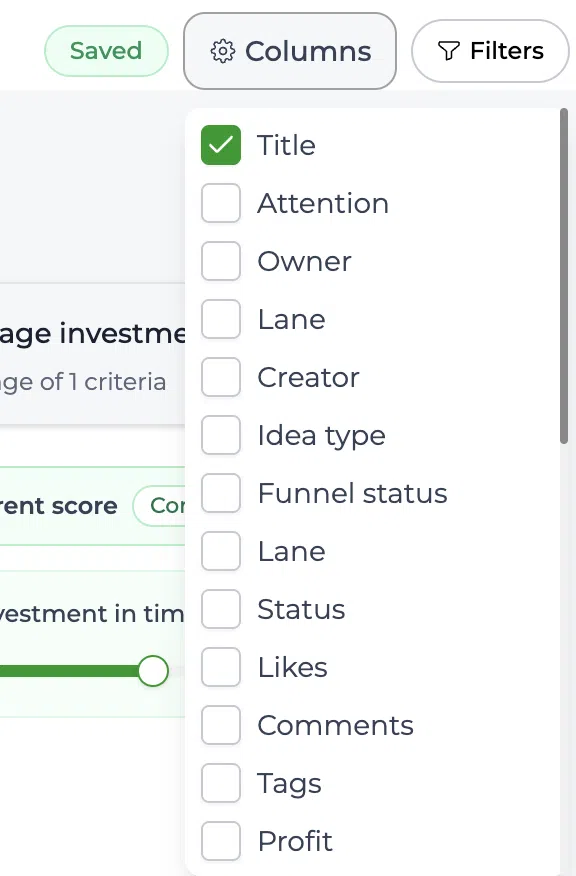
Screenshot: Columns and filters controls.
Description: Show the top right area of the Decision matrix with the Columns and Filters buttons. The screenshot should show how users can adjust visible information and narrow down the ideas in the view.
Configuration and adjustments #
The Decision matrix depends on the Scorecard connected to the idea funnel. The Scorecard defines which scoring criteria appear as columns and how each score is entered.
To adjust which criteria appear in the matrix, review the Scorecard configuration for the funnel.
Navigation path: Innovation Studio → Ideas → Select idea funnel → Funnel settings
Admins can manage scorecards and scoring logic in the application settings when configuration changes are needed.
Navigation path: Settings → Data and structures → Scorecards
Changing the Scorecard setup can affect how ideas are evaluated and how total scores are calculated. Review existing scoring results before making changes to an active funnel.
Practical example: Innovationlands #
Innovationlands uses an idea funnel to evaluate new guest experience improvements for its theme parks. The funnel contains ideas such as a virtual queue improvement, a personalized food ordering flow, and a new seasonal attraction concept.
The innovation team opens the Decision Matrix tab in the idea funnel. The Scorecard columns include criteria for guest value, operational feasibility, commercial potential, strategic alignment, and implementation Risk.
Each idea is reviewed row by row. The team reads the AI summary in the title column, opens the idea context popup when more detail is needed, and then scores each criterion directly in the matrix.
After scoring, the total score column shows which ideas are strongest overall. The team sorts by total score and sees that the virtual queue improvement ranks highest because it has strong guest value, good strategic alignment, and acceptable implementation Risk.
The team selects the highest ranked ideas using the checkboxes and applies the next available funnel action to move them forward for further validation or proposal creation.
Best practices #
- Use the Decision matrix after ideas have enough information to be evaluated properly.
- Complete missing scores before making final decisions.
- Use filters to focus on the most relevant ideas for a review session.
- Sort by total score to support prioritization, but still review the underlying criteria before moving ideas forward.
- Keep the Scorecard aligned with the Decision criteria used by the innovation team.



 English
 Dutch
Dutch Portuguese
 Spanish
 French
 German
 Arabic